AI avatar
How to make the person in a photo say your text in the chosen voice and add the video to the reel with captions: photo, text, voice, price and wait time.
On this page
An AI avatar brings a photo to life: the person in it says your text in the chosen voice. The finished video goes into the reel as a new clip — with captions. An avatar comes in handy to add an intro or a call to action at the end, voice an idea you didn't film, or present a product on behalf of a host.
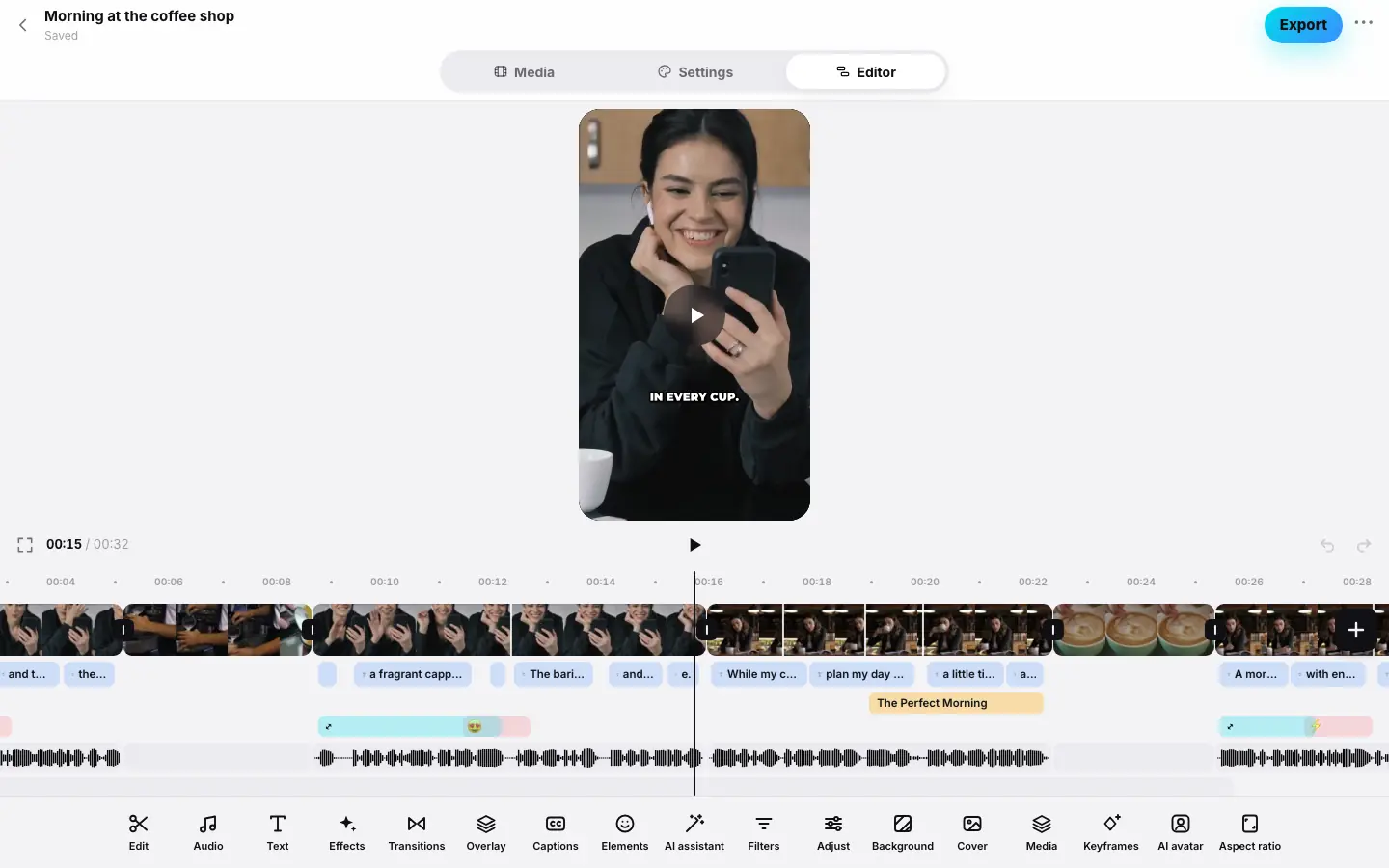
- Put the playhead at the end of the second clip
- With nothing selected, press “AI avatar” — the sheet opens
- Pick a photo and type “Today I'll show three tricks that will speed up your editing”
- Pick the “Confident, male” voice — the button shows the price and length “≈5 s”
Creating an avatar
Place the playhead
The avatar becomes a new clip after the clip at the playhead — the place is fixed when you start.
Open “AI avatar”
Clear the selection and press AI avatar in the main toolbar.
Pick a photo
The Photo section shows the project's photos. Click the one you need, or “+” to upload a new one.
“+” opens a file picker. A photo is required: if you pick a video, you'll see A photo is needed — a video will not do.
“+” opens your photo library: pick a photo from the library.
Write the text
In What to say — what the avatar will say: 3 to 500 characters, with a counter under the field. 500 characters is about 35 seconds of speech.
Pick a voice
Warm, female, Soft, female, Confident, male or Deep, male.
Create
The button shows the price and the approximate speech length: “Create · ≈ N tokens (≈S s)”. Press it. The hint under the button: It takes 2–5 minutes — keep editing meanwhile. Tokens are charged only if the avatar works out.
While the avatar is being made, you see AI avatar is being created… above the preview. When it's ready, the message AI avatar added to the video appears, and a new clip with captions from its words shows on the timeline.
Price
An AI avatar is charged at cost — exactly what the AI services charge for the avatar video and the speech synthesis, with no markup. You pay for each started second of speech, and no less than for 2 seconds. The length is estimated from the text — about 14 characters per second — and shown on the button together with the price before you start. The sheet explains: Costs exactly what the AI service charges, no markup. The actual price is charged — never more than shown.
While the avatar is being made, the price is reserved on your balance, rounded up to a whole token — so you need at least one free token. The actual price is charged, never more than shown, and only if the avatar works out. If not, you see The AI avatar did not work out — tokens returned. How at-cost pricing works — Tokens, packs and the free reel.
What you get
- The avatar video becomes a new project source “ИИ-аватар.mp4” — you can see it in the project's Media section.
- The avatar clip is a regular clip with speech: you can trim it by words, reorder it, add a transition, effect, color, mask or remove the background.
- Captions are built from the avatar's recognized speech, in the reel's style.
- The photo is prepared automatically: a very elongated one is cropped to proportions no narrower than 1 : 2.5.
Tips
- A portrait where the face is clearly visible and looks at the camera works best.
- Write the text the way people speak: short sentences, no lists or abbreviations.
- One avatar is made per project at a time — start the next one when the previous is ready.
- Platforms ask you to label videos with an AI avatar: turn on Made with AI when publishing (Publishing).
- Use photos of people who agree to have their image speak for them — for example, your own.
What's next
- AI voiceover — narration for the whole reel without a face on screen.
- Clips: trim and reorder
- Operation prices