For developers: tokens and apps
The For developers screen in your Slicer profile — API tokens and their access, spending limits, connected AI apps, the MCP server address and webhooks.
On this page
Everything you do in Slicer by hand can be done programmatically — through the public API — or handed to an your AI assistant through the MCP server — any client that supports MCP. Access to them is managed on the For developers screen: Profile → For developers. The screen is the same on the web and in the app; on a wide screen the sections stand in two columns.
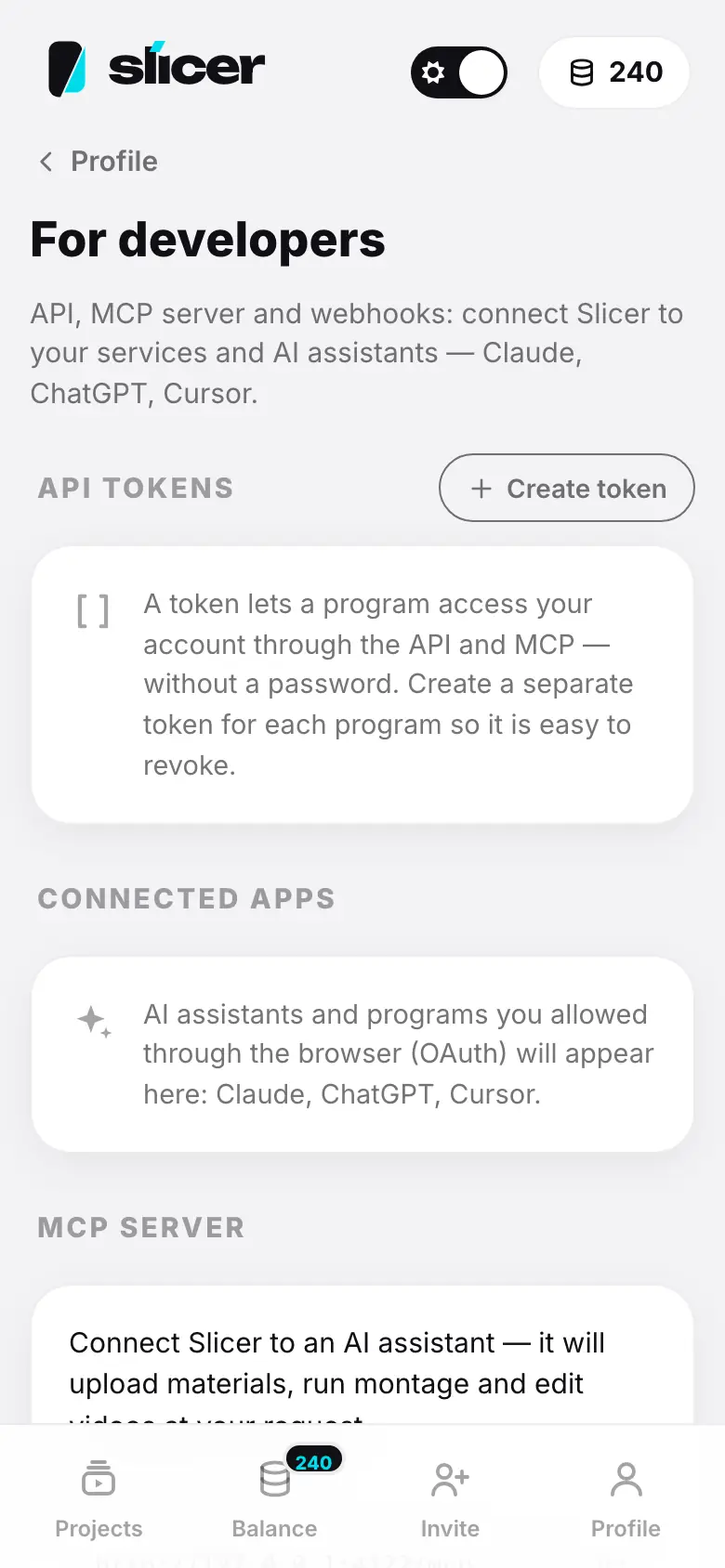
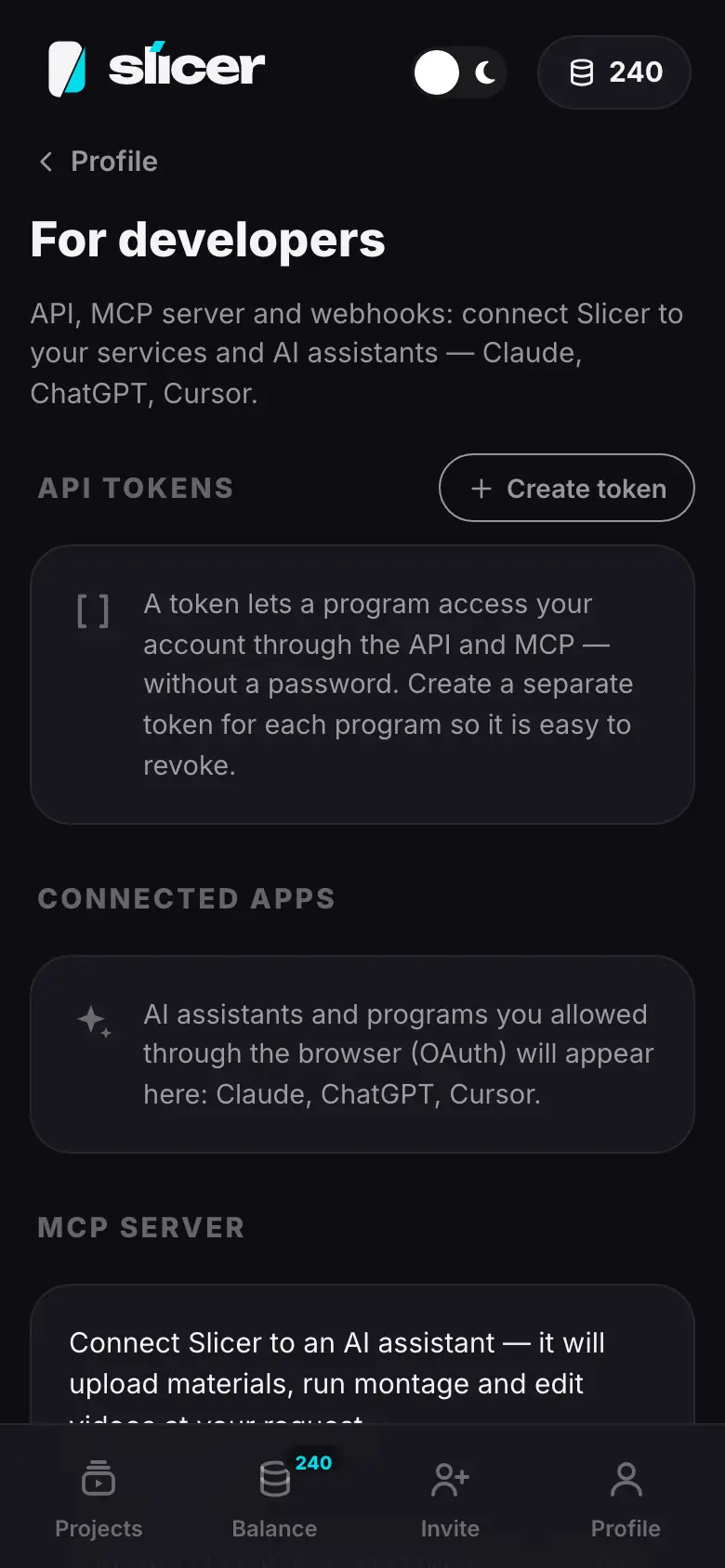
- Profile → “For developers”: API tokens, connected apps, MCP server, webhooks
- Tap “Create token” — the “New token” sheet: Name, Access, Expires, Spending limit
- Enter the name “My script”, choose the Montage access and a limit of 200 a month
- Tap “Create token” — the “Token created” sheet with the token and a sample request
- Tap “Copy token”, then “Done”
- The token in the list: name, access, dates and monthly spending
API tokens
An API token lets a program access your account through the API and MCP — without a password. Create a separate token for each program: that way it is easy to revoke one without touching the others.
Create a token
Open the form
Tap Create token. Creating a token opens access to your account, so Slicer may ask you to confirm your sign-in — with your password or your provider.
Name
In the New token sheet, fill in the Name — up to 60 characters, so you can recognize the token in the list later: “Claude Code on my laptop”, “Reels for the blog”.
Access
Choose a set:
Set What it allows Read only Account and balance · View projects Montage the same + Edit projects · Run montage — spends tokens Full access the same + Publish to social networks · Webhooks Custom Pick scopes manually — each has a “?” with an explanation Give a token only what it needs: a script that only watches reel status is fine with Read only. Scopes in detail — Tokens and scopes.
Expiry and spending limit
Expires — 30, 90 or 365 days or No expiry. You will get an email 7 days before it expires; a token without expiry works until you revoke it.
Spending limit — how many balance tokens the program can spend per calendar month: No limit, 50, 200, 1000 or Custom. A paid operation above the limit will not start. Reading and edits are free.
Save the token
Tap Create token. The Token created sheet shows the token itself and a sample request, Try the token, which you can copy and run in a terminal. Tap Copy token, store it somewhere safe and tap Done.
The token list
Each token shows its name, access, when it was created and last used, its expiry and monthly spending (“Spent this month — 24 of 200”). An expired token is marked Expired. Buttons:
- Rename;
- Limit — change the spending limit;
- Revoke — after confirmation, programs using this token lose access at once. A revoked token cannot be restored.
You can have up to 20 active tokens. Tokens can only be created on the web or in the app — a token cannot create new tokens. Slicer emails you about every new token.
Connected apps
When you connect Slicer to an AI assistant by signing in through the browser (for example, in Claude or ChatGPT), Slicer shows a consent window: which app is asking for access, what it will be allowed to do (you can untick what is not needed) and with what spending limit — 200 tokens a month by default. Tap Allow or Deny. An app whose developer Slicer does not know is marked Unverified app — allow access only if you started the connection yourself.
After you agree, the app appears under Connected apps: its name, where the sign-in returns to, when it was connected and its last request. Disconnect closes its access; to connect it again, sign in to Slicer from the app itself.
The consent window always opens in a browser — that is how MCP clients work, even if you use the Slicer app.
MCP server
The MCP server section has the Server address and ready-made connection commands, each with a copy
button, plus a How to connect link. You sign in through the browser (OAuth) or with an API token in the
Authorization header. Step by step for each client — Connecting MCP, about signing in —
Sign-in: OAuth and token.
Over MCP your assistant edits the video — just like you do with Edit it myself, and just as free: the project, edits, export and publishing spend no tokens. Only Slicer's AI features are paid — an AI director montage, captions from speech, the AI assistant and caption translation; the assistant starts each of them only after you agree to the price (What's free and what's paid).
Webhooks
A webhook is an address on your server that Slicer notifies by itself when a reel is ready, an export is done or a post goes live. You can have up to 5 addresses.
- Add webhook — enter the Endpoint URL (public https only), tick the Events and, optionally, a description. After you add it, Slicer shows the signing secret once — Copy secret: your server uses it to check that a notification really comes from Slicer.
- Test sends a test event, Log shows deliveries, Edit and Delete do what they say.
- A switch turns sending on and off. If the address keeps failing, the webhook turns itself off — Turned off after errors — and you get an email.
How to verify the signature and which events exist — Webhooks.
Documentation
At the bottom of the screen are API documentation (this site) and OpenAPI specification. Start with the API quickstart: your first request takes a couple of minutes.
What's next
- API overview
- MCP server
- Security — how tokens are stored and what Slicer sees.