Clip effects
Nine effects in the Slicer editor — shake, pulse, flash, cinema, vignette, film grain, blur, glitch and VHS: what each does and how to apply it to all clips.
On this page
An effect changes how a clip looks for its whole length: it adds camera motion, a flash, cinematic bars, film grain or an old-tape look. Effects help highlight the climax, set a mood or give the reel one consistent style. A clip can have one effect.
If “Light” or “Bold” was chosen for Effects & transitions in the direction settings at montage time, the AI may have already put effects on key moments — for example, a flash or a shake on accents.
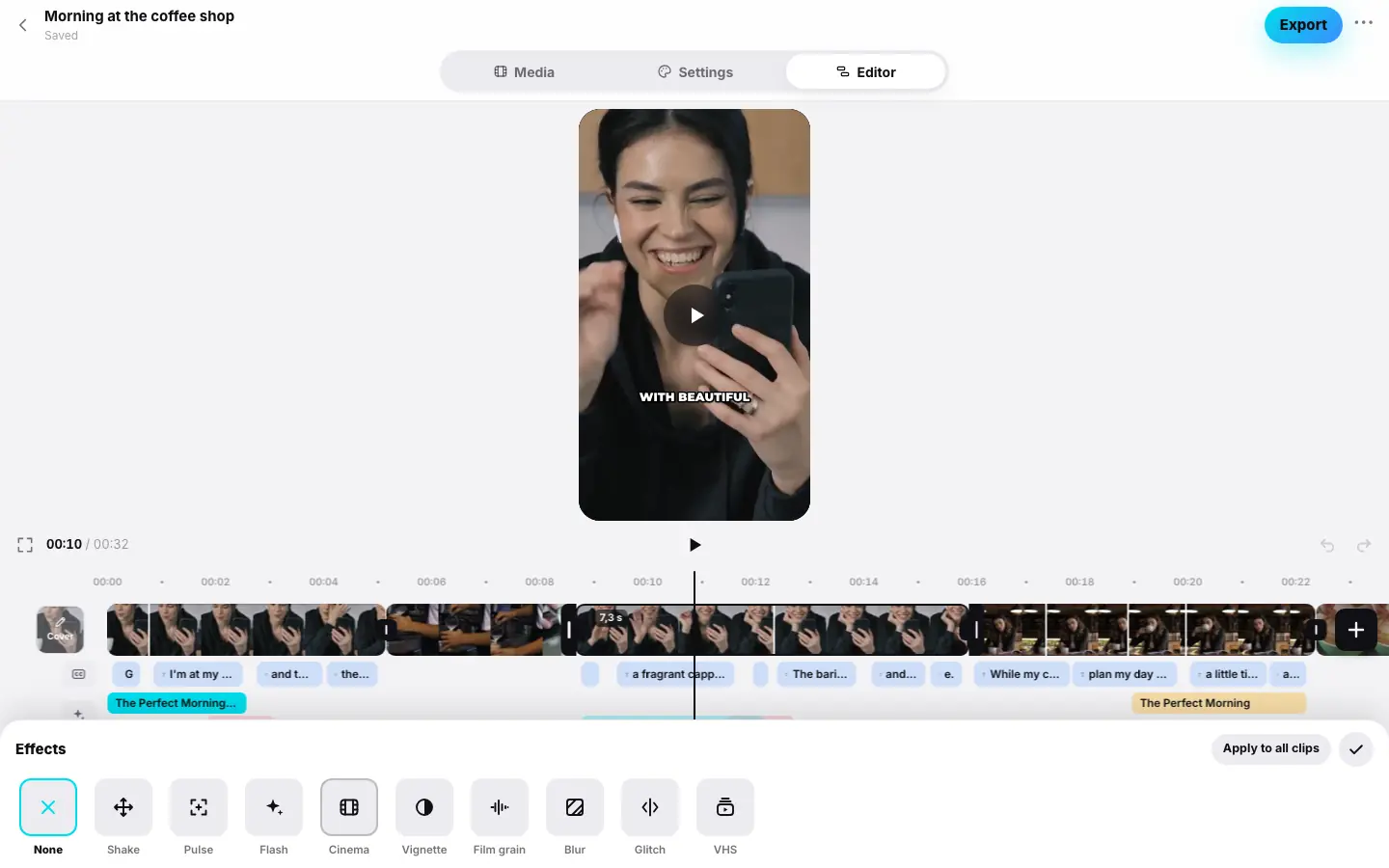
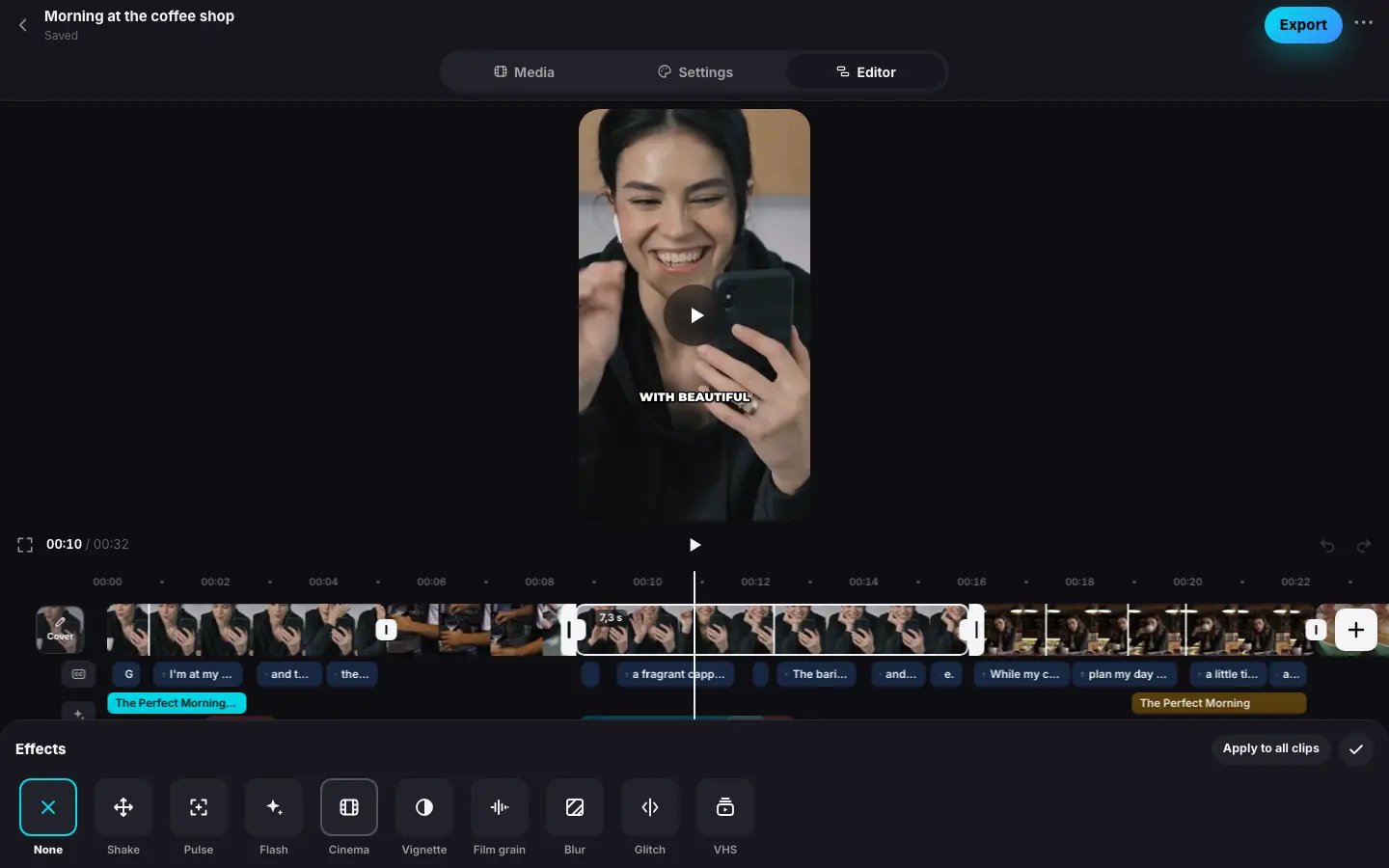
- Click a clip and press “Effects”
- Pick “Pulse” — the clip plays from the start with the effect
- Pick “VHS” — the effect changes
- Click “Apply to all clips” — VHS is on every clip
- Click ✓ “Done” — the clips show an effect badge
Applying an effect
Open “Effects”
Select a clip and press Effects. With nothing selected, the Effects button in the main set selects the clip at the playhead by itself.
Pick an effect
Click a tile — the preview jumps to the start of the clip and plays it with the effect. None removes the effect.
Apply to all or finish
Apply to all clips puts the selected effect on every clip of the reel, and None together with Apply to all clips removes effects from all of them. Click ✓ Done.
All effects
| Effect | What happens |
|---|---|
| Shake | A light handheld camera shake: the frame is slightly enlarged and moves by up to 2% |
| Pulse | The frame “beats”: every 0.6 s it jumps in by 7% and quickly returns |
| Flash | A white flash at the very start of the clip, fading in 0.45 s |
| Cinema | Black bars at the top and bottom — 10% of the frame height each, like in a movie theater |
| Vignette | The edges and corners darken softly, drawing the eye to the center |
| Film grain | Film grain over the frame |
| Blur | The whole frame is blurred — handy under plaque text or as a backdrop for an insert |
| Glitch | Red and blue channels split and the frame “jerks” now and then, like a digital glitch |
| VHS | A videotape look: warm faded color, channel split, slight blur, grain and scanlines |
Good to know
- An effect runs from the start of the clip to its end. If you split the clip, both parts keep the effect.
- Effects combine with color, animations, keyframes and the camera motion placed by the AI.
- Shake, Pulse and Glitch slightly enlarge the frame so its edges don't show when it moves.
- The preview draws effects with the same formula as the final reel. On the web, color, grain, vignette and scanlines are drawn by the graphics card (WebGL): in an old browser without WebGL the preview shows the frame without them, but the finished reel has everything.
- Effects are free. The paid AI effect from a prompt is a different feature: a neural network changes the video itself based on your description.