AI effect from a prompt
How a neural network changes the video on a range from your description — “make it snow”, “evening neon light”: where to start it, price and what to know.
On this page
An AI effect changes the reel's picture itself on the range you choose, based on your description: it adds snow or fireworks, changes the light and time of day, stylizes the shot. It's not a filter over the video — the neural network redraws the frames of the range according to your description. The reel's sound stays the same.
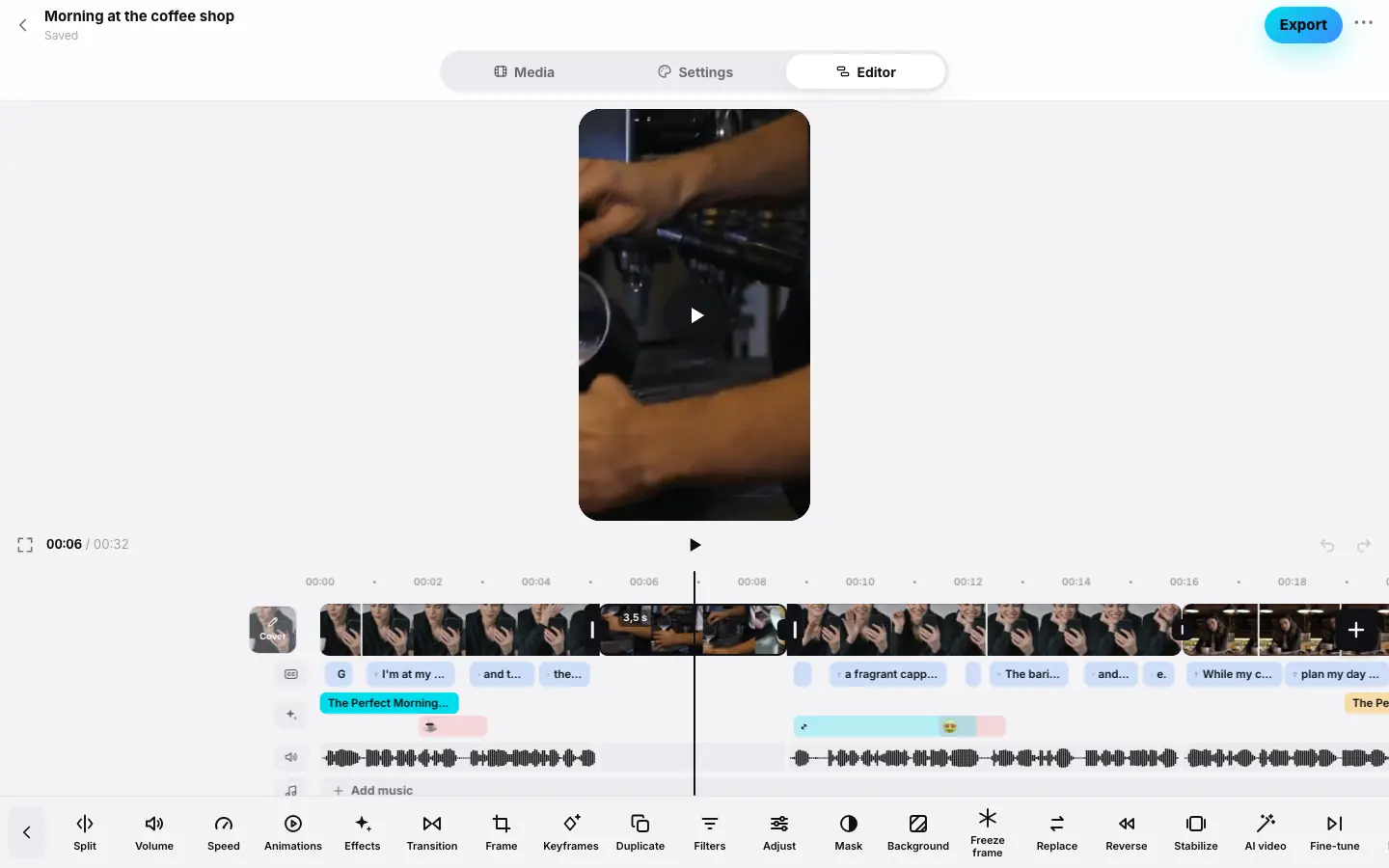
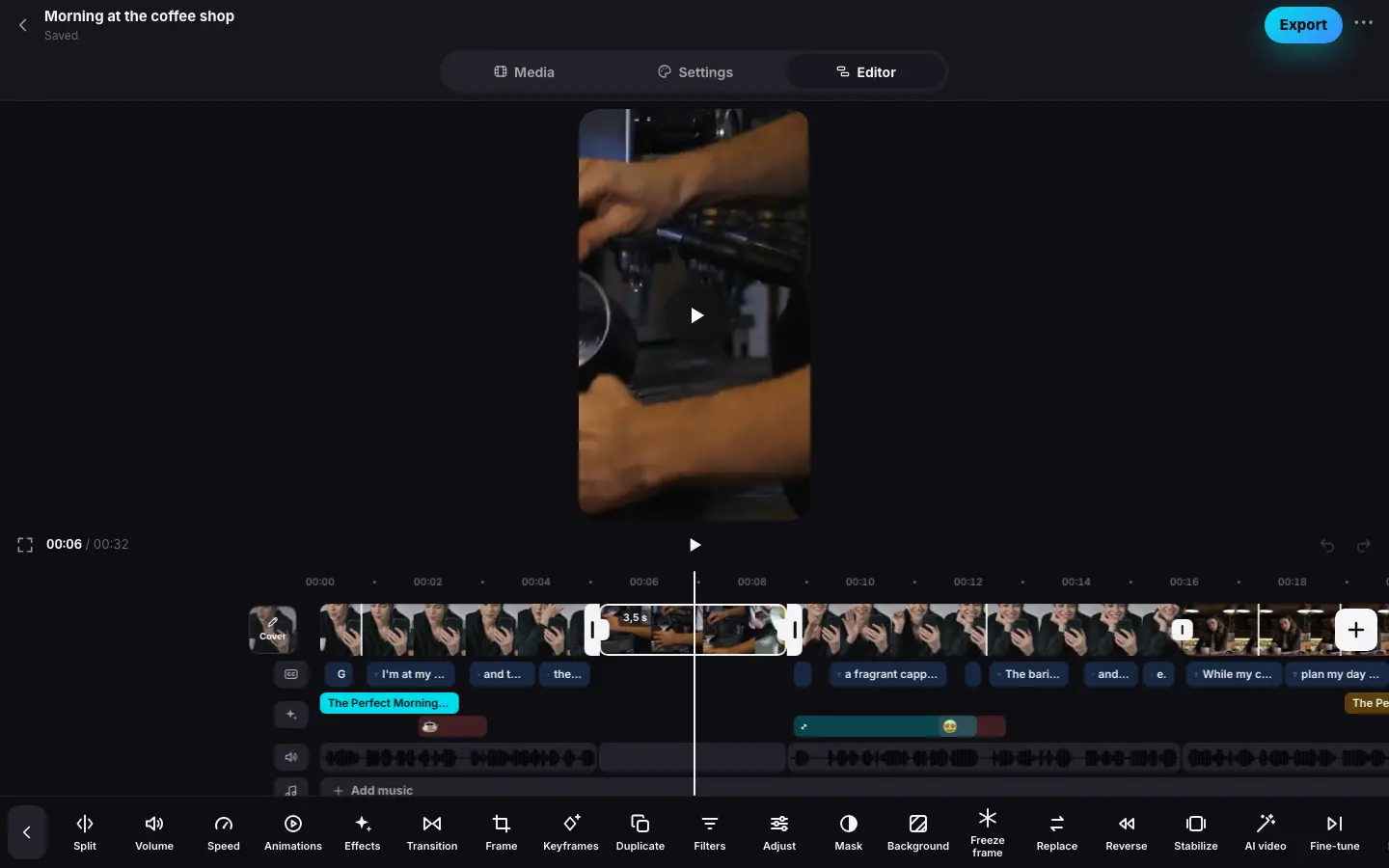
- Click a clip on the timeline and press “AI video”
- The “AI effect from a prompt” sheet opens — the range already matches the clip
- Move “End” so the range is 5 seconds
- Type “Let soft snow fall” — the button shows the price “Apply · ≈ … tokens”
Where to start it
- In the editor: select a clip and press AI video — the range matches the clip's time right away.
- In any project section: the “⋯” menu in the header → AI effect.
The effect is available for a finished reel while its source files are stored. While a previous effect is running, the menu item shows Applying the effect… and a new one can't be started.
Applying it
Choose the range
At the top of the AI effect from a prompt sheet is the range, for example “From 2.0 s to 7.0 s · 5.0 s”. The Start and End sliders move its edges, Whole reel picks a range from the start of the reel. The range is 2 to 30 seconds long: if the reel is longer, Whole reel takes the first 30 seconds.
Describe the effect
Write what should change in the frame — at least 3 characters. For example: “make it snow”, “evening neon light”, “add fireworks outside the window”, “turn the scene into a watercolor painting”.
Start
Press the button with the price — “Apply · ≈ N tokens”. The effect is prepared on the server; you can close the app. While it runs, the “⋯” menu shows Applying the effect…; then the reel is rebuilt — you can follow it on the AI effect run card. When everything is done, the reel updates and a new version appears in the history.
Price
An AI effect is charged at cost — exactly what the AI service charges, with no markup. You pay for each started second of the range, and no less than for 2 seconds. The price is shown on the button before you start and changes with the range length; the sheet explains: Costs exactly what the AI service charges, no markup. The actual price is charged — never more than shown.
- While the effect is being made, the price is reserved on your balance, rounded up to a whole token — so you need at least one free token.
- The actual price is charged, never more than shown, and only if the effect worked and the reel was rebuilt. If something went wrong, the tokens come back and the reel stays as it was.
How at-cost pricing works — Tokens, packs and the free reel.
What to know
- The effect is baked into the reel's picture. If you later change clips — their order, edges, cut words, clip settings, frame or zooms — the effect is dropped on export; the editor warns about clip changes before export. Changing the aspect ratio or the “Intro push-in” setting also drops it. Edits to caption text, style, the hook, plaques, cards, emoji and music leave the effect alone.
- So an AI effect is best done last, when the edit is final.
- The sound doesn't change — the neural network works only with the picture. Captions and graphics are drawn on top of the new video.
- The network processes a long range in parts and stitches them back together.
- Platforms ask you to label videos with AI effects: turn on Made with AI when publishing (Publishing).
Writing a prompt
- Describe the change in the frame, not an editing action: “large snowflakes falling”, not “make an effect”.
- Add details of light, weather, style: “warm sunset light, soft shadows”.
- One effect — one idea: first the snow, then, if needed, another range with another idea.
- Short ranges are cheaper and more precise: pick exactly the moment where the effect serves the story.
What's next
- Clip effects — free effects without AI.
- History and versions
- Operation prices