Caption translation
How to translate captions, the hook, plaques and titles into one of 11 languages with word timing kept, and dub the reel into another language with an AI voice.
On this page
- How to translate
- Open “Translate”
- Pick a language
- Check the result
- Price
- What gets translated
- Restore the original text
- A reel in two languages
- Export the original version
- Translate and export again
- Restore the original text if needed
- Dub into another language
- Open the sheet
- Pick a language and a voice
- Check the price and start
- Wait and open the project
- What you get
- Price and conditions
- Good to know
- What's next
Translate translates all on-screen text — captions, the hook, plaque titles and lines, titles, media card captions — into another language. Word timing and highlights are kept: each phrase's translation is laid out over the original words, so captions still appear in time with the speech. It's a handy way to release one reel for audiences in different countries.
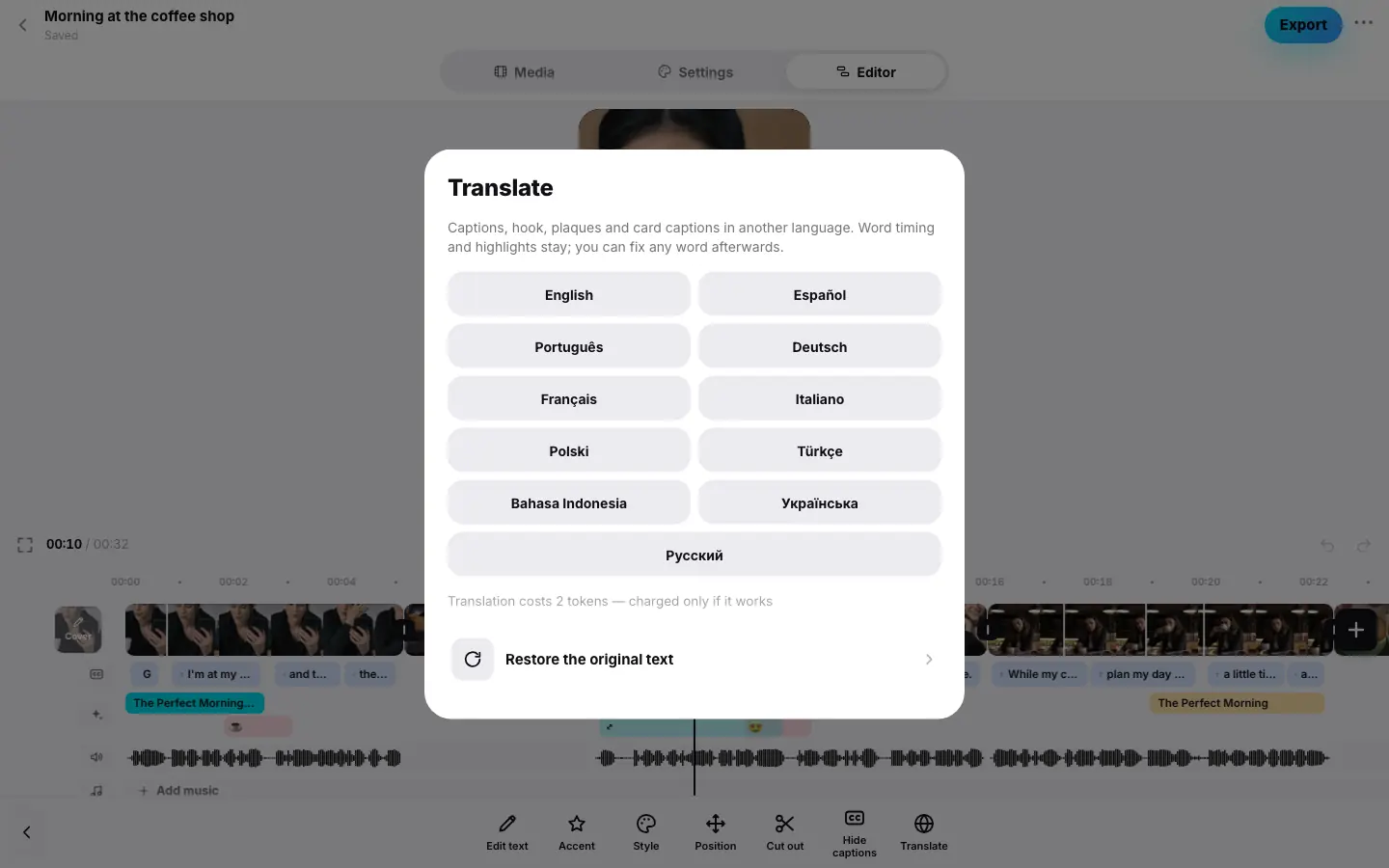
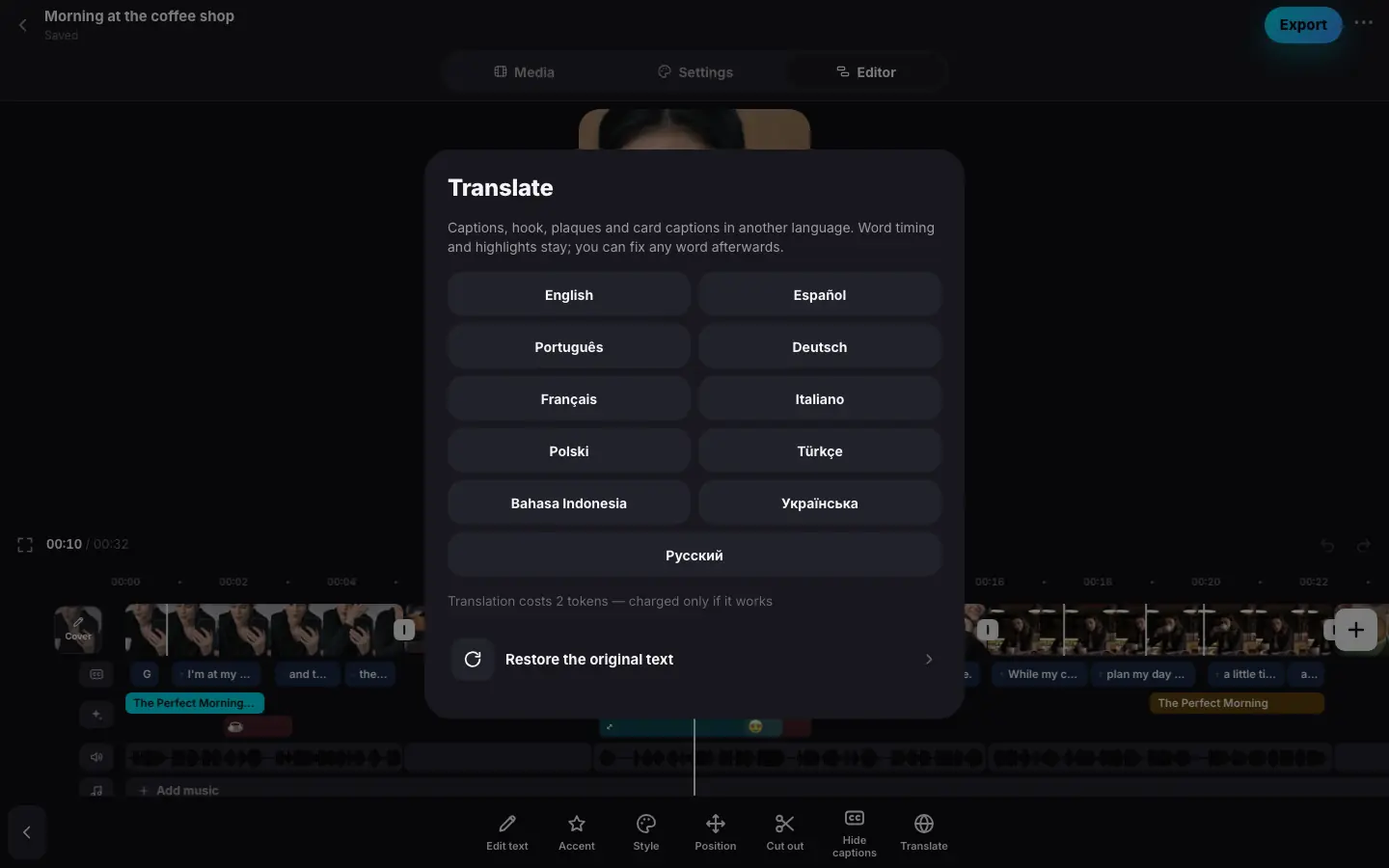
- Click a phrase on the captions track and press “Translate”
- In the “Translate” sheet pick Español — a spinner next to the language, “Translating…” below
- Done: “Translated to Español” pops up, the captions in the preview are in Spanish
- Open “Text” → “Translate” and press “Restore the original text”
How to translate
Open “Translate”
Select a phrase on the captions track and press Translate — or, with nothing selected, open Text → Translate.
Pick a language
English, Español, Português, Deutsch, Français, Italiano, Polski, Türkçe, Bahasa Indonesia, Українська, Русский. Click a language — translation starts right away. While it runs, the sheet can't be closed and you see Translating… below the languages.
Check the result
A “Translated to …” message appears and the text in the preview changes. You can fix any phrase by hand in the Caption sheet (Captions).
Price
A translation is charged at cost — exactly what the AI service charges, with no markup. How much text there is to translate isn't known precisely in advance, so the sheet shows the price like “Translation costs ≈ X tokens, at most Y, charged only if it works” — the usual price and the limit it never goes over.
- While the translation runs, the price is reserved on your balance, rounded up to a whole token — so you need at least one free token.
- The actual price is charged only if the translation worked. If the AI didn't respond or nothing could be translated, no tokens are charged.
- Translating into another language is a new paid run.
The translation is recorded in the project history. How at-cost pricing works — Tokens, packs and the free reel.
What gets translated
| Translated | Unchanged |
|---|---|
| Captions — phrase by phrase | The voice in the reel: speech stays in the original language (to dub it into another language, see below) |
| The hook | Clip timing and order |
| Plaque titles and lines | Accents: highlighted words stay highlighted |
| Media card captions | Card images, emoji, caption style |
| Titles — line breaks are kept | Title look: font, color, background, animations |
Only languages with Latin and Cyrillic scripts are offered: the caption fonts support them.
Restore the original text
Restore the original text in the Translate sheet brings the on-screen text back to how the AI made it at montage time: captions, hook, plaques and card captions. This is free.
A reel in two languages
Export the original version
Press Export and save or publish the reel in the original language.
Translate and export again
Translate the captions, check the text and press Export again. Both versions stay in the project history — you can go back to either.
Restore the original text if needed
Restore the original text brings the reel back to the original language for further edits.
Dub into another language
Caption translation changes only the text — the voice in the reel stays the same. Dub into another language goes further: the reel's speech is translated and voiced with an AI voice. You get a separate project — a copy of the reel in the new language — while the original project stays as it is.
Open the sheet
Text → Translate → Dub into another language (the item under the list of languages).
Pick a language and a voice
The languages are the same as for translation. The voice is one of four: Warm, female, Soft, female, Confident, male, Deep, male.
Check the price and start
The price is calculated right away and shown on the button: “Dub · ≈ X tokens, at most Y”. Below the button is what it is made of, for example “Translation and 42 s of voice-over at cost, phrases: 12”. Press the button.
Wait and open the project
You'll see Translating and voicing — usually 1–3 minutes. You can keep editing. You can close the sheet and keep working. When it's ready, a “Done” message with the new project's name pops up and the sheet shows an Open project button.
What you get
The new project is named like the original with the language code in brackets — for example “Morning coffee (EN)”. It sits among the drafts in the project list and opens in the editor like a “Edit it myself” project. The sources are the same, nothing needs to be uploaded again.
- The voice-over is on the Voice track, phrase by phrase, in time with the original. Each phrase has the same tools as a microphone recording: Volume and Delete (timeline tracks).
- The original speech is muted word by word, and the rest of the clips' sound plays quieter in the background: street noise or the b-roll's music stay.
- Captions, the hook, plaques and titles are in the new language, with the same timing as after a regular translation.
- Clips, music, elements, color and style are the same as in the original edit.
A translation is usually longer than the original. If a phrase doesn't fit before the next one starts, it plays a little faster — at most 1.2 times, otherwise the speech gets hard to follow. If it still doesn't fit, the phrase moves into the nearest pause.
Price and conditions
- The price is at cost: the translation plus the seconds of voice-over, ≈0.023 tokens per second. The seconds are estimated in advance from the length of the speech; while the job runs, the price is reserved on your balance, rounded up to a whole token. The actual price is charged — never more than shown (how it works).
- If dubbing fails, you'll see Dubbing failed — tokens refunded: the whole reserve is released.
- Dubbing is recorded in the original project's history as Dubbing.
We don’t clone the author’s voice: that needs separate consent. The voice-over uses one of the four AI voices, not your own voice.
Good to know
- Translation works on a finished reel while its source files are stored.
- Translation changes the text of the reel: in the preview it shows right away, in the finished video — after Export.
- Every translated word can be fixed by hand — just like a regular caption.