Audio: volume, noise, voice
Clip audio in the Slicer editor: volume and Mute, noise reduction, voice enhancement and isolation, audio extraction, sound effects and voice recording.
On this page
Every clip has its waveform on the Audio track. Select it and the audio tools appear at the bottom: volume, noise reduction, voice enhancement, isolating the voice from music and noise, extracting the sound to a separate track. Music has its own page.
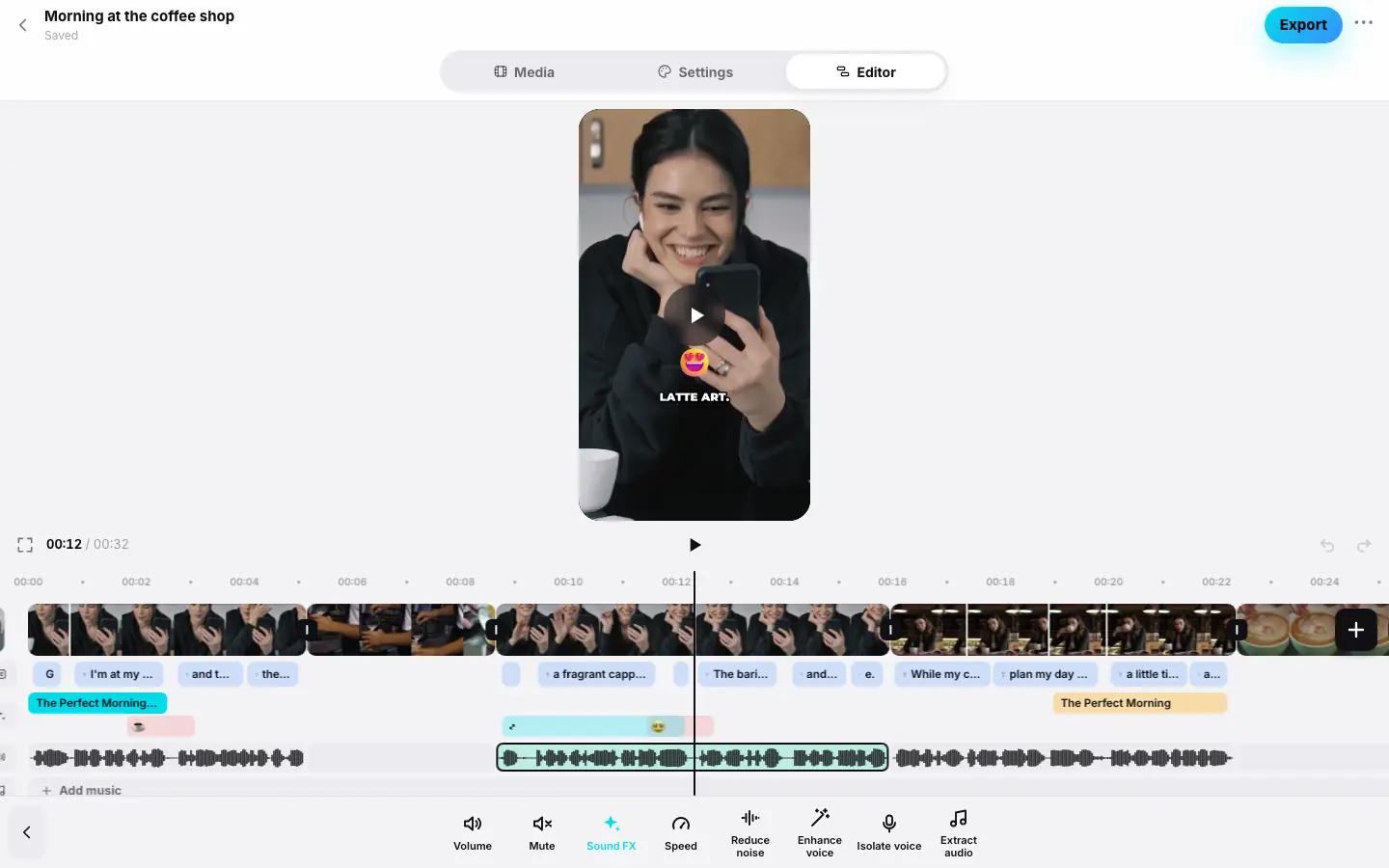
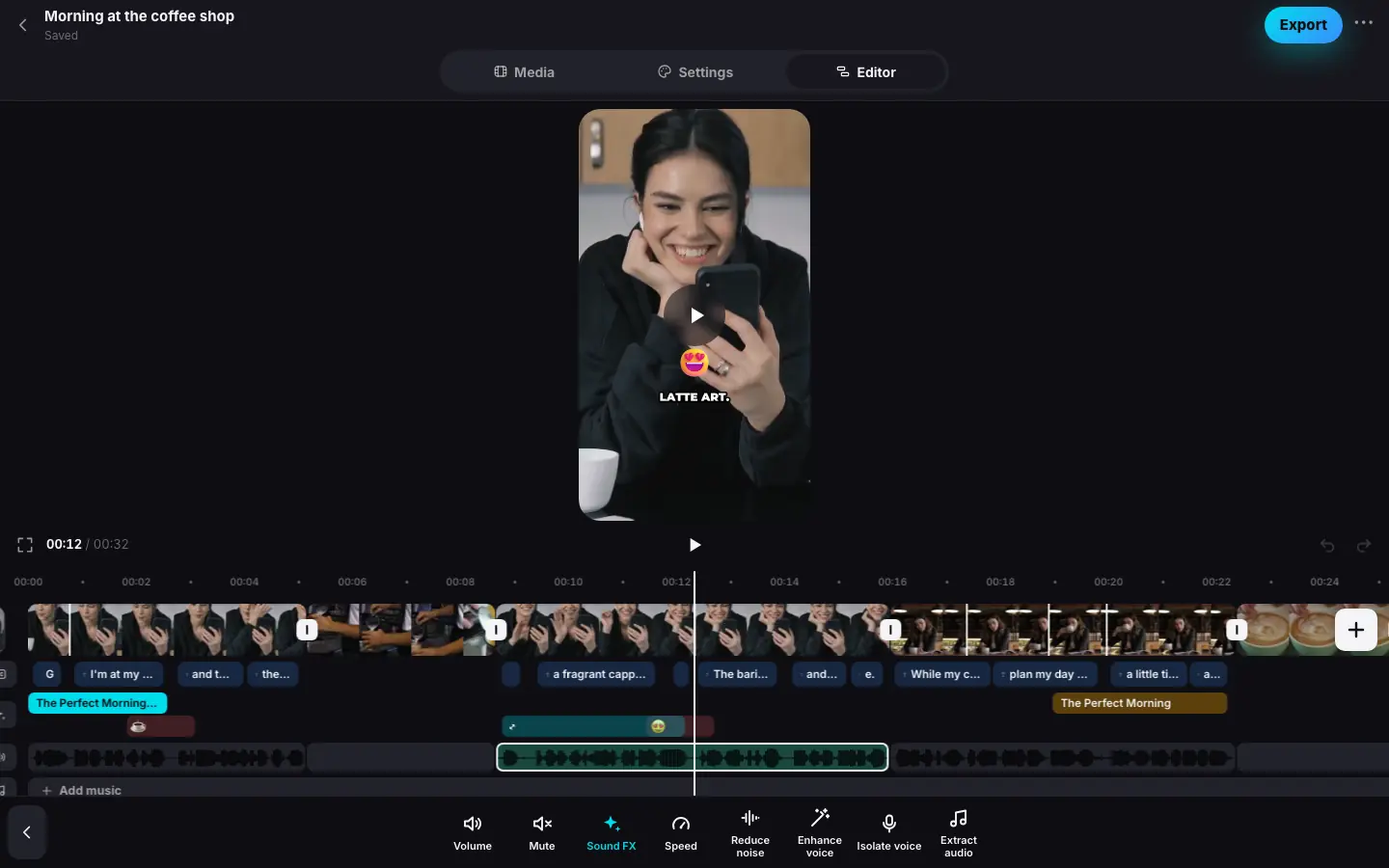
- Click a clip's waveform on the “Audio” track — the audio tools appear at the bottom
- Press “Reduce noise” — “Processing clip…” above the preview, the button is highlighted
- Processing is done — a voice badge on the waveform
- Press “Isolate voice” — a sheet with the price per source (close it)
- Press “Extract audio” — the message “Audio added to project media…”
Audio tools
| Tool | What it does | Price |
|---|---|---|
| Volume | A 0–100% slider and a mute button (Speed and volume) | Free |
| Mute / Unmute | Turns the clip's sound off and on with one press | Free |
| Sound FX | Turns sound effects on and off for the whole reel (see below) | Free |
| Speed | The same speed as the clip's: the sound speeds up without changing pitch | Free |
| Reduce noise | Cuts hum and background noise: air conditioning, street, hiss | Free |
| Enhance voice | Cleans noise, evens out loudness and makes the voice clearer and more present | Free |
| Isolate voice | The AI removes music, noise and echo — only the voice remains | At cost, for the minutes of the source |
| Extract audio | Saves the clip's sound as a separate track in the project media | Free |
Reduce noise, Enhance voice and Isolate voice are toggles: pressing again turns the processing off. Enhance voice already includes noise reduction, so together with Reduce noise only the enhancement applies. With Isolate voice both are applied to the isolated voice.
Reduce noise and enhance voice
Select a clip's audio
Click the clip's waveform on the Audio track.
Turn on processing
Press Reduce noise or Enhance voice. It is processed on the server: you see Processing clip… above the preview, and meanwhile the preview plays the original sound. You can keep editing.
Listen to the result
When processing is done, the preview plays the new sound and a voice badge appears on the clip's waveform.
Processing is done once for the whole source: other clips of the same video with the same processing turn on instantly.
Isolate voice
Isolate voice is for recordings where the voice competes with café music, wind noise or strong echo. The AI extracts the speech and removes everything else.
- Select a clip's audio and press Isolate voice.
- A sheet opens with the price for the whole source — for example, for a 2:30 source you pay for two and a half minutes. Voice isolation is charged at cost, as the line in the sheet reminds you: Costs exactly what the AI service charges, no markup. The actual price is charged — never more than shown.
- Press the button with the price — “Isolate · ≈ N tokens”. While it is processing, the price is reserved on your balance, rounded up to a whole token — so you need at least one free token. When the voice is ready, the actual price is charged, never more than shown. If isolating the voice fails, the tokens come back.
The voice is isolated once for the whole source: after that, Isolate voice on any clip of that video turns on for free and without the sheet. If it can't start — for example, there aren't enough tokens — you see a message and the processing turns itself off.
Extract audio
Extract audio saves the selected clip's sound as a separate audio file in the project media: Audio added to project media — you can use it as music. The file is named after the source and the time, for example “Interview 0.12–0.45.m4a”.
- The clip's processing is included — noise reduction, enhancement or the isolated voice.
- The clip must be at least 3 seconds long.
- You can set the resulting track as background music — for example, keep the voice of one take as a background under b-roll.
Sound effects
Sound FX turns sound effects on or off for the whole reel — it's the same setting as “Sound effects” in the project's Settings. The effects place themselves:
- a light whoosh at the start of a reel with a hook and on cuts with a change of shot size — no more than once every 4 seconds;
- a pop when emoji, media cards and plaques appear, and a bright “ding” for plaques with numbers.
Effects never play more often than once every 0.8 seconds and are mixed under the voice. You can't edit them one by one — only turn them on or off for the whole reel.
To put a sound of your own at a chosen moment — Whoosh, Boom, Chime and five more — use the Sounds section of the Library. You can move, replace and delete these sounds, and they play even when Sound FX is off.
Voice recording
Your own voice from the microphone goes onto the Voice track under the video: a comment, a voiceover, a reaction.
Open the recorder
Put the playhead where you'll start speaking and tap Voice in the bottom toolbar or Record voice on the empty track. The Voice recording panel opens.
Record
Tap Record — after a short countdown the reel plays while you speak over it, up to 5 minutes. The reel's sound is off while recording so it doesn't get into the microphone; with headphones, turn on Hear the reel. To finish — Stop, changed your mind — Cancel.
Adjust
The recording lands on the Voice track from the second where you started. Select it: Volume — up to 200%, Record more — the next piece, Delete — remove the recording. The clips' sound and the music duck under your voice automatically.
If the browser or the system asks for microphone access, allow it. Recording is free.
Good to know
- A freeze frame has no sound — the audio tools don't apply to it.
- With Reverse the clip's sound plays backwards too, while extracted audio doesn't include the reversal.
- All audio edits are audible in the preview right away; in the finished video — after Export.