Freeze frame, replace, reverse, stabilize
How to hold a frame for as long as you need, replace a clip's picture with another source, play video backwards and remove camera shake in the Slicer editor.
On this page
Four clip tools that change the picture itself: Freeze frame holds a frame, Replace swaps in another source, Reverse plays the video backwards, Stabilize removes shake. All four are free.
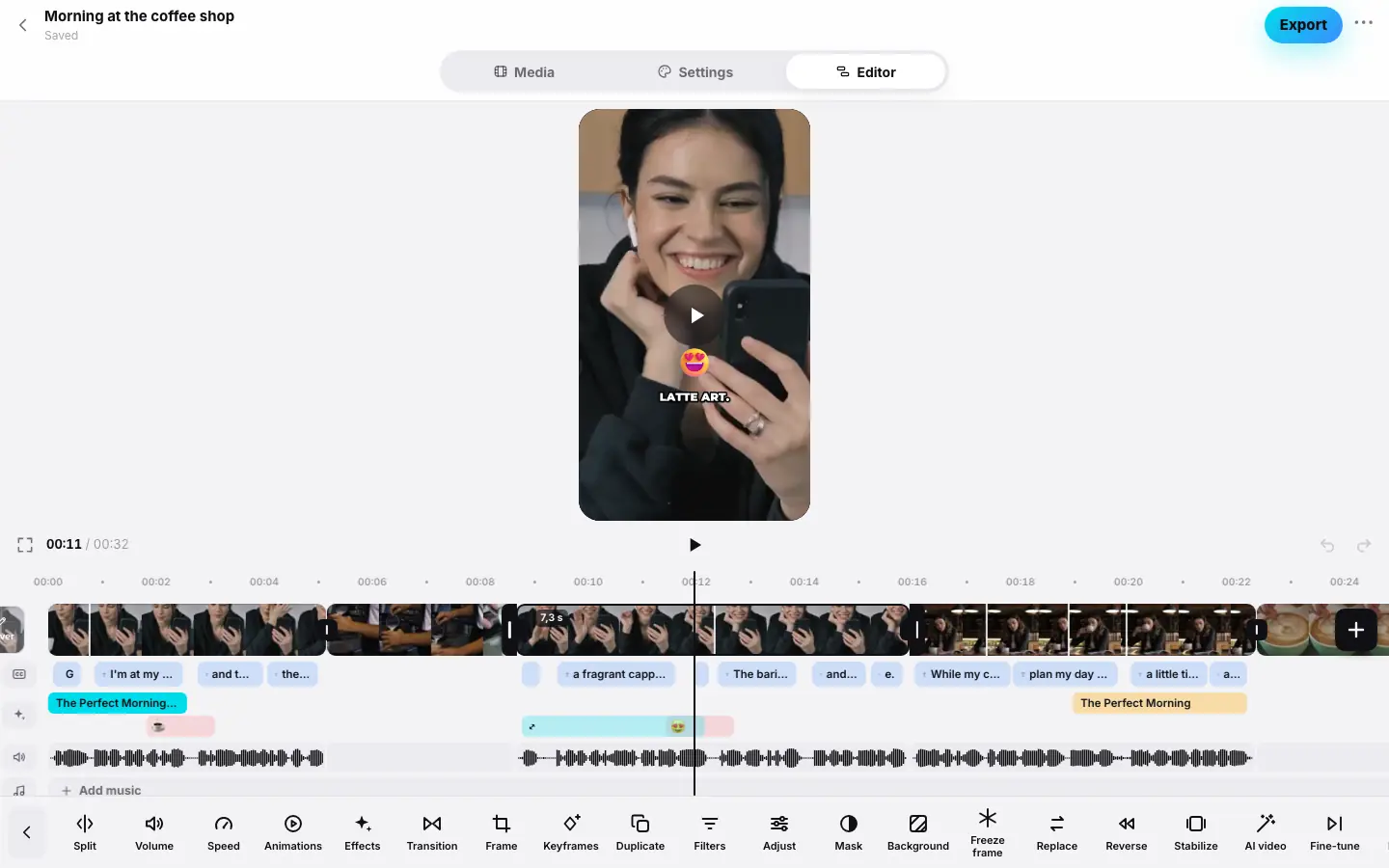
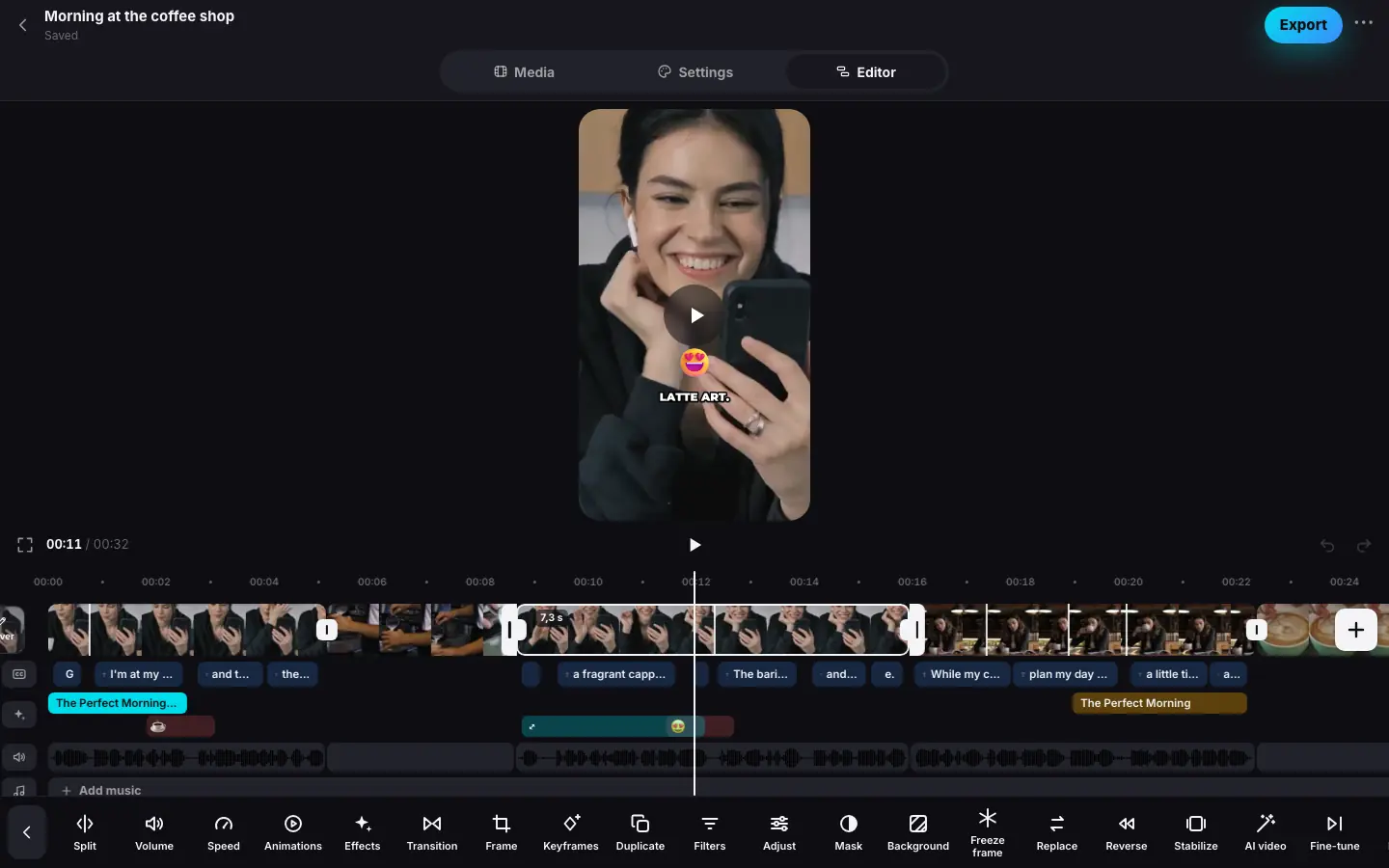
- Click a clip and put the playhead on a striking moment
- Press “Freeze frame” — a 2 s freeze frame appears after that point and the duration panel opens
- Pick 3 s and click ✓ “Done”
- Select a b-roll clip without speech and press “Replace”
- In the “Replace clip” sheet pick another video — the clip's picture changes
- Press “Stabilize” — “Processing clip…” above the preview, then a badge on the clip
Freeze frame
Pick the moment
Select a clip and put the playhead on the frame you want to hold.
Press “Freeze frame”
The clip is cut at that point (a clip with speech — at the nearest word boundary), and a 2-second freeze frame goes between the parts. If the playhead is outside the selected clip, the freeze frame goes after its last frame.
Pick a duration
The Freeze frame panel opens right away: 0.5 s, 1 s, 2 s, 3 s or 5 s. For more precision, drag the freeze frame's edges on the strip: from 0.3 to 10 seconds.
A freeze frame is a separate clip. It has no sound and no captions, but keeps the frame, color, effect, mask and background of the original clip. Later, the duration panel opens with the first button in the freeze frame's toolbar. You can't split a freeze frame, change its speed or volume, or turn on processing.
Replace
Replace opens the Replace clip sheet with all the project's videos and photos. The result depends on the clip:
- A clip without speech (b-roll, a photo, a piece of a source) gets a piece of the chosen source of the same length — from its start. Speed, color, effect and the other settings stay; the frame is recomposed automatically.
- A clip with speech keeps its voice and captions; the sheet says so: A clip with speech keeps its sound; the picture is covered by an overlay. The chosen source goes over the frame as an insert for the duration of the clip's words.
- A freeze frame takes the first frame of the chosen source.
Reverse
Reverse plays the clip backwards. Pressing it again turns it off.
- It is processed on the server: while it runs, you see Processing clip… above the preview, and the preview plays the clip as it was. The longer the source, the longer the processing — you can keep editing.
- A reversed clip has no captions: backwards speech isn't readable. Its sound plays backwards too.
- A reversed clip's edges don't move, and you can't split it or open Fine-tune: Turn off Reverse to cut this clip.
- Cutting “to the beat” leaves such clips alone (Music, beats).
Stabilize
Stabilize removes handheld camera shake. The video is processed in two passes: first Slicer tracks the camera motion across the whole source, then it evens it out. Small jitter goes away, while smooth moves — a pan, a walk, a turn — stay, just steadier.
To keep empty strips from showing at the edges, the frame zooms in slightly and the picture gets a little sharper. The stronger the shake, the more noticeable the zoom: check that what matters — a face, a product, text — hasn't moved out of frame.
It is processed on the server, with the same Processing clip… label: two passes over a long video take a while, and you can keep editing meanwhile. Pressing it again turns stabilization off.
When to turn it on:
- shooting handheld on the move, in a vehicle, at arm's length;
- b-roll with details that must stay readable: a product close-up, a process, text in the frame.
When you don't need it: footage from a tripod or a gimbal — there's no shake to remove, and the zoom only crops the frame edges; and a deliberately “live” camera where the motion is part of the mood.
Good to know
- Processing is done once for the whole source: other clips of the same video with the same processing turn on instantly.
- Processing types combine with each other and with audio processing — for example, stabilization and Reduce noise (Audio).
- If processing fails, you see Could not process the clip — turn the tool off and on again.
- Clips show badges: freeze frame, reverse, stabilization.