8. First edits in the editor
First edits of the finished reel — playback, fixing a caption, deleting an extra clip, the AI assistant and undo. All manual edits are free.
On this page
Step 8 of 9 · 2–4 minutes
The reel is ready, but the last word is yours. The Editor section is simple: the preview on top, a full-width timeline, and at the bottom the tools for whatever is selected. All manual edits are free, show up in the preview right away and are saved automatically — the project header says Saved.
Let's make three typical edits: fix a word in the captions, remove an extra clip and ask the AI assistant to clean up the speech.
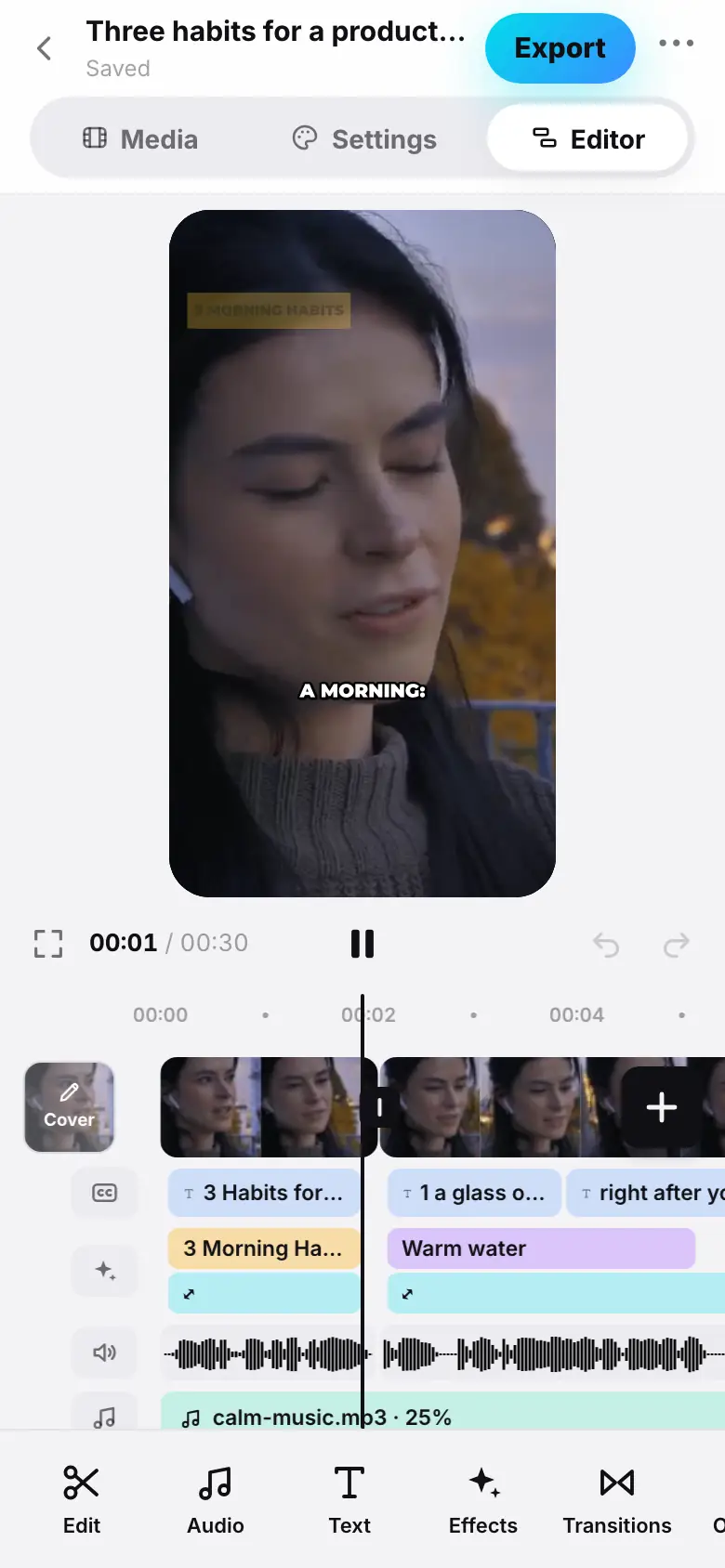
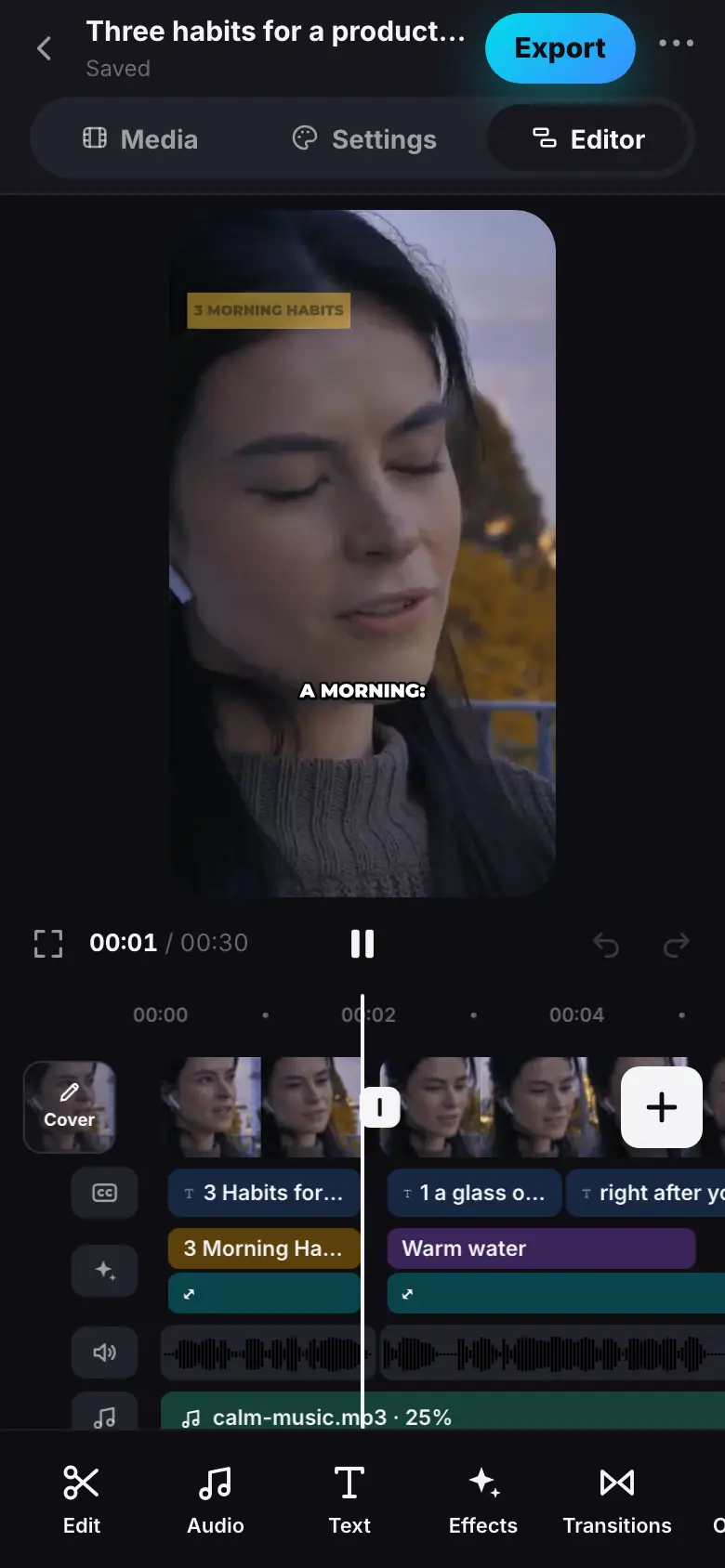
- The editor: preview, timeline, tools at the bottom; tap ▶
- Tap a phrase on the captions track — the phrase tools appear
- Tap “Edit text”, fix a word and tap “Done”
- Tap a clip on the video track and tap “Delete”
- Tap “Undo” — the clip is back in place
- With nothing selected, tap “AI assistant” — the AI mode opens
- Tap “Remove filler words (free)” — “Filler words are cut.” or “No filler words found.”
The demo will appear here
Step 1 of 5
- The editor on a wide screen: preview, timeline, tools; Space plays the reel
- Double-click a phrase on the captions track — the “Caption” sheet
- Fix the text and click “Done”
- Click a clip and press Delete — the clip is removed
- ⌘ Z — the edit is undone
Watch the reel
Tap ▶ under the preview or the preview itself. The timeline moves under the playhead in the middle; scroll the strip to seek. The tracks, top to bottom: video, captions, elements, audio, music.
Space — play and pause, ← → — one frame, the wheel scrolls the strip, Ctrl or ⌘ + wheel zooms.
Scroll the strip with your finger — the preview follows. Pinch with two fingers to zoom.
Fix a word in the captions
- Tap a phrase on the captions track — the phrase tools appear at the bottom.
- Tap Edit text. The Caption sheet opens with the phrase text.
- Fix the text and tap Done.
The words keep the timing of the spoken ones — timing and highlights stay. Changed your mind — Restore the original text.
Faster: double-click or right-click the phrase on the captions track, or select it and press Enter.
Faster: long-press the phrase.
Remove an extra clip
- Tap a clip on the video track — it is selected and the clip tools appear.
- Tap Delete. The neighbouring clips close the gap.
Want to remove only part of a clip? Drag the handle at its edge, or put the playhead there and tap Split. Details — Clips.
Undo if something is off
Undo and Redo are in the control row under the preview (⌘ZCtrlZ and ⇧⌘ZCtrlShiftZ). Any edit can be undone, including one made by the AI assistant.
Ask the AI assistant
Clear the selection and tap AI assistant on the toolbar — the AI mode opens.
- Remove filler words (free) — cuts “uhm” and similar words across the whole reel.
- A command in your own words — for example, Make it more dynamic or Cut to 30 seconds. A command is charged at cost — exactly what the AI service charges; the price and its limit are shown above the input field. It is charged only if the assistant changed something; otherwise — No changes — no tokens charged.
Details — AI assistant.
Style lives in Settings
Font, accent and caption style are changed in the project's Settings section — free and visible in the editor right away. The finished video is updated by export — that is the next step.
What's next
Step 9 of 9 — Export and publishing: render the file and send the reel to social media.