Color: filters, Adjust and LUTs
Color filters, manual controls and auto balance, LUT looks and your own .cube files — for one clip or the whole reel, free and visible right away.
On this page
A clip's color is set with three tools. Filters are ready-made looks: black and white, warm, vintage,
cinematic and others, with adjustable strength. Adjust gives manual sliders for exposure, brightness,
contrast, saturation, temperature and tint, plus Auto balance. LUT is a look on top of everything:
ten built-in ones or your own .cube files. They combine: the filter comes first, then the manual settings, then the
LUT.
Color helps bring clips shot in different light together into one reel, or set its mood.
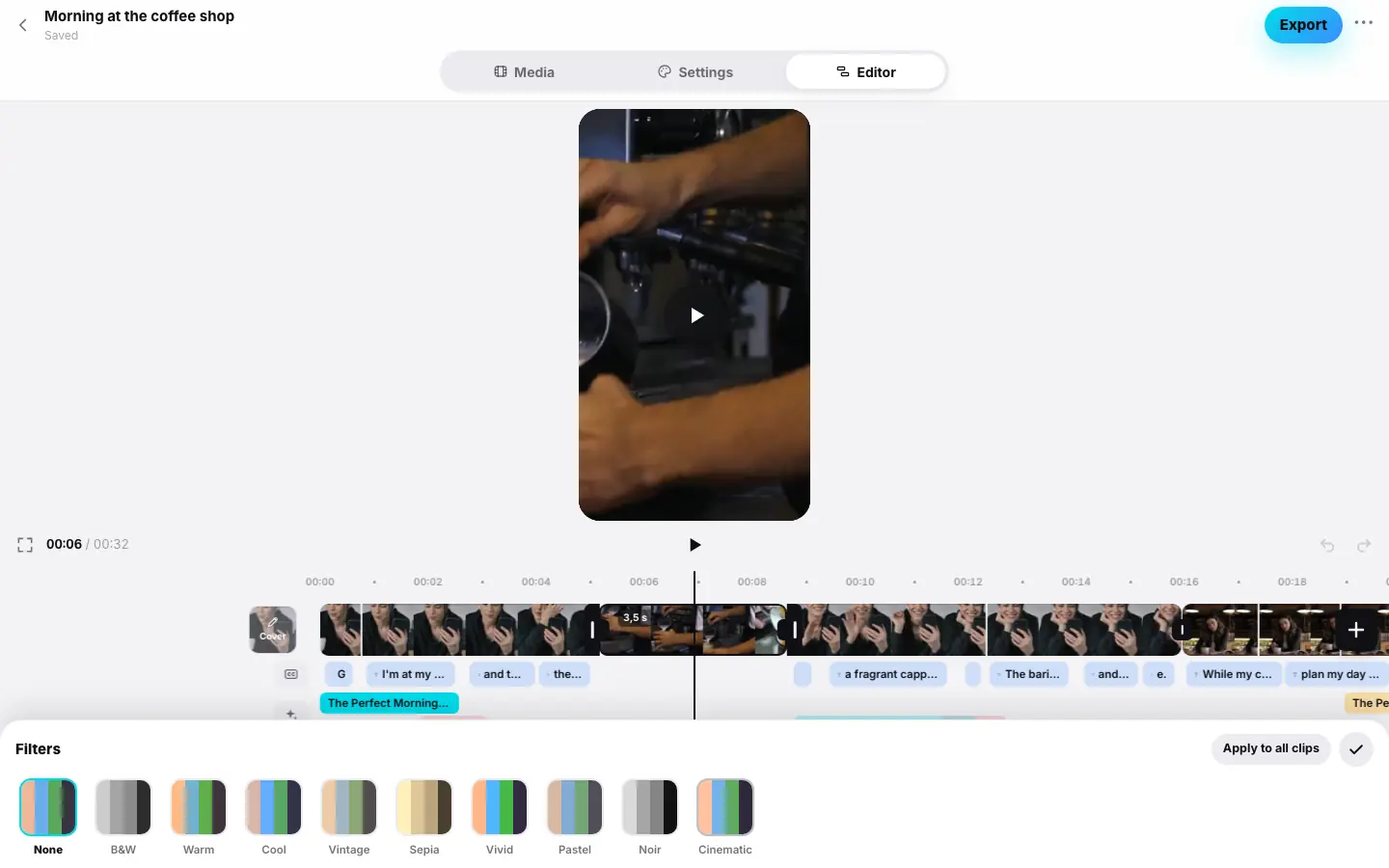
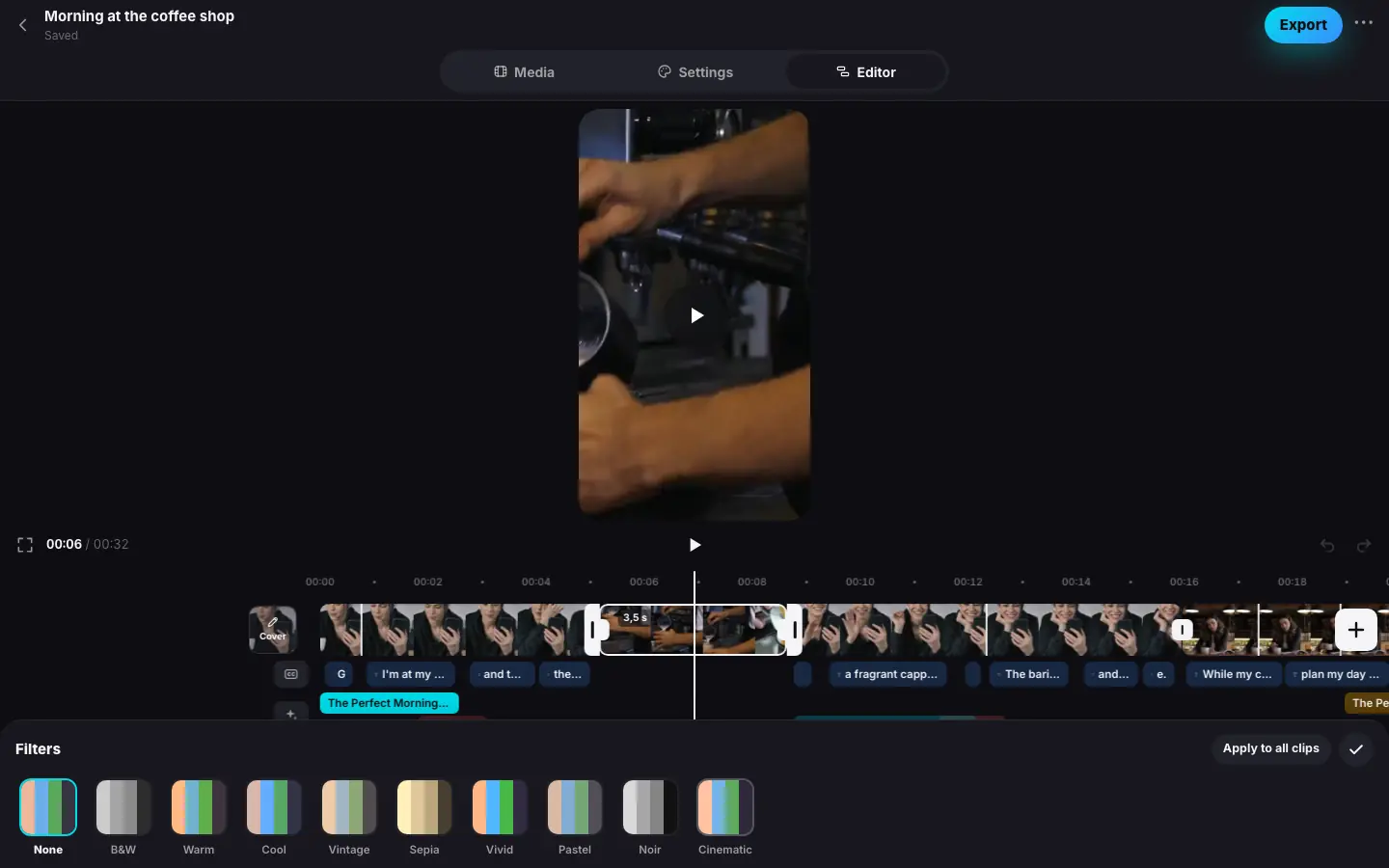
- Click a clip and press “Filters”
- Pick “Warm” — the frame in the preview warms up
- Drag “Strength” to 60
- Click ✓ “Done”, then “Adjust”
- Raise “Brightness” to 15 and “Saturation” to 20
- Click “Apply to all clips” — the color is the same across the reel
Filters
Open “Filters”
Select a clip and press Filters. With nothing selected, the button in the main set selects the clip at the playhead.
Pick a filter
Each tile shows four color samples (skin, sky, greenery, shadow) with that filter applied — you can see what it will do to the frame. Click a tile — the preview changes right away.
Set the strength
The Strength slider goes from 0 to 100: 100 is the full filter, lower is softer. None removes the filter.
| Filter | What it does |
|---|---|
| B&W | Black and white with a bit more contrast |
| Warm | More red and yellow, slightly richer — cozy daylight |
| Cool | More blue, slightly calmer saturation |
| Vintage | Soft contrast, lifted shadows and a touch of sepia — like an old photo |
| Sepia | The brown tone of an old photograph |
| Vivid | Rich colors and added contrast |
| Pastel | Gentle muted colors, light shadows |
| Noir | Black and white with strong contrast and deep shadows |
| Cinematic | A film look: contrast, muted colors, warm highlights and cool shadows |
Adjust
Adjust opens six sliders, each from −100 to 100 (0 means no change):
| Slider | What it changes |
|---|---|
| Exposure | The amount of light, like a camera's aperture: bright areas brighten more than dark ones |
| Brightness | The whole frame lighter or darker |
| Contrast | The difference between light and dark |
| Saturation | How rich the colors are; −100 gives black and white |
| Temperature | Plus — warmer (yellow-orange), minus — cooler (blue) |
| Tint | Plus — towards magenta, minus — towards green: removes the green cast of fluorescent lights |
The whole movement of one slider is one undo step.
Auto balance
Above the sliders are two buttons. Both work without AI, from the clip's frames, and are free:
- Auto balances the selected clip's color: removes an extra blue or yellow cast, lifts a dark or flat frame, tones down an overexposed one. The result is ordinary slider values you can fine-tune by hand.
- Match all to this matches the color of the reel's other clips to the selected one: it gives them its filter and LUT and works out each clip's own Adjust sliders — brightness, contrast, saturation and temperature. Handy when clips were shot on different cameras or in different light.
Auto changes only the Adjust sliders — the filter and the LUT stay. One press of either button is one undo step.
LUT
A LUT (Look-Up Table) is a ready-made look that maps every color of the frame to another one. It's how colorists give a reel a recognizable style. The LUT goes on top of the filter and the manual settings.
Open LUT
Select a clip and press LUT. With nothing selected, the button in the main set selects the clip at the playhead.
Pick a look
As with filters, each tile shows skin, sky, greenery and shadow samples with that LUT applied. Click a tile — the preview changes right away.
Set the strength
Strength blends the LUT with the original color: 100 is full strength, 50 is half. None removes the LUT.
Built-in looks:
| LUT | The look |
|---|---|
| Teal & orange | Cool teal shadows and warm highlights — the blockbuster classic |
| Film | Soft contrast, lifted blacks and warm highlights |
| Matte | Faded blacks, muted highlights and color |
| Bleach bypass | Hard contrast and half the color |
| Golden hour | Warm evening light and golden highlights |
| Moody | Deep cool shadows and muted color |
| Nordic | A cool, light tone with soft colors |
| Cross process | Yellow-green highlights and blue shadows, like film developed in the “wrong” chemicals |
| B&W film | Contrasty black and white with a slight warm tone |
| Vibrant | Bright, rich colors and a touch of contrast |
Your own LUTs
My LUTs are your own looks: they're available in every project of your account, in the LUT panel and in the Library.
- Import .cube — the “+” tile at the end of the row. A
.cubefile from DaVinci Resolve, Premiere, Final Cut or a LUT website works: a 3D table from 16 to 65 points, up to 2 MB. - Save as LUT — the selected clip's whole color (filter, Adjust, LUT and the VHS effect's
color) becomes one
.cubeand appears in My LUTs. That way a look you found goes into other projects with one tap. - Download or share — for a selected LUT of your own: open the
.cubefile in another editor. - Delete LUT removes it from My LUTs; clips that used it are left without it.
An account holds up to 30 LUTs of your own.
Import .cube opens a file picker on your computer, Download .cube saves the file to Downloads.
You pick the .cube file in Files (iCloud Drive, On My iPhone, AirDrop). Share your LUT through the system menu — send
it to a messenger, save it to Files or open it in another app.
One color for the whole reel
The Filters, Adjust and LUT panels have an Apply to all clips button. It copies the selected clip's color — the filter with its strength, the manual settings and the LUT — to every clip of the reel. That's the easiest way to a consistent look.
Good to know
- Clips with color show a filter badge on the strip.
- The order is always the same: filter → Adjust → LUT → the VHS effect's color. The preview and the finished reel use one and the same color table, so the picture matches.
- The preview draws color with the same formula as the final reel. On the web, color is drawn by the graphics card (WebGL): in an old browser without WebGL the preview shows the original colors, but the finished reel has the color.
- The VHS effect adds its own color on top of the filter, settings and LUT (Effects).
- Color is kept when you split or duplicate a clip, and in a freeze frame.
- Color, auto balance and your own LUTs are free and don't spend tokens.