Editor overview
How the Slicer editor is laid out — preview, timeline, tools and modes. What changes instantly, when the finished video updates and which actions cost tokens.
On this page
The editor is the Editor section of a project. Once the AI has edited your reel, you can change anything in it here: trim and reorder clips, change speed and sound, add transitions, effects, color, music, titles, your own photos and videos — full-frame or in a window, remove a stray object from the shot, fix captions and graphics. In an Edit it myself project you edit the reel from the very start: your files are already on the timeline in order. The editor is laid out like this: a large preview, a full-width timeline below it and a toolbar. It is the same on the web and in the app for iPhone, iPad and Mac — only the mouse, keyboard and touch input differ.
Every edit shows up in the preview right away, with no rendering and for free. The finished video updates when you press Export — that is free too.
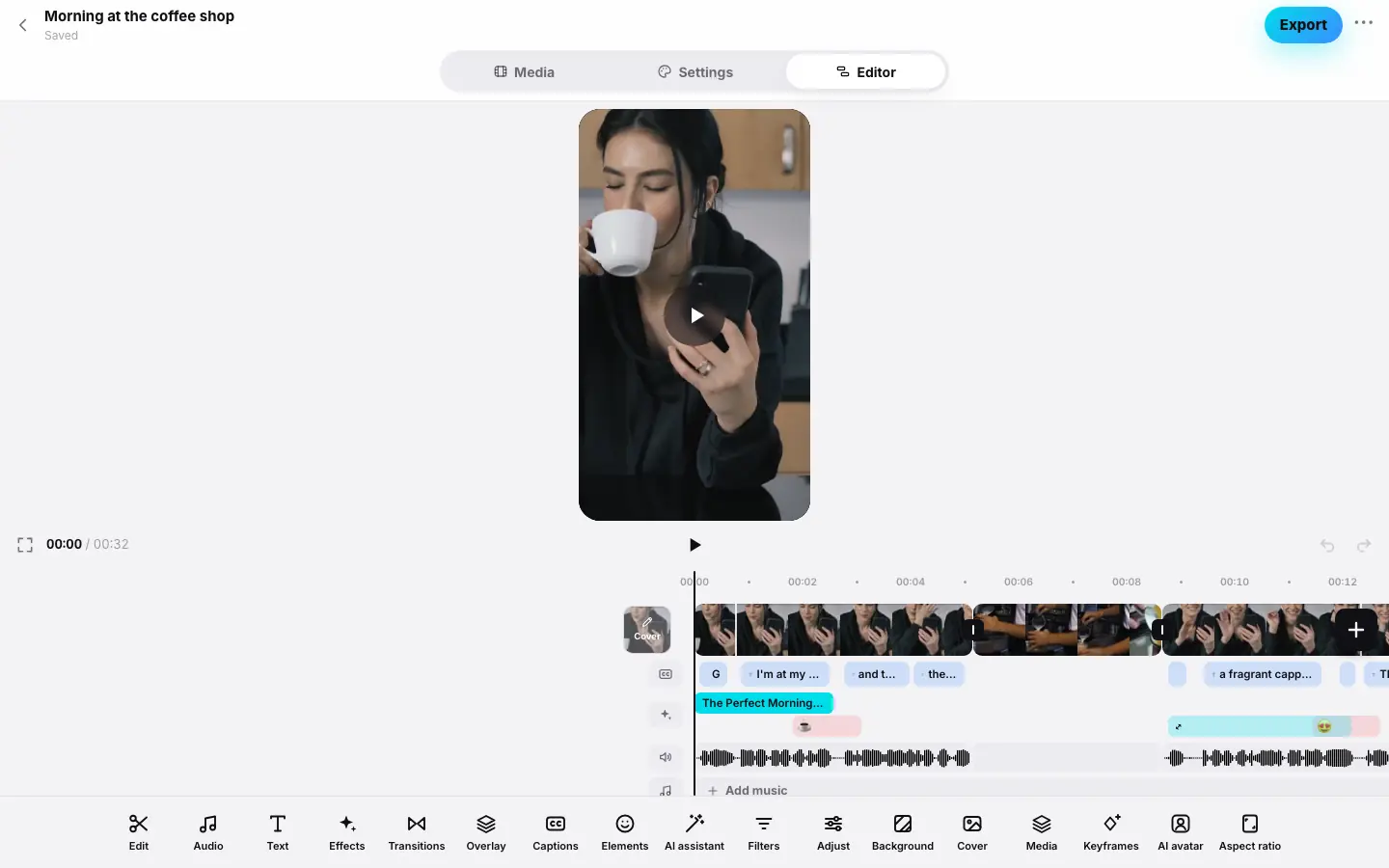
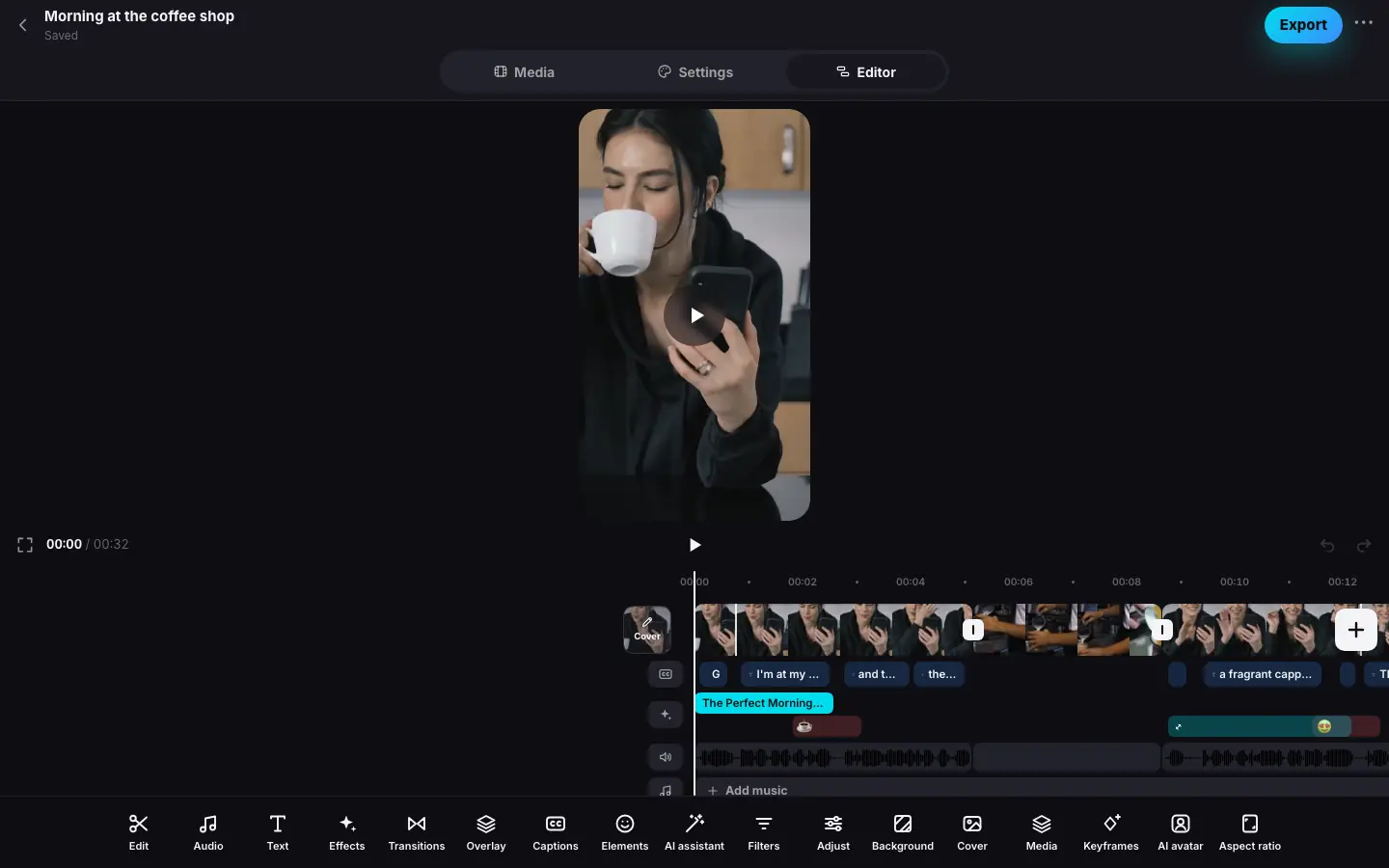
- Open a project and switch to the “Editor” section
- The preview is on top, the control row and the timeline tracks below it
- Click a clip — its tools appear at the bottom
- Click “Speed” — the panel opens over the lower part of the timeline
- Click ✓ “Done” and “‹” — the main toolbar is back
- On a wide screen the “AI” mode opens to the right of the preview
Opening the editor
- On the project screen, pick the Editor section (next to Media and Settings).
- In the project list, open the project menu (right-click on the web, long-press on iPhone and iPad) and choose Editor.
- When an AI montage is ready, the project opens in the editor with the finished reel by itself.
The editor is available for a finished reel and for a manual project's draft while its source files are stored on the server (7 days after the last montage or export — see Data storage). While a montage or export is running, you see the run card instead of the editor. Once the source files are deleted, only the finished video remains.
Screen map
| Area | What is there |
|---|---|
| Project header | “‹ Projects”, the title and the save status below it: Saved, Saving…, Unsaved changes or Not saved. On the right — the publications button, the director chat button, Export and the “⋯” menu |
| Preview | The reel in its aspect ratio (9:16 by default). A click or tap plays and pauses. While a lightweight copy of the video is being prepared, you see Preparing preview… |
| Control row | Full screen, the time “00:03 / 00:32”, play and pause, Undo and Redo |
| Timeline | The ruler with marker flags and the tracks: video, inserts, captions, elements, audio, music, voice. The playhead stays in the center and the strip moves under it. A “+” button on the right |
| Toolbar | Buttons at the bottom. With nothing selected — the main set; for a selected clip, audio, phrase, element, music or voice recording — its own set with a “‹” on the left |
| Tool panel | Opens over the lower part of the timeline: the title, ✓ Done and, on some panels, Apply to all clips |
The tracks are covered in detail in Timeline and tracks.
Modes
The main mode is Timeline. Four more open from the main toolbar and return with “‹ Timeline”:
- AI — the AI assistant: edit the reel with a command in plain words;
- Elements — the hook, plaques, media cards, emoji and zooms as a list, plus dragging captions and elements right on the preview;
- Media — your own photos, videos and music;
- Library — every preset in one panel: color and LUTs, effects, transitions, animations, title styles, elements and sounds.
In these modes Undo and Redo move to the header, and a seek bar appears under the preview.
Separate from the modes is the chat with the director: on a phone it opens instead of the editor from a button in the project header, on a wide screen — as a panel on the right. The director in the chat edits the same montage that is open in the editor.
From a window width of 960 px the mode panel sits to the right of the preview, so the preview stays large. On a wide screen, sheets open as a centered dialog. You can drop photo and video files right onto the editor with the mouse — they become inserts at the playhead.
On iPhone the mode panel opens below the preview. On iPad in landscape and in the Mac version the layout matches the wide web layout: the mode panel on the right, sheets as dialogs. With a hardware keyboard, the same shortcuts as on the web work.
Saving, undo and export
- Autosave — 1.5 seconds after your last edit. If you close a browser tab with unsaved edits, the browser asks for confirmation.
- Undo and redo — up to 100 steps, including caption style changes. A drag or a slider move is one step. Undoing a paid AI action brings the reel back, but not the tokens.
- Export — the Export button in the header saves your edits and opens the export window: preset, file settings, publishing to social networks. Without an export, the finished video, its download and publishing stay as they were. See Export: presets and file settings.
- A reel longer than 180 seconds cannot be exported: a warning appears above the timeline — remove some clips.
What costs tokens
Manual edits, export and the Reverse, Stabilize, Reduce noise, Enhance voice, Extract audio and Cut pauses processing are free. Only AI actions spend tokens. They are charged at cost — exactly what the AI service charges, with no markup. The price is shown on the button or in the sheet before you start, and the actual price is charged — never more than shown (how it works):
| Action | What the price depends on |
|---|---|
| Captions from speech | minutes of audio of the chosen sources |
| AI assistant command | one command: “≈ price, at most a limit”; charged only if something changed |
| Caption translation | one translation: “≈ price, at most a limit”; charged only if the translation worked |
| Dub into another language | the translation and seconds of voice-over |
| AI effect from a prompt | seconds of the range |
| Remove background | seconds of video not processed yet |
| Remove object | seconds of the fragment (up to 10 seconds) |
| Media card from a description | one image; charged only if the image is made |
| AI avatar | seconds of speech |
| Isolate voice | minutes of the source, once per source |
To start any AI operation you need at least one free token on your balance. All prices are in Operation prices.
All editor guides
What's next
- Timeline and tracks — where to start in the editor.
- AI assistant — quick edits in plain words.
- A project without AI — edit a reel in the editor from scratch, for free.
- Export and publishing — how to update the finished video.