Sign-in and account
Signing up for Slicer with email and password or VK ID, Google and Apple, signing in on other devices, resetting your password and accepting the terms.
On this page
One Slicer account works on all devices: web, iPhone, iPad and Mac. Your projects, balance and connected social accounts are the same wherever you sign in. You can sign in with email and password or with VK ID, Google and Apple — the sign-in screen shows which methods are available.
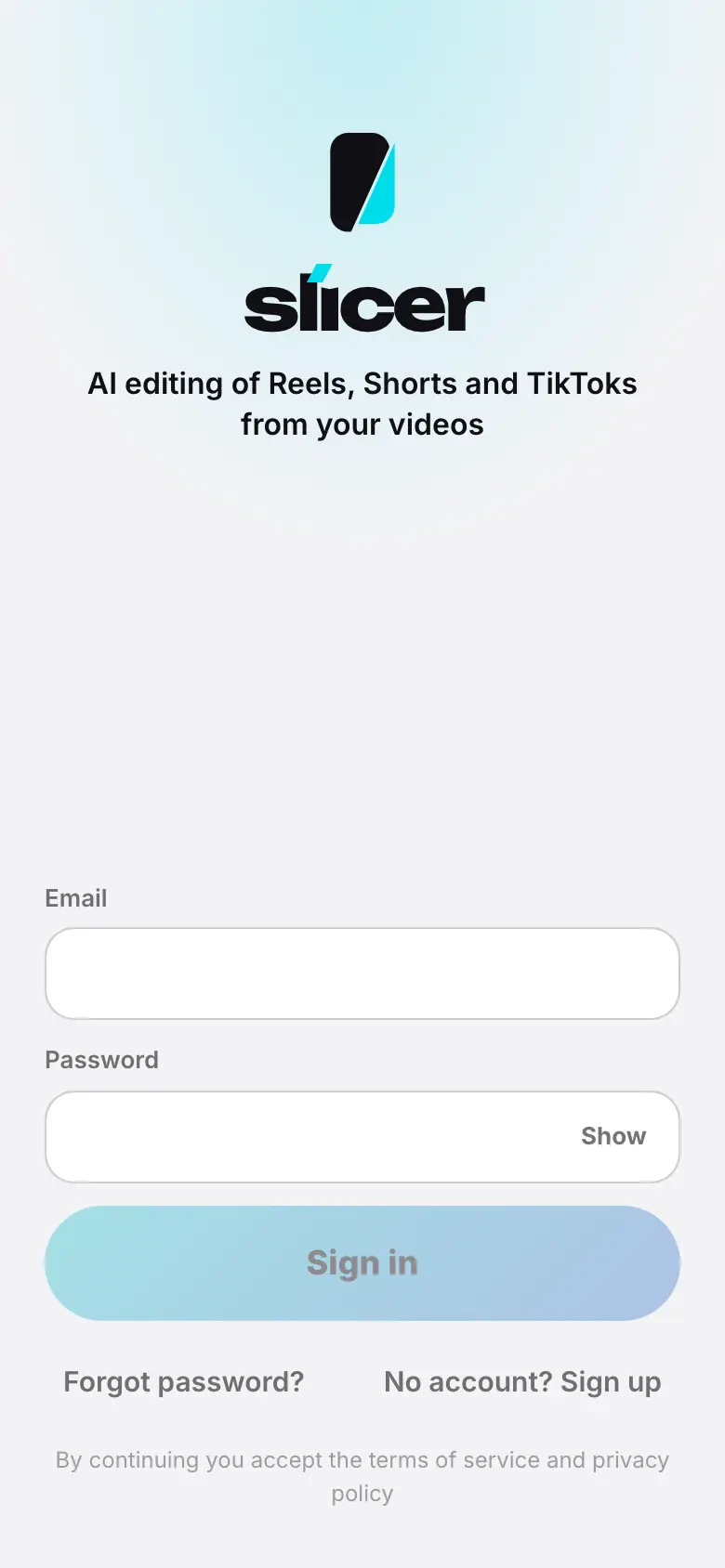
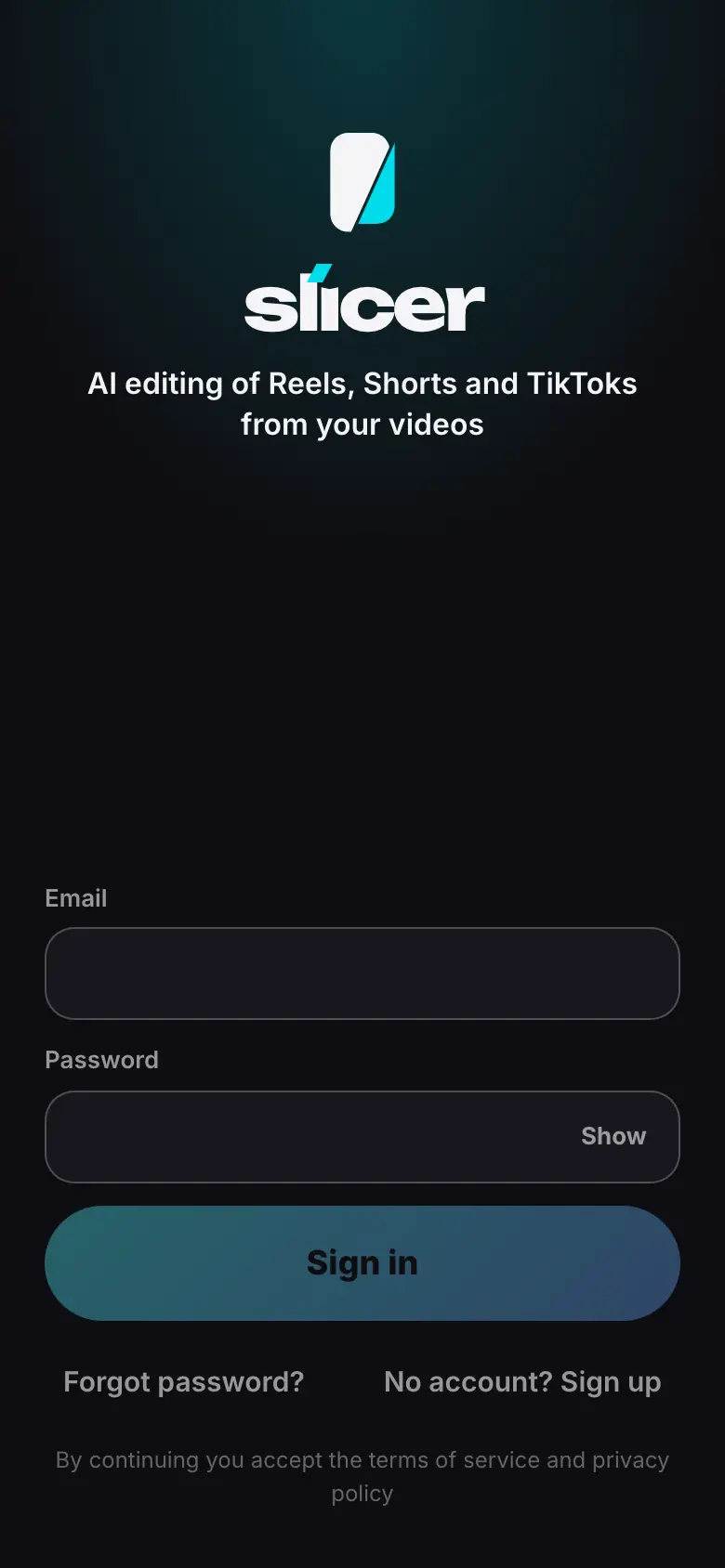
- The “Sign in” screen: Email and Password fields
- Enter your email and password and tap “Sign in”
- Projects opens
Signing up
Open sign-up
On your first visit Slicer shows a four-slide intro — tap Next or Skip. The Create your account screen opens. If you have already seen the intro, tap No account? Sign up on the sign-in screen.
Choose a method
- Email and password. Enter your email and a password (At least 8 characters), accept the terms of service and privacy policy and tap Sign up.
- A provider. Tap Continue with VK ID, Continue with Google or Continue with Apple and confirm the sign-in with the provider.
Verify your email
If you signed up with email, you will get a six-digit code. Enter it on the Code from the email screen and tap Confirm. No email? Check your spam folder or tap Send again. Made a typo in the address — Change email.
After sign-up Slicer offers a pack (you can tap Try for free — the first reel is free) and helps you make your first project. The whole path is shown in the tutorial: Step 1. Sign-up and intro.
Signing in
On the Sign in screen, enter your email and password and tap Sign in, or sign in with the provider you used at sign-up. Slicer remembers the sign-in on this device; to sign out — Profile → Sign out.
Signing in with a provider opens its page in the same tab and brings you back to Slicer.
Signing in with VK ID and Google opens the system browser and returns to the app by itself. Sign in with Apple uses the system Apple sheet, without a browser.
Forgot your password
- On the Sign in screen, tap Forgot password?.
- Enter your email and tap Get a code.
- Enter the code from the email and a new password and tap Save and sign in.
After a password change, all other devices are signed out. If you only ever signed in with a provider and never set a password, you can set one the same way.
We updated our terms
If the terms of service or privacy policy are updated, the We updated our terms window appears after sign-in. To continue, tap Accept.
Managing your account
- Change your email or password, connect another sign-in method, see your devices — Sign-in and security.
- Interface language, theme and where AI runs — Language, theme and where AI runs.
- Delete your account — Deleting your account.
What's next
- Quickstart — your first reel in five steps.
- Sign-in and security — sign-in methods, devices, confirming actions.