Clips: trim, split, reorder, duplicate
How to trim, split, reorder and duplicate a clip, copy its look to other clips, slip its frames and bring back cut words in the Slicer editor.
On this page
A reel is made of clips (fragments) — pieces of your source files that follow each other on the video track. The AI assembled them during the montage; in the editor you can trim, split, reorder, duplicate and delete them, copy one clip's look to others and slip the frames inside a clip.
There are two kinds of clips, and that decides how their edges move:
- with speech — the edges snap to word boundaries, so you can't cut a phrase in the middle of a word;
- without speech — b-roll, photos, freeze frames, a new piece of a source: the edges move freely in time.
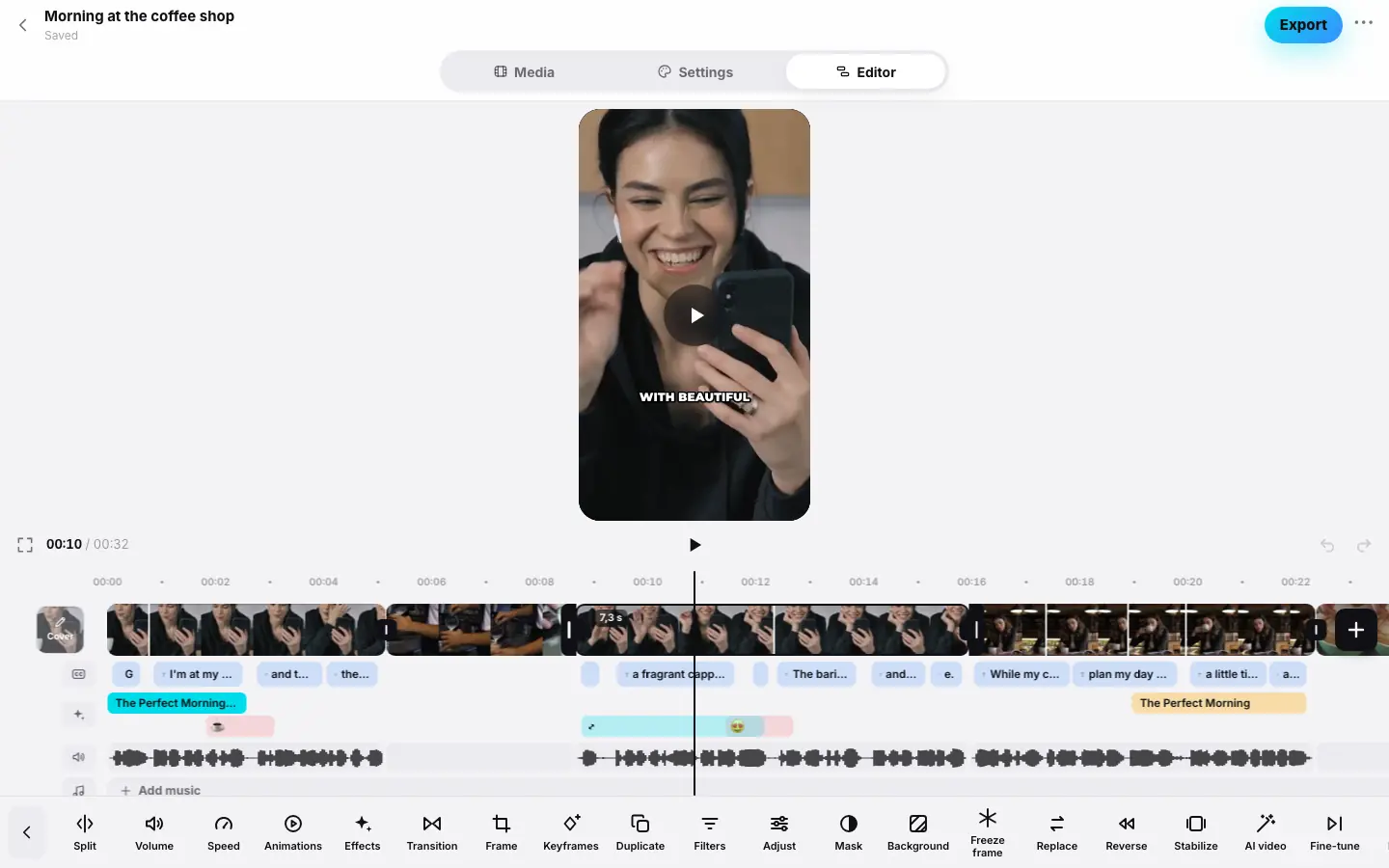
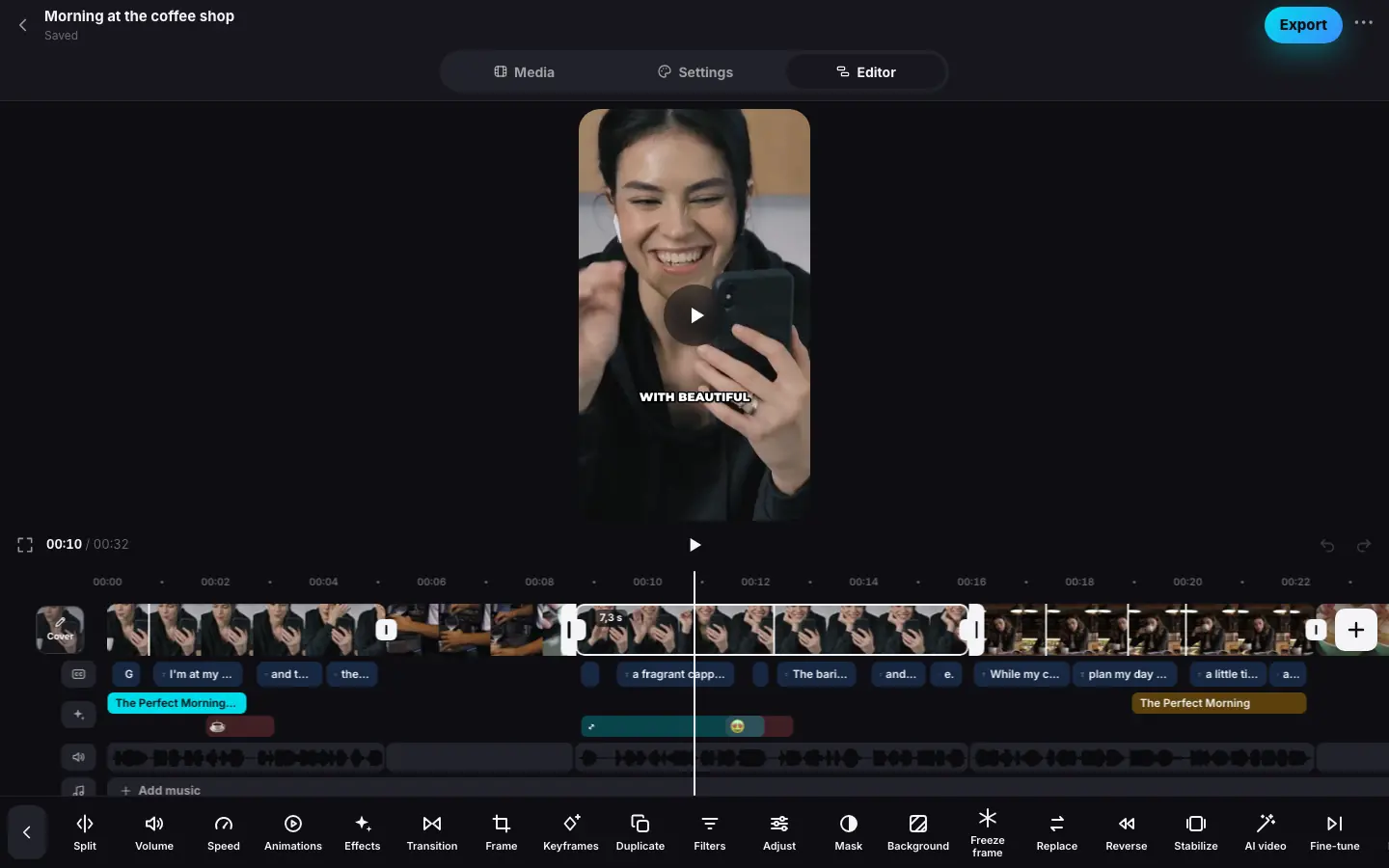
- Click the second clip — its edge handles and duration appear
- Drag the right handle to the left — the edge “ghost” shows the offset in seconds and snaps to a word
- Release — the clip is shorter and the next ones move up
- Put the playhead inside a clip and press S — it splits in two
- Drag a clip with the mouse — a row of tiles appears with “Drag the fragment and release”
- Drop the tile in first place — the clip moves to the start of the reel
- Click “Duplicate” — the copy appears right after the clip
Trim an edge
Select a clip
Click a clip on the video track. Handles appear on its edges and its duration in seconds on top. The Edit tool in the main set selects the clip at the playhead.
Drag a handle
Drag the left handle to move the start, the right one to move the end. While you drag, a thin “ghost” line shows the new edge and the offset: “+0.40 s” or “−1.20 s”. Near the edge of the screen the strip scrolls by itself.
Release
The edge settles and the neighboring clips move up. The preview shows the frame at the new edge.
Snapping. On a clip with speech the edge snaps like a magnet to the nearest word boundary when you come close to it. The clip's end also snaps to music beats when beat marks are on. You can also place the edge between words more precisely — the offset is kept, but no further than 3 seconds from a word.
Limits. A clip with speech can only grow over source words that no other clip uses. A clip without speech can be extended up to the end of its source. A clip can't get shorter than 0.3 seconds.
Need frame accuracy? Open Fine-tune: the By frame panel moves the start and end by exactly one frame, without snapping (more).
Split
Put the playhead where you need and press Split, S or ⌘BCtrlB. The clip at the playhead is split, even if another clip is selected.
- A clip with speech is split at the nearest word boundary: a word whose middle the playhead has passed stays in the first part, the rest go to the second.
- A clip without speech is split exactly at the playhead; both parts must be at least 0.3 seconds long.
- The transition stays with the first part, and keyframes are divided so the frame motion continues without a jump.
Reorder
Drag a clip with the mouse along the video track. All clips turn into a row of equal numbered tiles, with the hint Drag the fragment and release on top. Move the tile to its new place — the others make room — and release. On a touchscreen use a long-press, as in the app.
Hold your finger on a clip until a row of tiles appears and the phone taps back. Without lifting your finger, move the tile to its new place — every new slot gives a light haptic tap — and release. Near the edge of the screen the row scrolls by itself.
You can reorder once the reel has at least two clips.
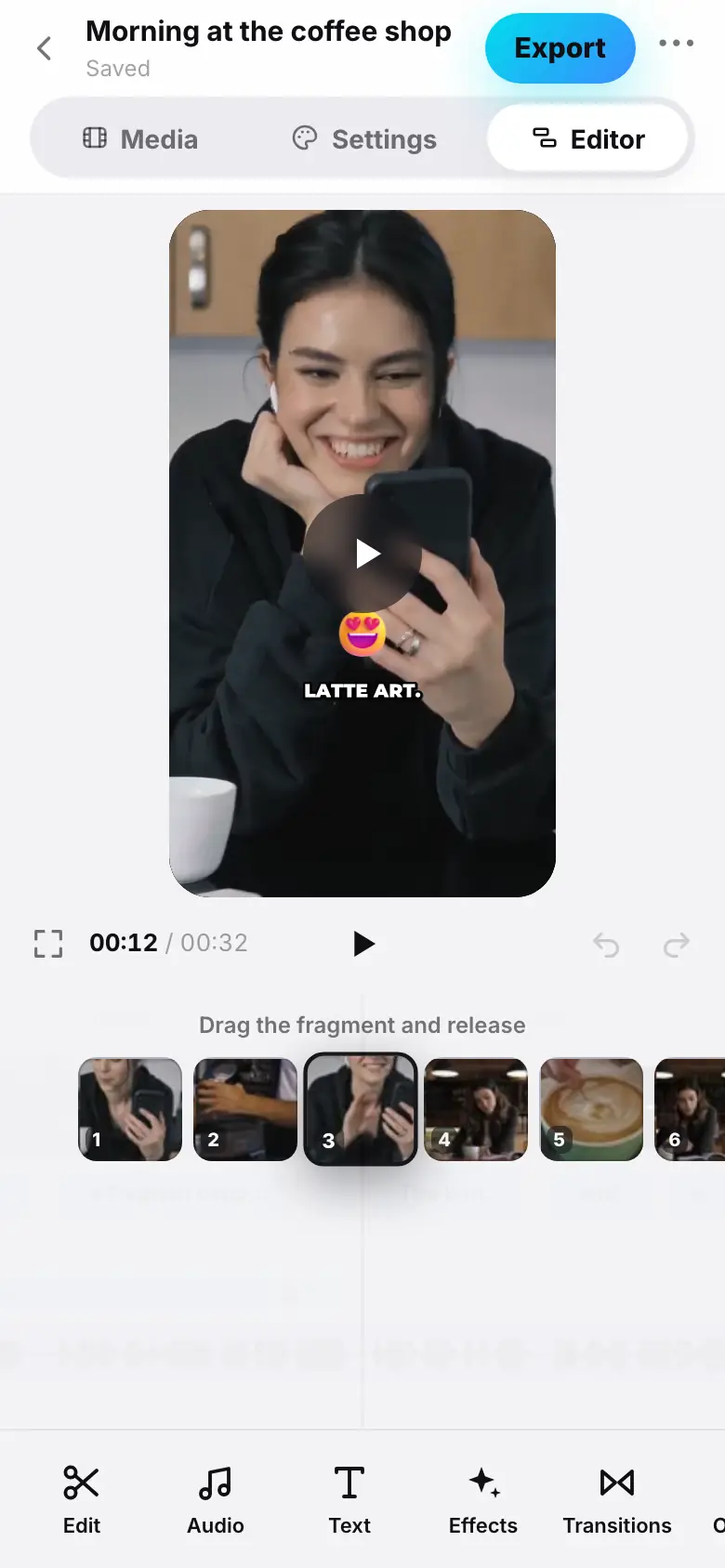
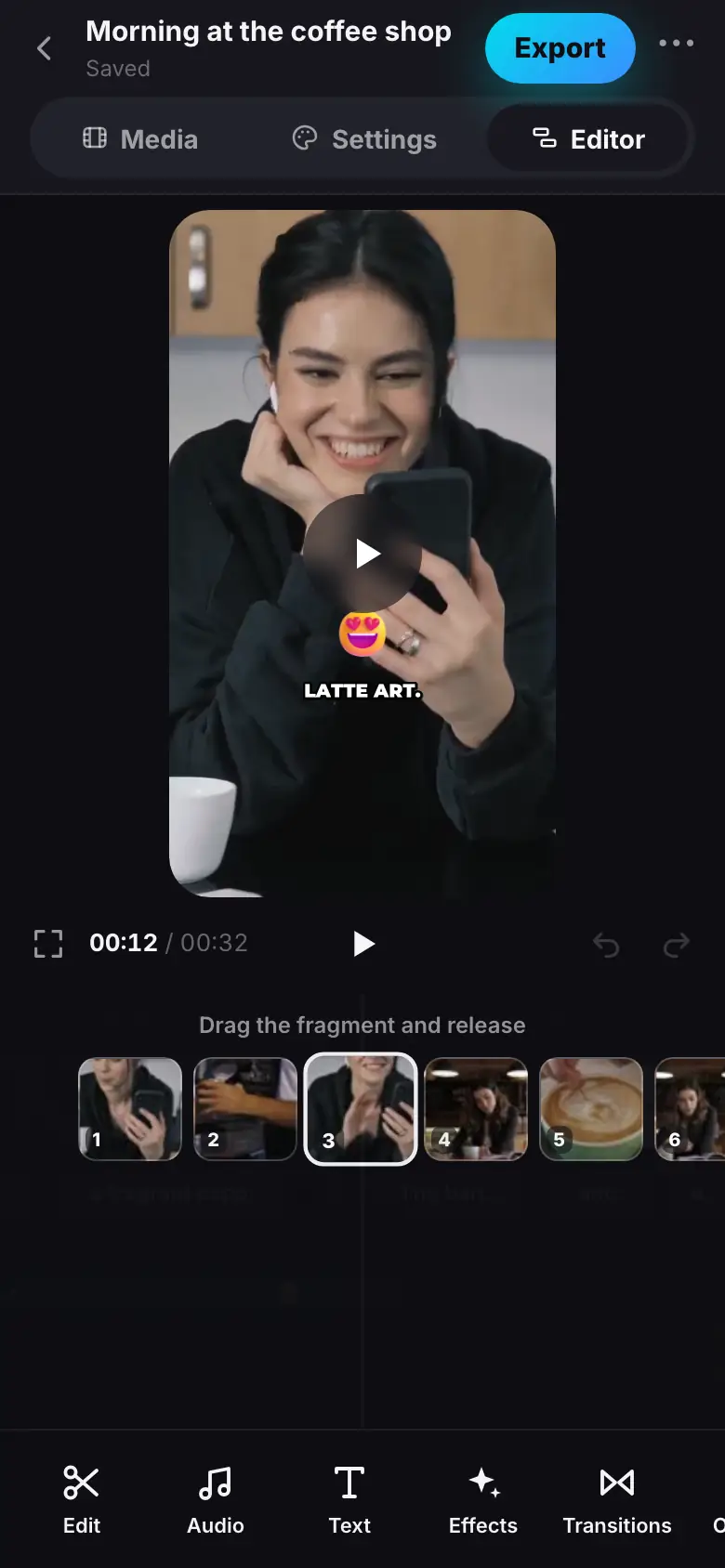
- Hold your finger on the third clip — a row of tiles appears
- Move the tile left to the first place
- Release — the clip now opens the reel
Duplicate
Duplicate puts a copy of the selected clip right after it. The copy gets the same frame, speed, volume, effect, color, animations, mask, background and processing — but no transition.
Copy and paste the look
Found a great combination for a clip — color, effect, animation, speed — and want the same on others? Don't set each clip up again: copy the look and paste it into one clip or into all of them at once. Unlike Duplicate, no new clip appears — the settings of existing clips change.
The demo will appear here
Step 1 of 4
- Click a clip with a filter and an effect and press ⌥⌘C — the “Look copied” message
- Select another clip and press “Paste look” — a sheet with checkboxes, “Colour and Adjust” and “Effect” already checked
- Press “To this clip” — the “Look pasted” message, the preview has the same color and effect
- Open the sheet again and press “To all clips” — filter and effect badges on every clip
Copy the look
Select the clip with the look you want and press Copy look. The message Look copied appears.
Select another clip
Press Paste look — a sheet of the same name opens. Until you copy something, the button is inactive.
Check what to carry over
Whatever is set on the copied clip is checked already. Uncheck what you don't need or check more.
Paste
To this clip — only the selected clip, To all clips — every clip of the reel. The message Look pasted appears.
The buttons are in the selected clip's toolbar. From the keyboard: ⌥⌘CCtrlAltC copies, ⌥⌘VCtrlAltV opens the paste sheet. The keys work while a clip is selected.
The buttons are in the selected clip's toolbar. On iPad and Mac with a hardware keyboard the same ⌥⌘CCtrlAltC and ⌥⌘VCtrlAltV work as on the web.
What you can carry over:
| Checkbox | What it carries over |
|---|---|
| Speed | The clip's speed (Speed and volume) |
| Volume and fades | Volume, sound fade-in and fade-out |
| Colour and Adjust | The filter with its strength and the Adjust sliders |
| Effect | The clip's effect |
| Transition | The transition at the start of the clip |
| Animations | In and out animations |
| Mask | The mask |
| Background | The background around the frame |
| Framing | Manual framing |
How it works:
- A checked item replaces the clip's setting. If the copied clip didn't have that setting, it is reset — such a checkbox is labeled Resets: not set on the copied clip.
- Unchecked items stay as they were.
- A freeze frame doesn't get speed and sound, and the reel's first clip doesn't get a transition.
- Keyframes and processing (reverse, stabilization, noise reduction) aren't copied.
- The whole paste is one undo step.
Delete and bring back
- Delete or Delete removes the selected clip from the reel. Changed your mind — ⌘ZCtrlZ.
- Deleted speech doesn't disappear from the source: ask the AI assistant to bring a phrase back, for example “Bring back the phrase about the result at the start”.
- Restore cut words appears on a clip with individual words cut inside it — fillers, slips or a phrase cut on the captions track. The button brings them all back.
A new clip from a source
Press “+” on the timeline → Source clip and pick a video or photo of the project. The first 3 seconds of the source become a new clip after the clip at the playhead — then trim or extend it with the handles. It is a clip without speech: its edges move in time.
Slip
A clip shows a piece of its source. Slip moves that piece within the source: the clip shows slightly earlier or later frames, while its length and place on the strip stay the same. It's handy when the clip's length is already right — say, cut to the beat — but the wrong moment is in frame: the hand hasn't reached the cup yet, or the motion is already over.
Slip is available on video clips whose edges move in time — b-roll and source clips added with “+”. Clips with speech, which are cut by words, photos and freeze frames don't have it.
The demo will appear here
Step 1 of 4
- Click a b-roll clip and press “Slip” — a strip of the whole source, the bright window is the clip's piece
- Drag the window to the right — the preview shows a later first frame, the clip's length on the strip is the same
- Press the arrow to the right of the time — the piece moves one more frame
- Click ✓ “Done”, hold Alt and drag the clip on the strip to the left — the picture inside follows the mouse
Open “Slip”
Select a b-roll clip and press Slip in its toolbar. A panel opens: a strip of thumbnails of the whole source with a bright window — the piece the clip shows; the rest is dimmed.
Move the window
Drag the window along the strip: right for later frames, left for earlier ones. The preview shows the clip's first frame right away. Below the strip are the piece's time in the source and the source length, for example “0:02.40 – 0:05.40 of 0:12.00”.
Fine-tune by frame
The arrow buttons on both sides of the time — One frame earlier and One frame later — move the piece by exactly one frame (1/30 of a second). Click ✓ Done.
You can also slip right on the strip: hold ⌥Alt and drag a b-roll clip with the mouse. The picture inside follows the mouse like film: drag right and the clip shows earlier frames, drag left — later ones. The clip gets selected and the preview shows its first frame.
Move the window on the strip with your finger; the arrows move the piece by a frame. Slipping by dragging on the strip is web only.
Good to know:
- The piece never goes past the start or end of the source. If the clip uses the whole source, the panel says: The clip uses the whole source — nothing to slip. Trim its edges first, then move the window.
- The reel's length doesn't change. Elements and markers tied to the clip's time stay at the same places in the reel, while keyframes and the mask stay at the same places in the clip.
- The whole drag is one undo step.
Good to know
- On a freeze frame the handles change its duration (0.3 to 10 seconds), and Split is unavailable.
- A clip with Reverse has no handles and can't be split — turn Reverse off first.
- If the reel has an AI effect, trimming, reordering and deleting clips will drop it on export — the editor warns you.
- A reel can have up to 400 clips.