Your photos and videos, inserts
How to add your own photos and videos over the frame — as an insert for the duration of some words, with Fit and Fill — upload files and manage inserts.
On this page
An insert is your photo or video over the reel's frame for the duration of a few words. The voice and the reel's sound keep going: viewers hear the speech and see what you're talking about — the product, the result, the place. The AI already places cutaways from your materials during the montage; in the editor you can add your own. An insert covers the whole frame or sits in a small window over the video — Picture in picture.
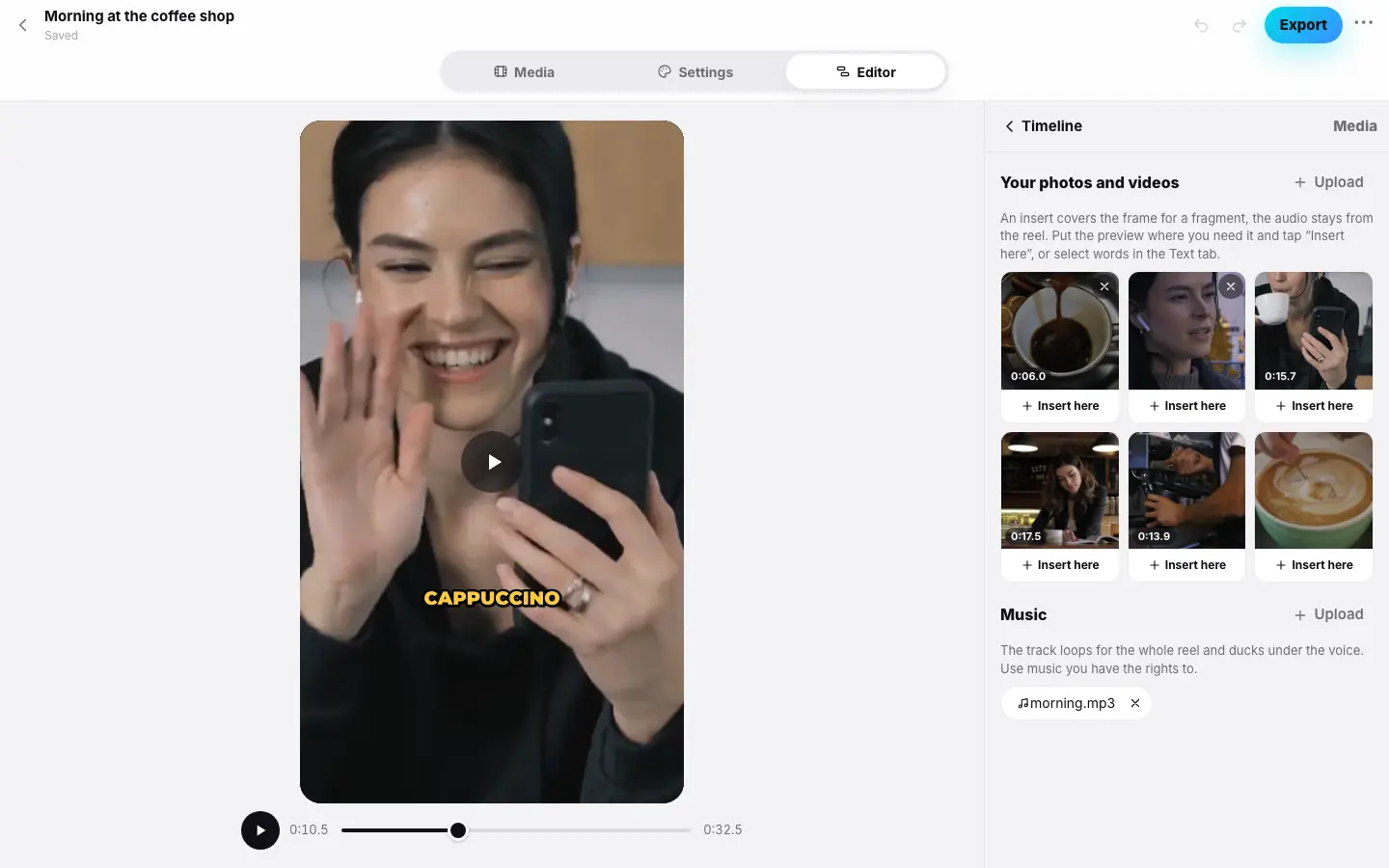

- Press “Media” in the main set — the “Media” mode opens on the right
- Press “Upload” under “Your photos and videos” and choose a photo
- Put the preview where you need it and press “Insert here” under the photo
- The photo appears in “Inserts in the reel” and over the frame in the preview
- Press “Fit” — the photo is shown whole
- Go back “‹ Timeline” — an inserts track appears above the captions
Adding a photo or video
Quick — Overlay
Put the playhead where you need and press Overlay in the main set (or “+” → Photo or video overlay). Choose a file — after upload it becomes a 3-second insert from the playhead.
A file picker opens: a JPG, PNG or WebP photo, or a video. Even faster — drag files onto the editor with the mouse: you'll see Photo or video overlay. You can drop up to 10 files at once: all of them are uploaded to the project media, and the first one becomes an insert at the playhead.
Your photo library opens. iPhone photos are passed in the compatible JPEG format automatically.
From the project media — the Media mode
Open “Media”
Press Media in the main set. At the top is Your photos and videos: the project materials and everything you uploaded in the editor.
Upload files
Upload adds photos and videos to the project media. While a file is being prepared, it shows preparing….
Insert
Put the preview where you need it and press Insert here under the file — it becomes a 3-second insert from the playhead.
How an insert works
An insert covers the frame while the reel's sound continues. It is tied to words: it shows while the words that fell into those 3 seconds are spoken, and it moves with them if you trim or reorder clips.
- A video in an insert plays from the start of the file, without its own sound.
- An insert is never shown for less than 0.6 seconds.
- Captions and graphics stay on top of the insert.
Managing inserts
In the Media mode. The Inserts in the reel section lists all inserts: time (click to seek the preview), words, a Fit or Fill button and delete.
On the timeline. Once the reel has inserts, an inserts track appears below the video track. Click an insert — its tools appear at the bottom:
- Edit — opens the Media mode;
- Fit — show the photo or video whole; Fill — stretch it to the whole frame (default);
- As window — turn the insert into a window over the video (Picture in picture); a window has Window and Full frame instead of these buttons;
- Delete or Delete.
To move an insert to other words, drag it with the mouse (on iPhone and iPad — long-press and drag).
Project media
- Files you add in the editor are stored in the project and deleted with it or when the source retention period ends.
- ✕ on a file in Your photos and videos removes it from the project media. Materials the reel was edited from can't be removed.
- Photos from the project media are also used for the AI avatar.
Good to know
- To replace the picture of a whole clip with speech, Replace on the clip is handier: the insert covers all of its words (Freeze frame, replace…).
- A reel can have up to 30 inserts.
- Inserts are free; they appear in the finished video after Export.