9. Export and publishing
The last tutorial step — the export window, the Social preset, publishing to connected social accounts, export progress, downloading and sharing.
On this page
Step 9 of 9 · about 2 minutes
Export renders the reel with all your edits into a file and, if you like, publishes it to social media right away. Export is free — do it as many times as you need.
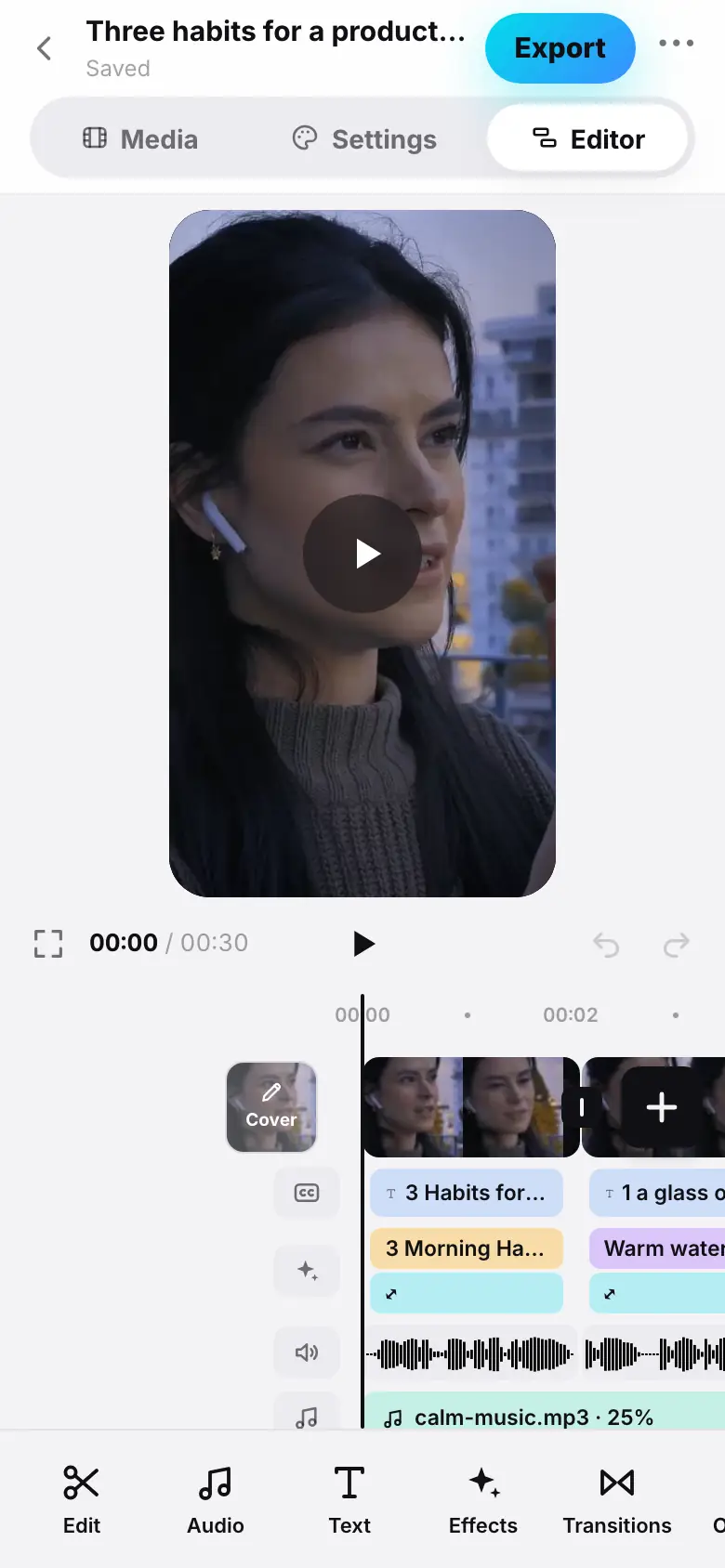
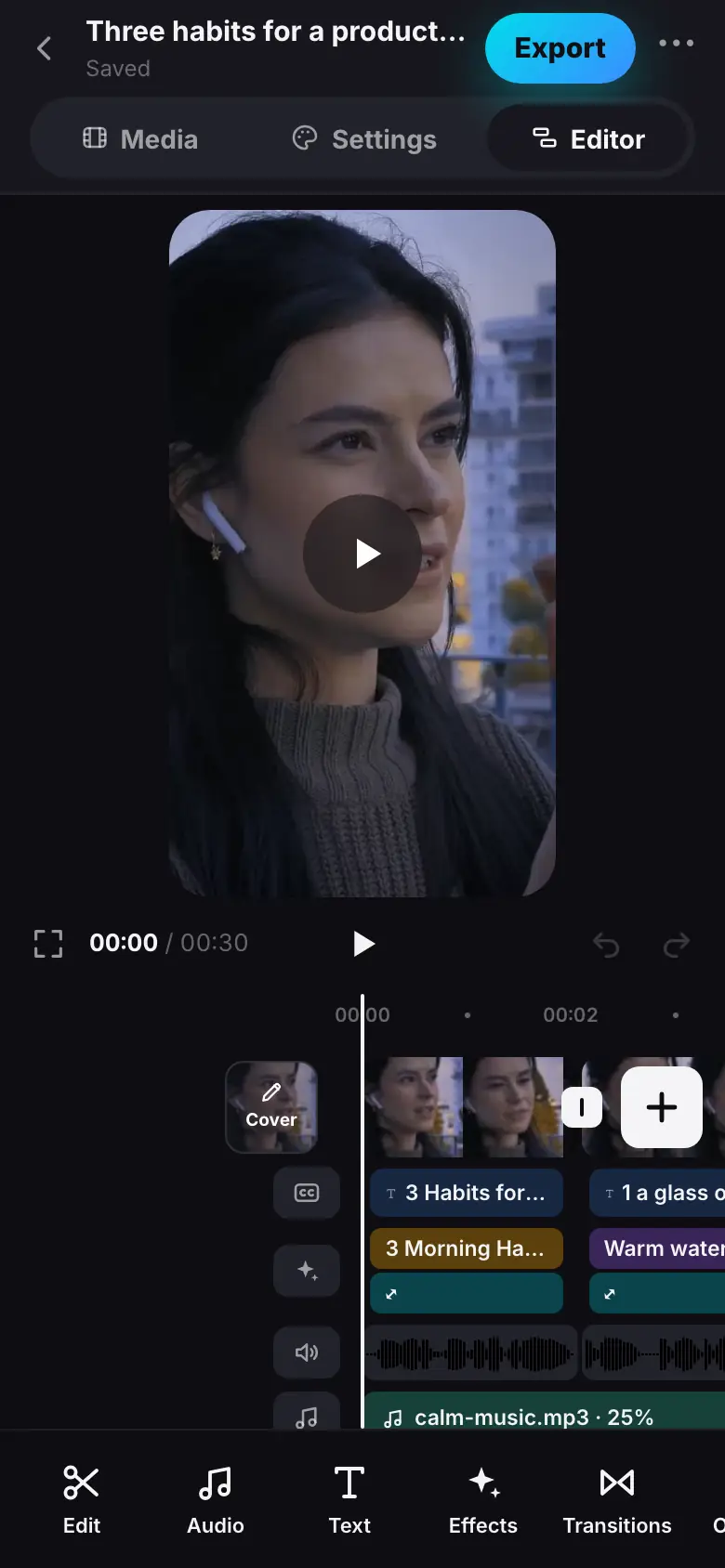
- In the editor, tap “Export” — the Export window opens
- The summary: 1080 × 1920 · 30 fps · H.264, an estimated file size; the Social preset
- Under “Publish to social media”, turn on the YouTube account
- Check “Title” and “Caption & hashtags” — the AI drafted them
- Tap “Export & publish · 1”
- The “Export from the editor” card: “Then publish” and the YouTube logo
- Done: the publications button in the header — “Published”, “Open”
Open export
In the Editor section, tap Export in the header. Slicer saves your edits and opens the Export window full screen. On top is a summary: the cover, frame size, frame rate, codec, bitrate and an estimated file size.
On your first reel there is a note about the watermark: Your first video is free and has a watermark. It disappears after any payment.
Choose the file settings
For social media you do not need to change anything — the Social preset is tuned for Reels, Shorts and TikTok: MP4, H.264, 1080p, 30 fps. The other presets are Master file, 4K for YouTube and Small file; any manual change turns the preset into Custom. What each setting means — Export: presets and file settings.
Publish to social media
The Publish to social media block lists your connected accounts with switches. No accounts yet? Tap a platform button to connect it right there: Instagram, YouTube, TikTok or VK Video.
Once at least one account is on, you get:
- Title — for YouTube and VK;
- Caption & hashtags — drafted by the AI, with a character counter;
- Made with AI — a label for reels with an AI avatar or AI effects;
- settings for each platform: visibility, “Made for kids”, sharing to the feed and more.
Details for every platform — Publishing to YouTube, Instagram, TikTok, VK.
Start the export
Tap Export or, if accounts are selected, Export & publish · 1. The window closes and the project shows the Export from the editor card with stages and file settings. Progress goes from 0 to 100% — the early montage stages are not repeated. Publishing starts right after rendering.
If the export fails or you stop it, the reel stays as it was and no tokens are charged — a notice appears with an Export again button.
Download or share
When the export is done, the “⋯” menu in the project header offers:
- Download — the video file is saved to your Downloads.
- Share — the browser's share menu with the video file. If the browser cannot share files, the reel is downloaded and the post text is copied — you will see The reel is downloaded and the post text is copied.
- Save — the reel is saved to Photos.
- Share — the system Share sheet with the video file: messengers, AirDrop, social media apps.
Publication status is the button with the platform logo in the project header: Uploading 40%, Platform is processing, Published and an Open link.
Done!
You have gone all the way from raw videos to a published reel. You can come back to the project any time — edit, rebuild with new settings and export again while the sources are kept (7 days after the last work on the reel).
What's next
- Editor overview — everything the editor can do.
- Connecting social accounts — so reels are published automatically.
- Balance and packs — once you like the free reel.