Gestures and keyboard shortcuts
Every key, mouse action and gesture in the Slicer editor — in the browser, on iPhone, iPad and Mac: play, frame stepping, split, markers, undo, copy look.
On this page
The editor is the same on the web and in the app, and you can drive it with whatever is at hand: mouse and keyboard on a computer, fingers on iPhone and iPad, keyboard and trackpad on iPad and Mac. This page collects every key and gesture.
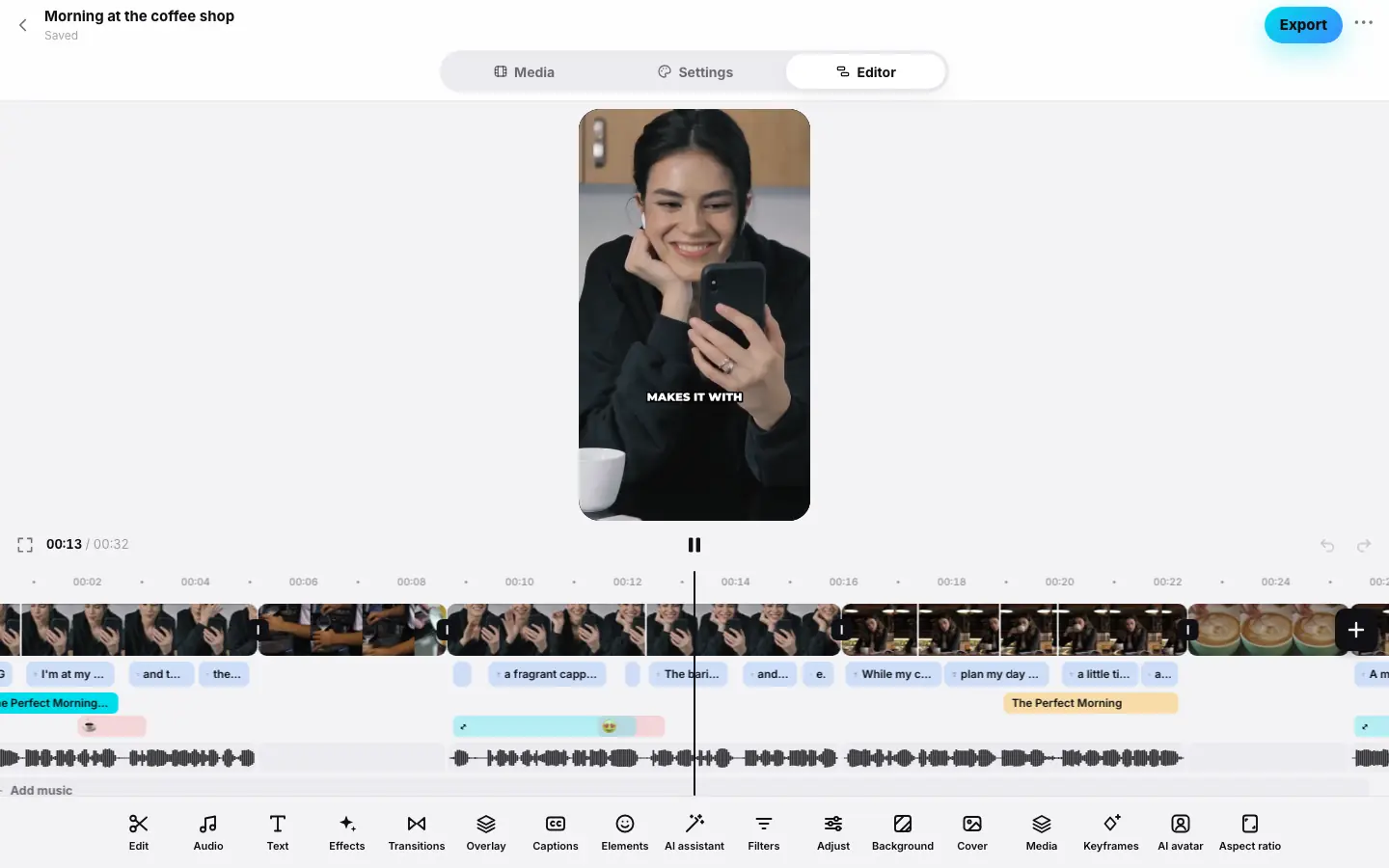
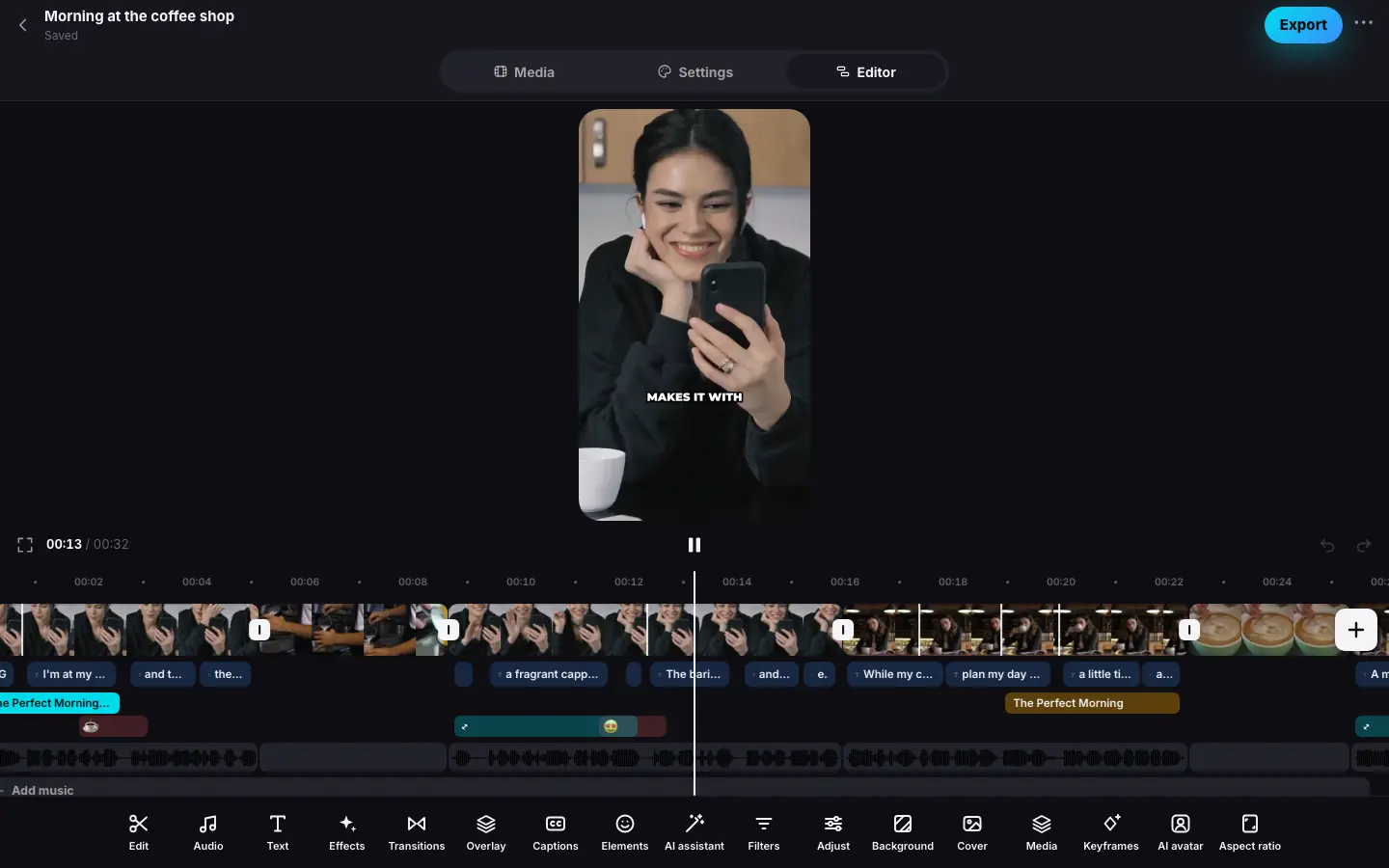
- Press Space — the reel plays; press it again — pause
- Right arrow three times — the preview steps frame by frame
- Shift + ← — one second back
- S — the clip at the playhead is split in two
- ⌘/Ctrl + Z — the split is undone
- F — full-screen preview, Esc — back
Keyboard shortcuts
Shortcuts don't fire while the cursor is in a text field or a sheet is open — so typing never triggers them.
| Key | Action |
|---|---|
| Space | Play and pause |
| ← / → | One frame back or forward (1/30 s) |
| ⇧←Shift← / ⇧→Shift→ | One second back or forward |
| Home / End | To the start or end of the reel |
| ⌘ZCtrlZ | Undo |
| ⇧⌘ZCtrlShiftZ | Redo |
| ⌘YCtrlY | Redo (web only) |
| S or ⌘BCtrlB | Split the clip at the playhead |
| M | Add a marker at the playhead; if there is one already — open it |
| ⇧MShiftM / ⌥MAltM | To the next or previous marker |
| ⌥⌘CCtrlAltC | Copy the look of the selected clip |
| ⌥⌘VCtrlAltV | Paste the look into the selected clip — the sheet with checkboxes opens |
| Delete / Backspace | Delete the selection: a clip, element or music; for a selected phrase — cut it out of the reel |
| Enter | Edit the text of the selected caption phrase |
| F | Full-screen preview and back |
| Esc | One step back: leave full screen → close “Frame” → close the tool panel → return to “Timeline” → clear the selection |
| , / . | With the By frame panel open — move the clip's end one frame earlier or later (web only) |
Letter keys also work with a Russian keyboard layout. S, M, Delete and Enter work only in the Timeline mode; play, seeking, undo and F work in every mode. Copying and pasting the look works while a clip is selected.
Hover a button to see its key: Split (S), Delete (Delete), Marker (M), Copy look (⌥⌘C), Paste look (⌥⌘V), Undo and Redo, Full screen (F).
Mouse and trackpad
| Action | How |
|---|---|
| Scroll the strip | Mouse wheel, a horizontal trackpad swipe or dragging an empty spot |
| Zoom the strip | ⌘wheelCtrlwheel or a trackpad pinch |
| Scroll the tracks vertically | Shift + wheel |
| Seek | Click the ruler |
| Select a clip, audio, phrase, element or music | Click it on its track; click again to clear |
| Reorder a clip | Drag it on the video track — a row of tiles appears with “Drag the fragment and release” |
| Move an element along the words | Drag a plaque, card, zoom, emoji or insert |
| Trim an edge | Drag the edge handle of the selected clip or element |
| Slip a b-roll clip | Drag the clip while holding ⌥Alt |
| Open a marker | Click its flag on the ruler |
| Edit a phrase's text | Double-click or right-click the phrase on the captions track |
| Pick a transition | Click the mark at a cut |
| Play and pause | Click the preview |
| Move the frame, a keyframe, elements | Drag on the preview; for the frame and keyframes, the wheel zooms |
| Add your photos and videos | Drop files onto the editor — the first one becomes an insert at the playhead |
| Scroll a row of tools or tiles | Mouse wheel over the row |
Near the edge of the strip it scrolls by itself while you trim, reorder or move something.
| Action | Gesture |
|---|---|
| Scroll the strip | Swipe — the strip keeps its momentum |
| Zoom the strip | Two-finger pinch |
| Scroll the tracks | Vertical swipe |
| Seek | Tap the ruler |
| Select | Tap a clip, audio, phrase, element or music |
| Reorder a clip | Long-press a clip — a row of tiles appears; move your finger and release |
| Move an element along the words | Long-press a plaque, card, zoom, emoji or insert and drag |
| Trim an edge | Drag the edge handle of the selected clip or element |
| Open a marker | Tap its flag on the ruler |
| Edit a phrase's text | Long-press the phrase on the captions track |
| Pick a transition | Tap the mark at a cut |
| Play and pause | Tap the preview |
| Move the frame, a keyframe, elements | Drag with a finger on the preview; for the frame and keyframes, pinch to zoom |
Touches come with a light haptic tap: when an edge snaps to a word or a marker, when a reorder slot changes and when an element moves.
iPad and Mac. With a hardware keyboard the same keys as on the web work — including markers and ⌥⌘CCtrlAltC / ⌥⌘VCtrlAltV — except ⌘YCtrlY and , / .. Trackpad: a two-finger scroll moves the strip (vertically — the tracks), a pinch zooms.
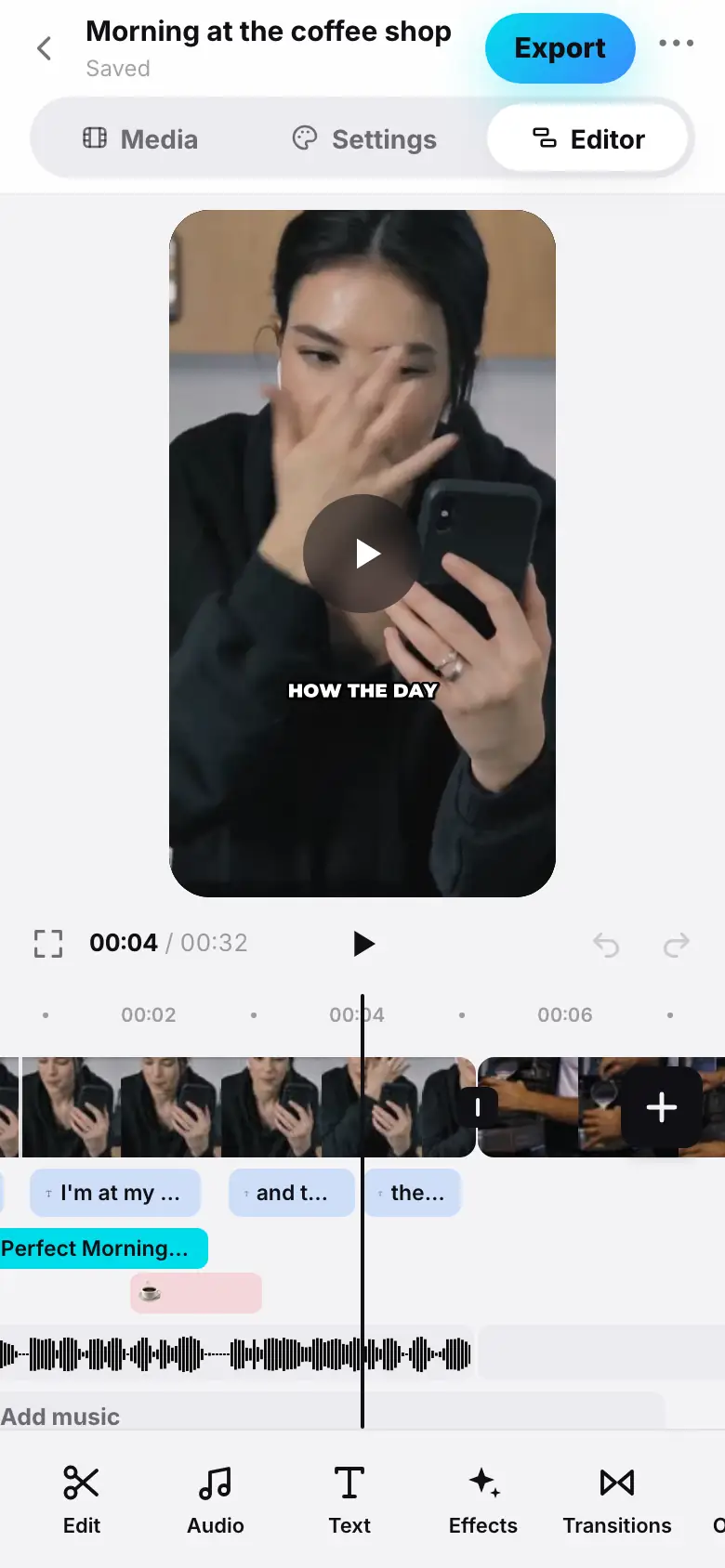
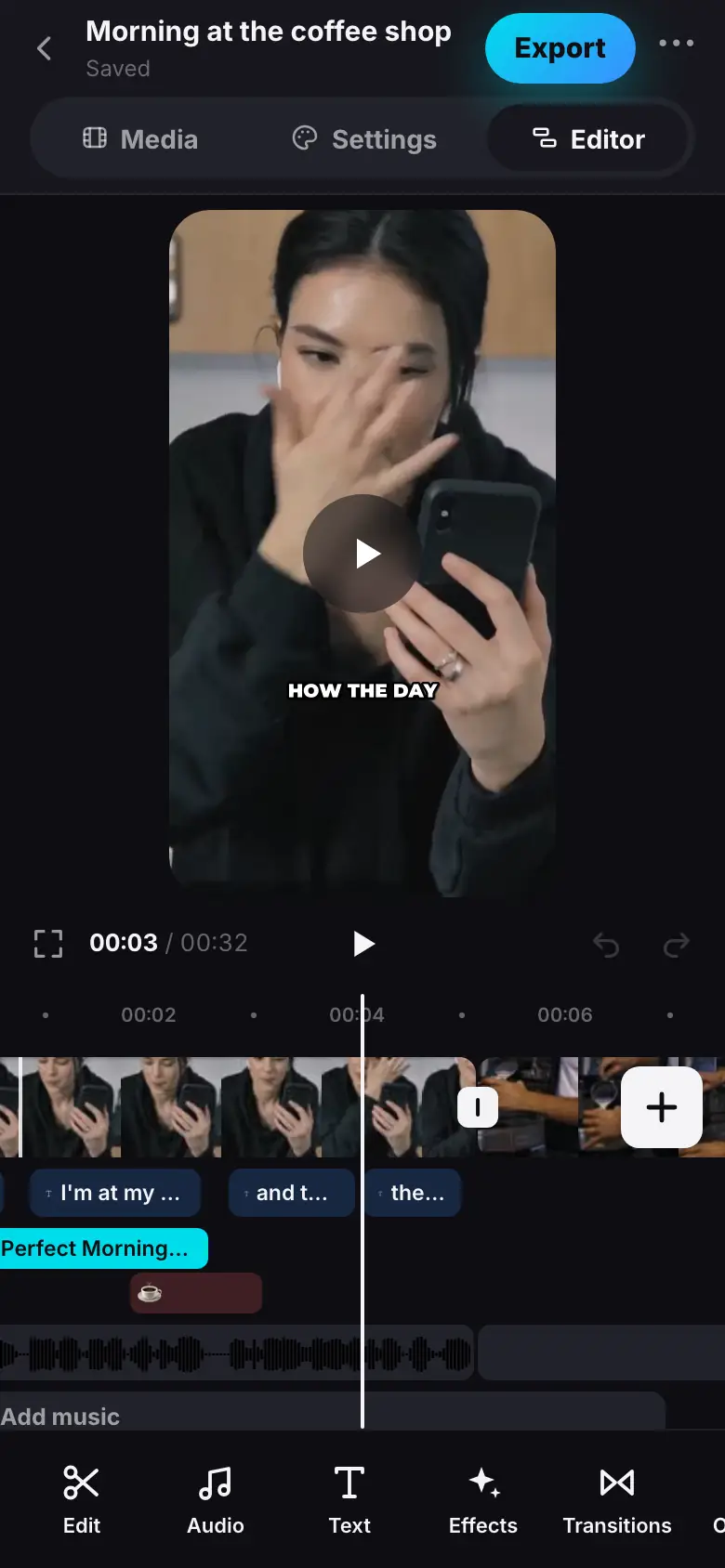
- Swipe the strip — the preview seeks
- Hold your finger on a clip — a row of tiles appears
- Move the tile to the right and release — the clip has moved
- Hold your finger on a caption phrase — the “Caption” sheet opens