Frame, mask and background
How to set a clip's frame, make it follow a face, add a mask with rotation and animation, choose the background and key out a green screen in the Slicer editor.
On this page
- Frame
- Turn on “Frame”
- Move and zoom
- Fit or fill
- Done or Auto
- Follow the face
- Open “Frame”
- Press “Follow the face”
- Choose where to look for the face
- Adjust the frame if needed
- Mask
- Pick a shape
- Set the look
- Put the shape in place
- Mask animation
- Background
- Chroma key
- Turn on “Chroma key”
- Refine the color if needed
- Tune the edge
- Choose what goes behind
- Good to know
- What's next
During the montage the AI frames every clip by itself: it finds the face and the main subject and crops the video to the reel's aspect ratio. If you want it different — move the frame, zoom in, show a horizontal video whole or have the frame follow the speaker's face — use the Frame tool. Mask keeps only a shape in the frame visible, and Background sets what shows around the frame; the same panel holds Chroma key, which turns a green or blue screen transparent.
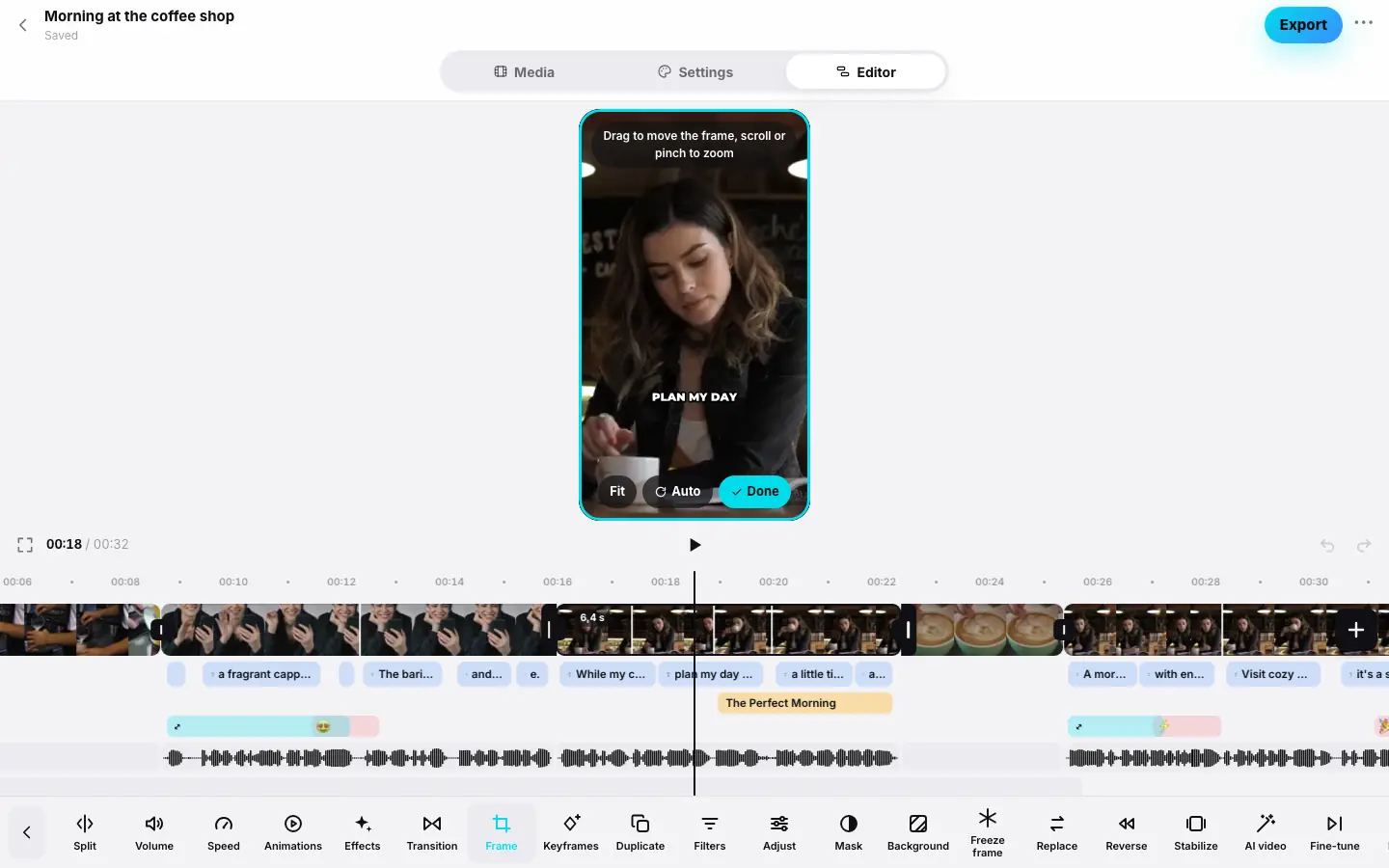
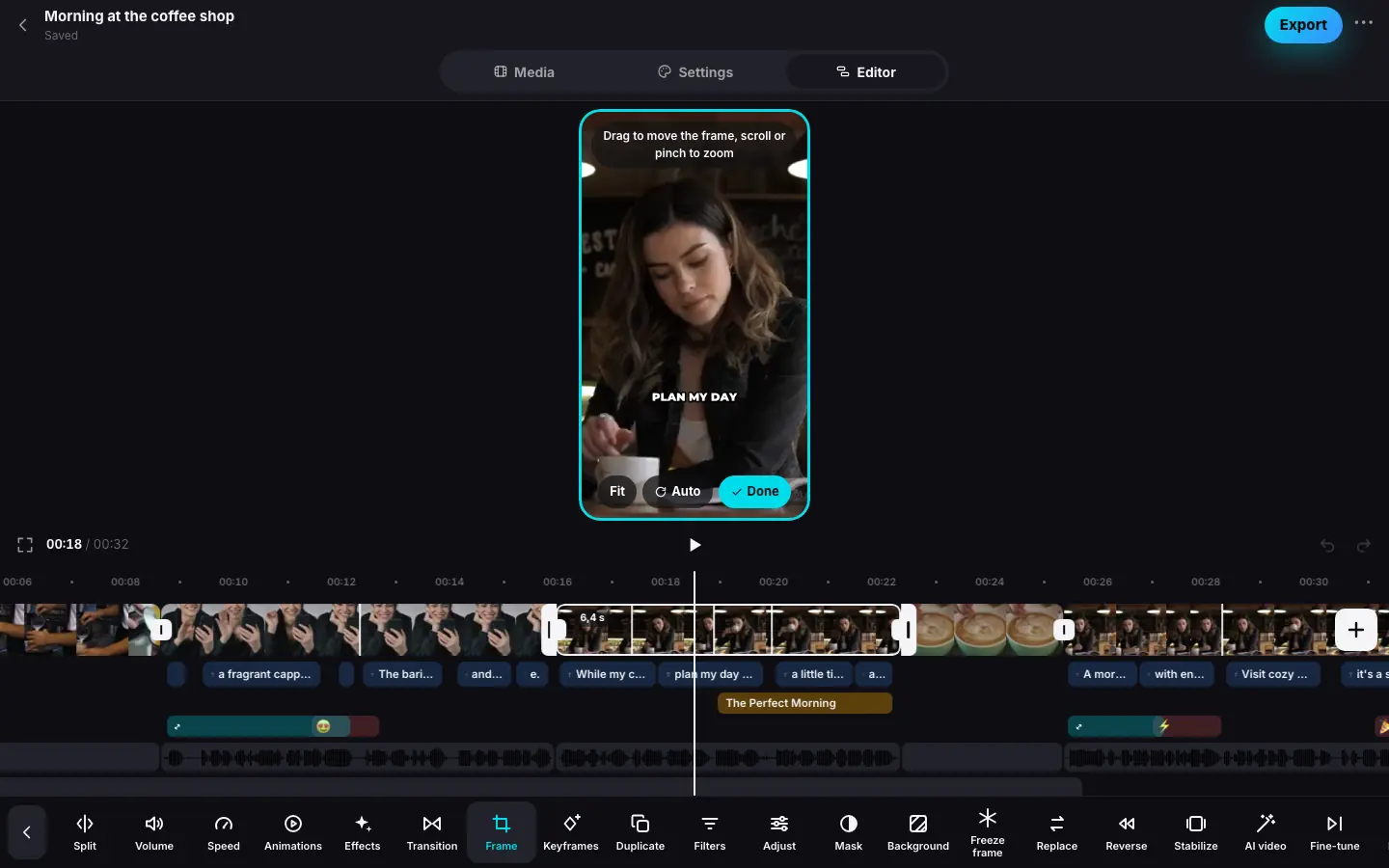
- Click a clip and press “Frame” — the preview pauses and a hint appears on top
- Drag the frame to the right with the mouse — another part of the scene is in view
- Scroll the wheel — the frame zooms in
- Click “Done” — the clip shows a manual-frame badge
- Press “Mask” and pick “Circle”
- Press “Background” and pick turquoise — it shows around the circle
Frame
Turn on “Frame”
Select a clip and press Frame. The preview pauses inside the clip and an editing layer with a hint and buttons appears over it.
Move and zoom
Drag the frame with the mouse — the crop window moves across the source. The mouse wheel or a trackpad pinch zooms in (up to ×3).
Move the frame with your finger, pinch to zoom (up to ×3).
Fit or fill
If the source is wider than the reel's aspect ratio — for example, a horizontal video in a 9:16 reel — the editing layer has a Fit button. It shows the whole frame, and the empty space above and below is covered with a blurred copy of the same frame. Fill brings back full-screen cropping.
Done or Auto
Done closes the editing layer (or Esc). Auto brings back the automatic frame set by the AI.
While the frame is set by hand, the Frame button is highlighted and the clip shows a crop badge.
Follow the face
When the speaker walks around, leans or gestures, a still frame keeps “losing” them. With Follow the face the crop window smoothly follows the face through the whole clip: it stays put while the person barely moves and gently catches up when they shift — no jerks and no jitter.
Open “Frame”
Select a clip and press Frame. The editing layer shows a Follow the face button. It's there when the frame has room to move: the source is wider or taller than the window — say, a horizontal video in a 9:16 reel or a zoomed-in frame. Photos don't have it.
Press “Follow the face”
If the AI montage has already analyzed the frames of this part closely enough, following turns on right away and for free — you'll see The frame follows the face. Otherwise the Follow the face sheet opens: Slicer finds the face in the clip's frames and then builds the frame's motion from it.
Choose where to look for the face
On the web an AI in the cloud looks for the face: press the button with the price — “Find the face · ≈ N tok.”. The On device option is disabled and labeled In the app.
In the Where AI runs row:
- On device · free — Apple Vision looks for the face on your phone, tablet or Mac; the button reads Find the face · free. On the device, the video does not go to the cloud.
- In the cloud — an AI service at cost, the button shows the price.
What's selected by default is set in Profile → Where AI runs (more). On the device, faces are found only in videos uploaded from that same device; otherwise — The videos were uploaded from another device — only the cloud is available here.
While the search runs you'll see Looking for the face…, and in the app — Looking for the face on the device with a percentage above the preview. Once the face is found, the frame starts following it straight away.
Adjust the frame if needed
The editing layer's hint changes to The frame follows the face. Drag it with the mouse to adjust it at this moment (in the app — with your finger). Move the playhead to the spot you want and drag the frame: the motion changes at that moment only, and the rest of the following stays as it was. Zooming with the wheel or a pinch applies to the whole clip.
Stop following turns following off: the frame stays still where it was at the playhead. Auto brings back the AI's automatic frame.
- A clip of up to 2 minutes. If it's longer, the sheet says The fragment is longer than 2 minutes — split it to follow the face: split the clip and turn on following for each part.
- If there's no face — No face found in this fragment, and the frame doesn't change.
- A found face is remembered for the source: following on another clip from the same seconds turns on right away and for free.
- The cloud price is at cost: one AI call per 10 seconds of the clip (the AI looks at two frames per second) — ≈0.97 tokens per call. The sheet shows the price before you start — “≈ price, up to a limit”; if it doesn't work out, no tokens are charged. On the device it's free.
- The face search is recorded in the project history as Face tracking.
Mask
A mask keeps a shape in the frame visible and shows the clip's background outside it (more on that below). It works for striking inserts, a “window” in the frame or emphasis on a face.
Pick a shape
Select a clip and press Mask. The preview pauses inside the clip. Pick a shape: Circle, Frame (a tall rectangle with rounded corners), Heart or Stripe (a full-width horizontal band). None removes the mask.
Set the look
- Size — 20 to 100, 70 by default;
- edge Feather — 0 to 100, 10 by default;
- Rotation — −180° to 180°;
- Invert — the other way round: video outside the shape and the clip's background inside.
Put the shape in place
The mask doesn't have to stay in the center — you can move it right on the preview.
Drag the shape on the preview, scroll to resize. Rotate it with the Rotation slider in the panel.
Drag the shape, pinch to resize, twist to rotate.A badge on the preview shows the shape's size, and in the app its rotation too.
Mask animation
The shape can travel across the frame: follow an object, open up or spin. It works like keyframes.
- Move the playhead to where the shape should start moving and press Animation point.
- Move the playhead further and drag, resize or rotate the shape — a new point appears there.
- Between points the shape moves smoothly. The hint in the panel shows how many points the mask has, for example Animation points: 3. An edit under the playhead adds a new one — the shape moves between them.
When the playhead is on a point, Animation point becomes Remove point. Position, size and rotation are animated; the shape, feather and inversion are shared by the whole clip. A mask can have up to 24 points.
Background
Background is what shows where the frame doesn't cover the screen. The hint in the panel says: Shows around a fitted, zoomed-out or sliding frame and outside the mask.
- Blur — a blurred copy of the frame. It shows around a frame fitted whole (Fit). Outside a mask and around a zoomed-out, rotated or sliding frame you get black instead of the blur.
- Ten colors: black, white, graphite, turquoise, blue, beige, coral, yellow, dark green and purple — a color shows wherever a background is needed.
Apply to all clips sets the selected background for the whole reel. With nothing selected, the Background button opens the panel for the clip at the playhead.
The background also matters for Remove background: there, Blur or a color is what ends up behind the person.
Chroma key
If a video was shot against a green or blue screen, you can remove it without AI and for free: the screen turns transparent, and a color or a photo shows behind the person. The hint in the panel says: A green or blue screen turns transparent, with a colour or a photo behind. Free.
Turn on “Chroma key”
Select a video clip and press Background. Below the background colors is the chroma key section: press Chroma key. Slicer picks the screen color from the edges of the frame by itself, and a swatch of it appears next to the button.
Refine the color if needed
- Auto — pick the color from the frame edges again, at the playhead;
- Eyedropper — take the color from a point on the preview: Click the screen in the preview (in the app — Tap the screen in the preview).
Tune the edge
- Similarity — how close to the key a shade still gets removed (5 to 50, 15 by default). Patches of the screen remain — raise it; hair or clothes start to vanish — lower it.
- Smoothness — edge softness (0 to 30, 10 by default).
- Remove fringe — takes the green or blue spill off the edges of the figure (on by default).
Choose what goes behind
- A color — from the row of colors above in the panel: Behind — a colour from the row above or a photo. With Blur selected, black goes behind.
- Background photo — any image in the project: the photo tiles next to Colour. If there are no photos yet — Add a photo in Media — it can become the background. (Your own photos and videos).
Press Chroma key again to turn it off. The chroma key shows in the preview right away and looks the same in the export. It's available on video clips — photos and freeze frames don't have it.
Good to know
- Frame, mask, background and chroma key show in the preview right away and are free. Only the face search in the cloud is paid.
- A zoomed-out frame isn't only from the Zoom out animation: a keyframe with a scale below 100% or a rotation also reveals the background around it.
- Replace resets a manual frame — the new source is framed automatically (Freeze frame, replace…).
- In a different aspect ratio the frame is recomposed for the new proportions.