Aspect ratio and cover
How to turn a Slicer reel from 9:16 into 4:5, 1:1 or 16:9, pick the cover frame, add a title to it and show it as the first frame for social networks.
On this page
Slicer builds a vertical 9:16 reel — the Reels, Shorts and TikTok format. The Aspect ratio tool remakes the same reel for other platforms: the Instagram feed, a square or horizontal YouTube. And Cover sets the frame viewers see before they play the reel, and a title on it.
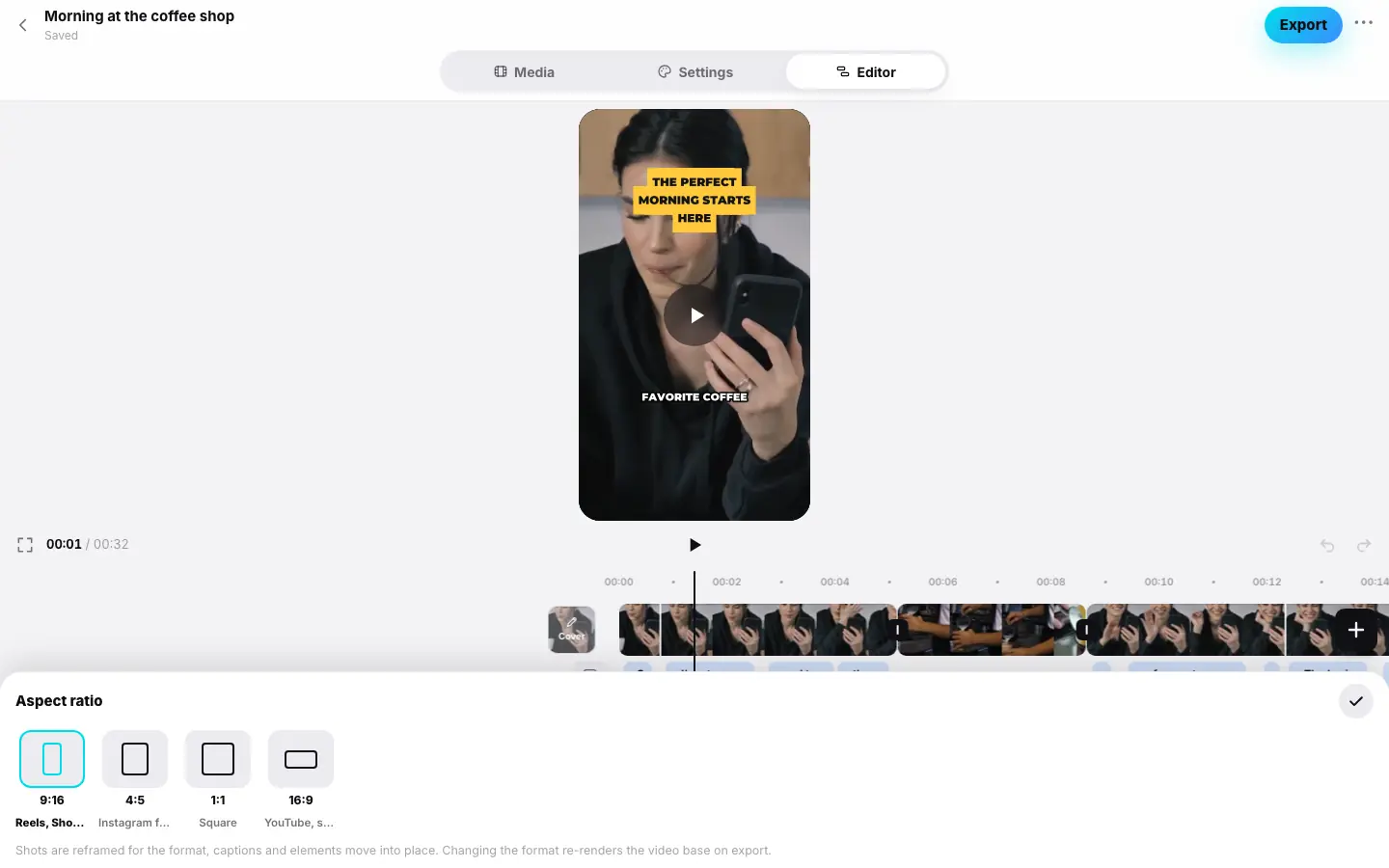
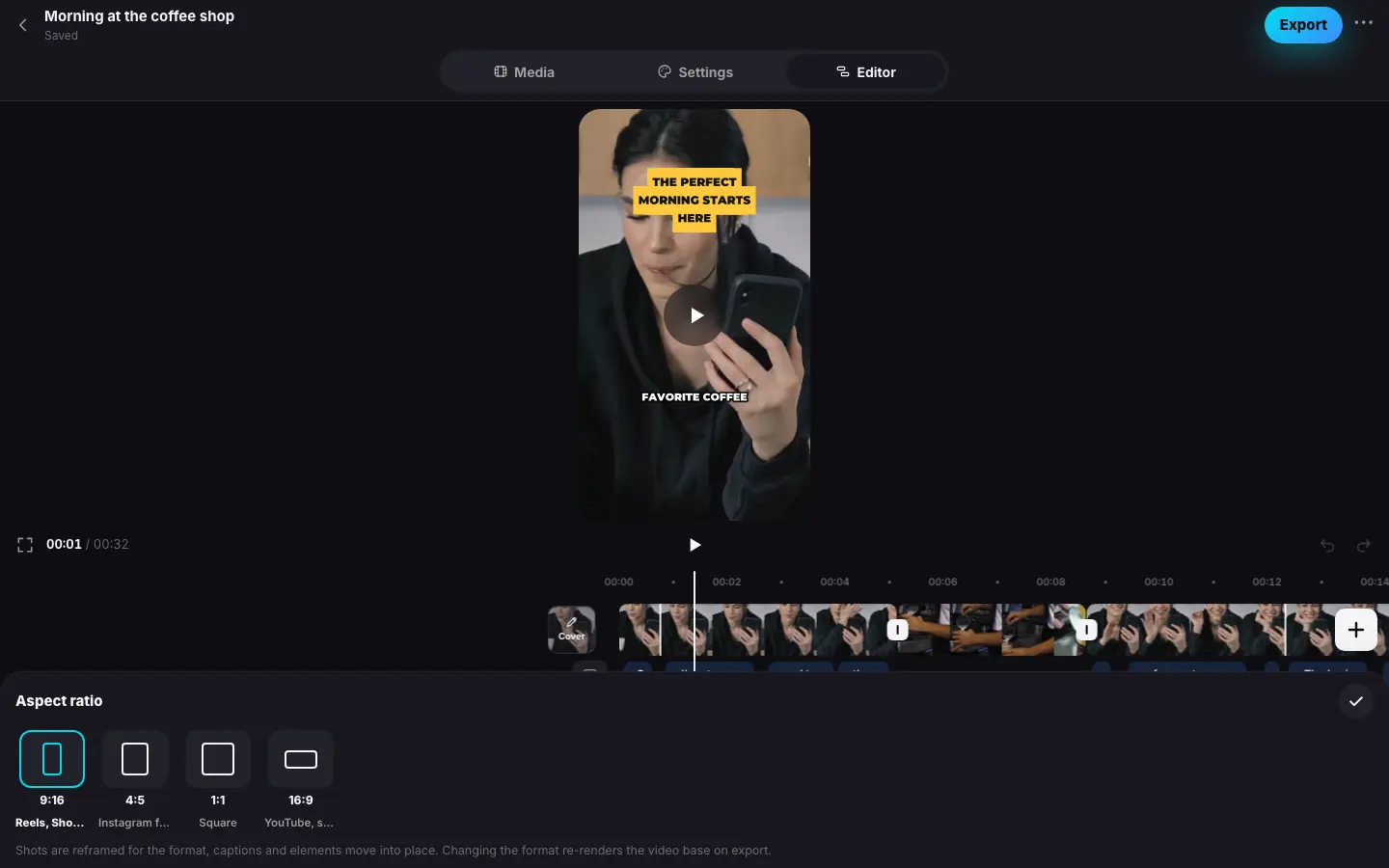
- With nothing selected, press “Aspect ratio” — a panel with four formats
- Pick “1:1 Square” — the preview is square, captions are in place
- Pick 9:16 again and click ✓ “Done”
- Put the playhead on a good frame and click the “Cover” tile to the left of the strip
- Click “Use this frame as the cover” — the message “The cover updates on export”
Aspect ratio
Open “Aspect ratio”
Clear the selection (“‹” or Esc) and press Aspect ratio in the main set.
Pick a format
Format For 9:16 Reels, Shorts, TikTok — the default 4:5 Instagram feed 1:1 Square 16:9 YouTube, screens The preview takes the new proportions right away.
Check the frames
Shots are reframed for the format, and captions and elements move into place. Scroll through the reel and, if needed, adjust individual clips with the Frame tool (Frame, mask and background). Click ✓ Done.
Good to know:
- The finished file is 1080 pixels on its short side: 1080×1920 for 9:16, 1080×1350 for 4:5, 1080×1080 for 1:1, 1920×1080 for 16:9. You can raise the resolution in the export window.
- Changing the aspect ratio rebuilds the reel's base on export, so that export takes longer than usual. It's free.
- Emoji, cards and plaques you moved by hand keep their place proportionally in the new frame.
- A horizontal video fills a 16:9 frame entirely, while a vertical one is cropped — part of it, usually around the face, stays in frame. The Fit button of the Frame tool is available only for sources wider than the reel's format.
Cover
The cover is a frame of the reel shown in the project list and when publishing to social networks. By default it's a frame near the start. While the Cover sheet is open, the preview shows the cover: the frame without the reel's captions and elements, plus the title if there is one.
Find the frame
Put the playhead on the frame you want as the cover — for example, an expressive face or the result.
Open “Cover”
Click the Cover tile to the left of the video track's start or Cover in the main set. The sheet shows the current frame: “Current cover: frame at 00:05” or “a frame near the start”.
Make it the cover
Click Use this frame as the cover. The message The cover updates on export appears and the tile on the strip shows the new frame. The sheet stays open, so you can add a title right away. Reset to default brings back the frame near the start.
The cover is a frame of the reel itself, with all its edits: color, framing, effects. You can't upload a separate image. The cover file updates on the next Export.
Cover title
A title makes the cover clear before anyone plays the reel: “My best cappuccino”, “Edited in 3 minutes”. It's styled like the reel's hook or plaques and shows only on the cover — it doesn't get into the reel itself (except for the cover as the first frame).
The demo will appear here
Step 1 of 5
- Put the playhead on a good frame and click the “Cover” tile — the preview shows the frame without captions and elements
- Click “Use this frame as the cover” — the message “The cover updates on export”, the sheet stays open
- Type the title “My best cappuccino” in the field — the preview shows the title in the hook style
- Pick “As a plaque” — the title is now a plaque
- Check “Cover as the first frame” — a checkmark and the hint about 0.1 s
Open the “Cover” sheet
As above — with the Cover tile to the left of the strip or the button in the main set.
Type a title
Use the field below the buttons — up to 60 characters. The title appears on the preview right away.
Pick a look
Once there is a title, two looks appear below the field: Like the hook (the default) — large text in the style of the reel's hook, and As a plaque — the title on a plaque. The cover title is still, with no entrance animation.
To remove the title, clear the field.
With a title, the cover is the frame without the reel's captions, hook, plaques and emoji, with only your title on top, so the texts don't compete.
Cover as the first frame
The Cover as the first frame checkbox puts the cover at the very start of the reel for 0.1 seconds. The reel gets 0.1 s longer, with silence under the cover. Viewers will barely notice it, but social networks that take the reel's first frame as the cover will show exactly this one — with the title. Without a title, the first frame is the clean cover frame, without captions and elements.
The cover on social networks
| Where | What it gets |
|---|---|
| Project list | The cover — with the title, if there is one |
| YouTube | The cover with a title — as the video's own thumbnail. YouTube allows custom thumbnails only for some channels: if the channel doesn't have that right, the video is still published and YouTube picks the thumbnail |
| Instagram and TikTok | The reel's frame at the cover moment. With Cover as the first frame — the first frame, i.e. the cover with the title |
How to connect social networks and publish — see Publishing to YouTube, Instagram, TikTok, VK.