Download and share
How to save a finished reel to your computer or your phone's photo library, send it via Share and copy the post text written by the AI.
You do not have to publish through Slicer: you can download the finished reel or send it anywhere through the system Share menu — to a messenger, a social media app, via AirDrop. Along with the reel, the post text the AI wrote during the montage comes in handy.
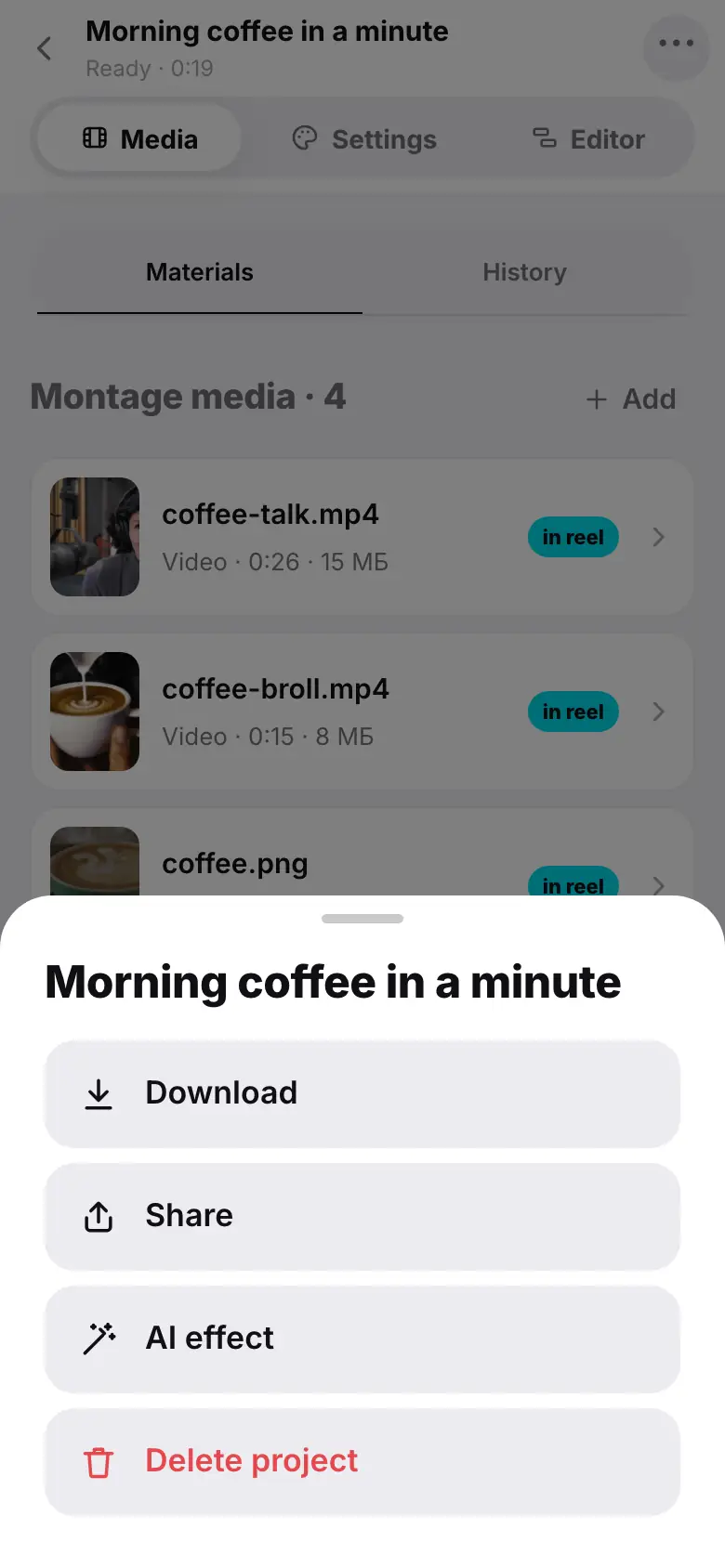
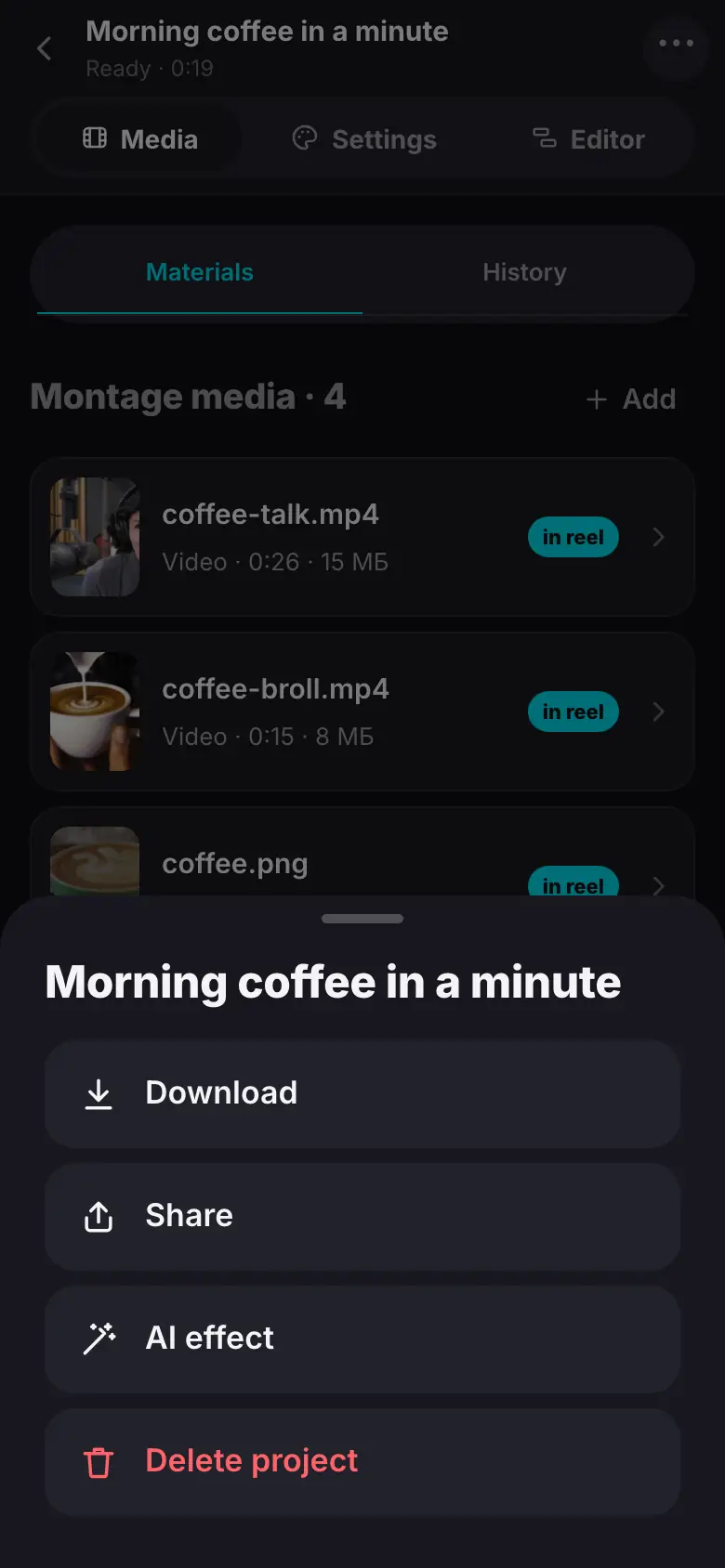
- A finished project: tap “⋯” in the header — the project menu
- Tap “Share” — the system menu with the video file
- The Settings section, the “For posting” card: title, description and hashtags
- Tap “Copy” — “Copied”
Download the reel
The “⋯” menu in the project header → Download. The file is saved to the browser's downloads folder — in the format you chose at export (MP4 or MOV). From the Projects list — the same via right-click on the card.
The “⋯” menu in the project header → Save. The reel is saved to Photos — you will see Saved to your library. If there is no library access, the app asks you to allow it in Settings. From the Projects list — long-press the card.
You download the current version of the reel — the one you picked or exported last. To get fresh edits from the editor into the file, export first.
Share
The “⋯” menu → Share.
The system Share menu opens with the video file and the post text — this is how mobile browsers, Safari and Edge work. If the browser cannot share files, the reel is downloaded and the post text is copied to the clipboard: you will see The reel is downloaded and the post text is copied.
The system Share sheet opens with the video file: messengers, AirDrop, social media apps, Save to Files.
Post text
During the montage the AI writes a title, description and hashtags. They are in the Settings section, the For posting card; the Copy button copies all of it. The same text pre-fills Title and Caption & hashtags in the export window.
Watermark
The free first reel carries a “Slicer” watermark, and its project card shows the Watermarked label. After you pay for any pack, Slicer re-renders the reel without the watermark for free; download it again once the re-render is done.
What's next
- Export: presets and file settings
- Publishing to YouTube, Instagram, TikTok, VK — so the reel is published automatically.
- Export for an editing app — finish the reel in Final Cut Pro, DaVinci Resolve or Premiere.