Timeline and tracks
How the Slicer editor timeline works — the strip under the playhead, seven tracks, markers, selection and tool sets, zoom and the “+” button.
On this page
The timeline is the editor's main mode. It shows the reel over time: the ruler on top, then tracks with video clips, captions, graphics, audio, music and voice recordings. The playhead stays in the center and the strip moves under it: scroll the strip and the preview follows; play the preview and the strip moves by itself.
Almost everything happens on the timeline: select a clip and open its tools, trim edges, reorder clips, pick a transition at a cut, add music, text or a new piece of a source.
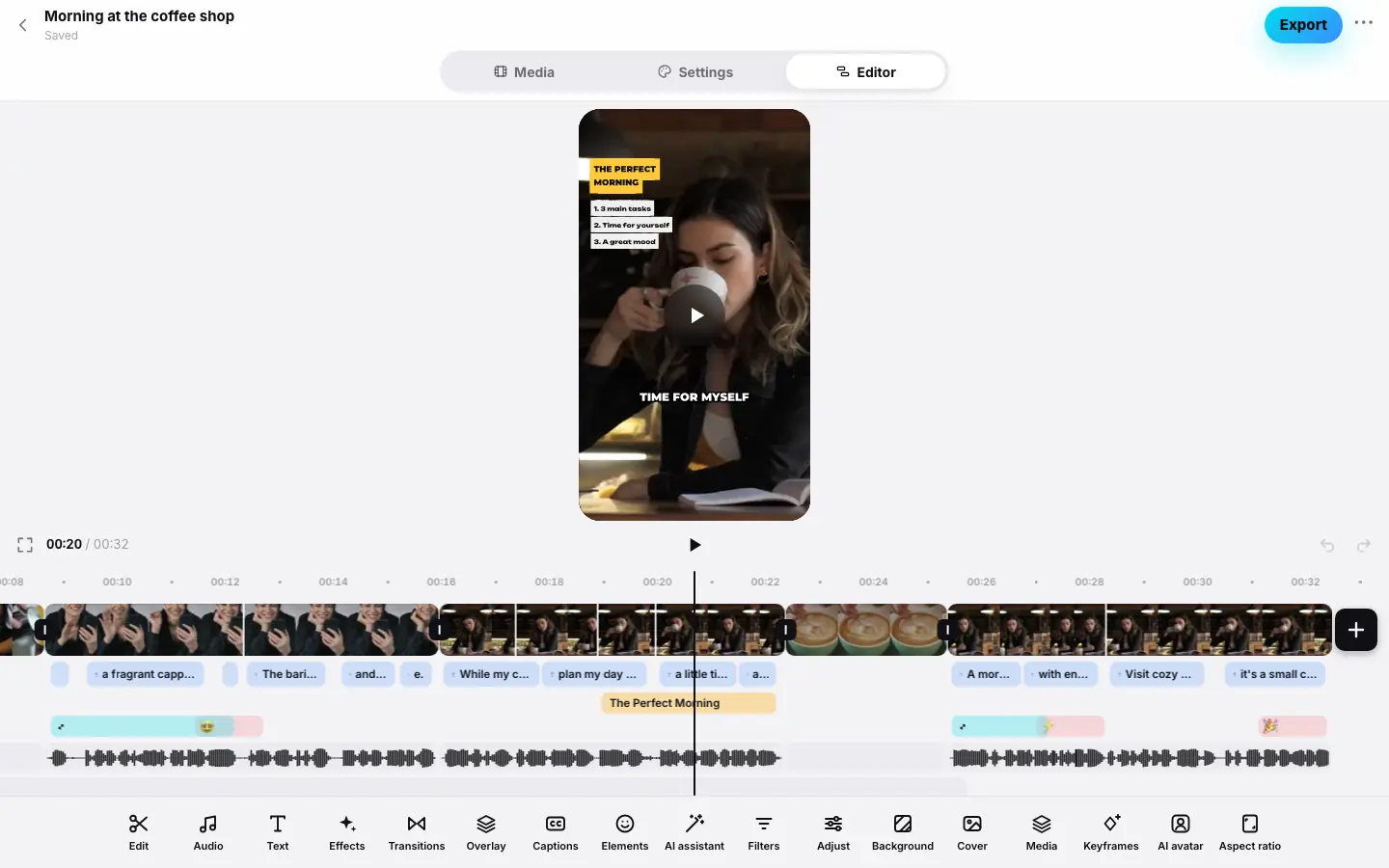
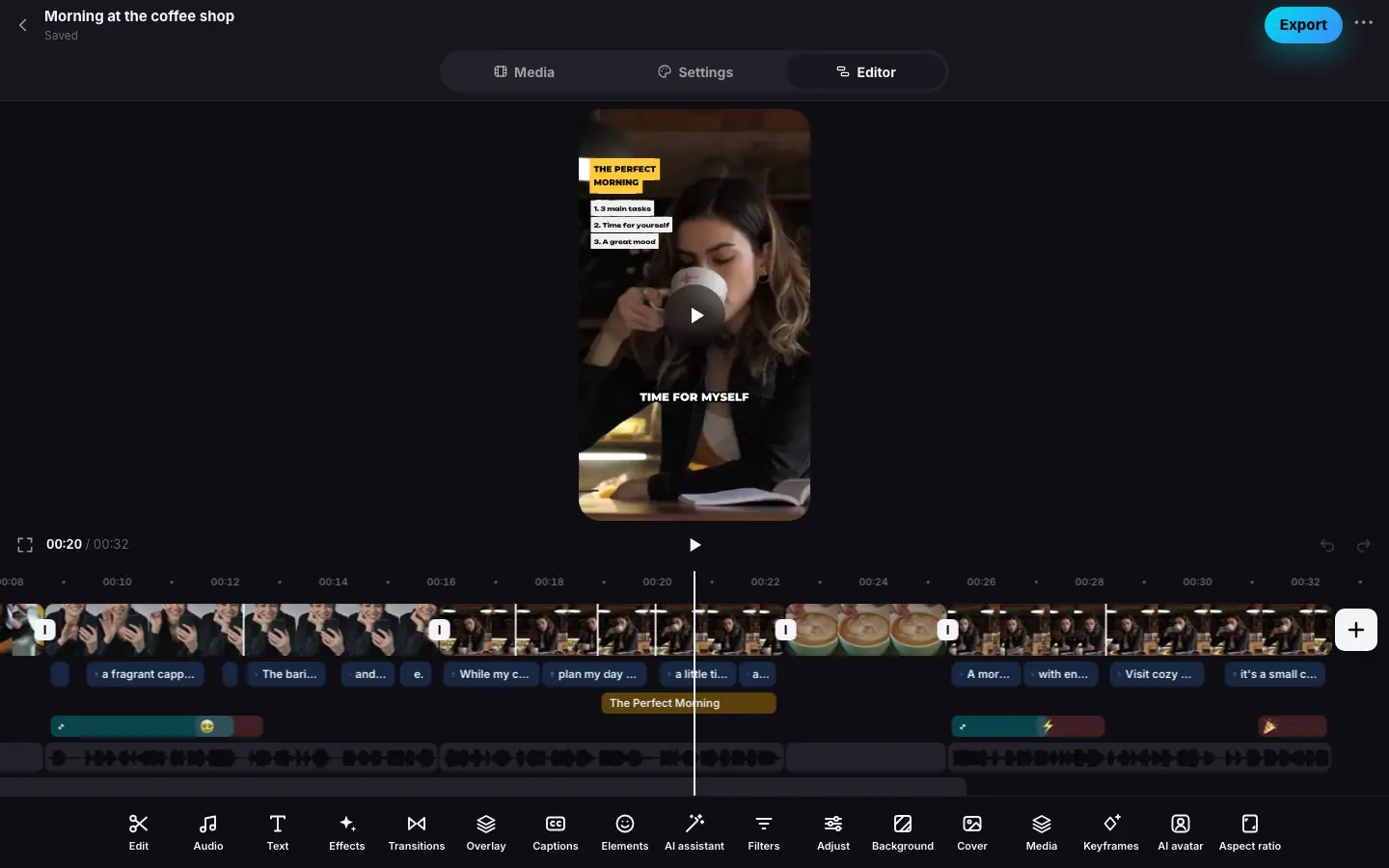
- Scroll the strip with the mouse wheel — the preview seeks along with it
- Ctrl/⌘ + wheel zooms: the clips get wider
- Click the ruler — the playhead jumps there
- Click a clip on the video track — it is selected, with handles and its duration
- Click a phrase on the captions track — the phrase tools appear at the bottom
- Click “+” on the right — the “Add” sheet opens
Tracks
From top to bottom. Each track has an icon to the left of the reel's start.
| Track | What is on it | Click or tap |
|---|---|---|
| Video | The reel's clips with frame thumbnails. To the left of the start — the Cover tile. Transition marks at the cuts. Setting badges on a clip: speed (“1.5×”), freeze frame, color, animation, mask, reverse, stabilization, background removal, manual frame, effect, muted; diamonds are keyframes | Select a clip; at a cut — the Transition panel; on the cover tile — the Cover sheet |
| Inserts | Your photos and videos over the frame. The track appears once the reel has at least one insert | Select an insert |
| Captions | Caption phrases with their text | Select a phrase |
| Elements | Top row — hook, plaques, titles and media cards; bottom row — emoji and zooms. An empty track shows Add text | Select an element; on an empty track — the Text sheet |
| Audio | The waveform of each clip. A badge if the sound is muted or processed | Select a clip's audio |
| Music | The background track for the whole reel: “name · 25%”, beat marks. An empty track shows Add music | Select the music; on an empty track — the Music sheet |
| Voice | Your voice recordings from the microphone: length and volume. An empty track shows Record voice | Select a recording; on an empty track — the Voice recording panel |
Above the tracks, at the bottom of the ruler, are marker flags — your notes on the reel. Clicking a flag opens the Marker sheet with its note and color; clicking elsewhere on the ruler seeks.
On the right, over the strip, is a round “+” button (Add media). It opens the Add sheet:
- Source clip — a piece of any video or photo of the project: its first 3 seconds go after the clip at the playhead, and you can trim them afterwards;
- Photo or video overlay — your photo or video for 3 seconds from the playhead (more);
- Picture in picture — a photo or video in a window over the video: move, rotate and resize it right on the preview (more);
- Music — a background track (more);
- Text — Captions from speech (when the project has speech not transcribed yet), caption editing, New title, hook and plaques, caption style, translation.
Selection and tools
Click or tap an object on a track to select it — the toolbar at the bottom shows its tools. Clicking it again or the “‹” button on the left clears the selection and brings back the main set.
| Selected | Tools |
|---|---|
| Nothing | Edit, Audio, Voice, Text, Marker, Transcribe and Cut pauses (in a manual project), Effects, Transitions, Overlay, Captions, Elements, AI assistant, Filters, Adjust, Background, Cover, Media, Keyframes, AI avatar, Aspect ratio |
| Clip | Split, Transcribe (if the source's speech isn't transcribed yet), Cut pauses (on a time-based clip), Volume, Speed, Animations, Effects, Transition, Frame, Keyframes, Duplicate, Copy look, Paste look, Filters, Adjust, Mask, Background, Freeze frame, Replace, Reverse, Stabilize, AI video, Fine-tune, Slip (on a time-based video clip), Restore cut words (if words inside are cut), Delete, Remove background |
| Clip audio | Volume, Mute or Unmute, Sound FX, Speed, Reduce noise, Enhance voice, Isolate voice, Extract audio |
| Caption phrase | Edit text, Accent, Style, Position, Cut out, Hide captions or Show captions, Translate |
| Music | Volume, Ducking, Replace, Delete, Beats |
| Voice recording | Volume, Record more, Delete |
| Element | Edit (except zooms; for a title — the Title sheet); for an insert — Fit or Fill; for a zoom — its type: Push in, Pull out or Punch; Delete |
Main-set tools that need a clip (Edit, Effects, Filters, Adjust, Background, Keyframes) select the clip at the playhead by themselves. Audio selects the music, or opens the track picker if there is no music yet. Marker puts a flag at the playhead (Markers).
Where to read more about the newer tools:
- Copy look and Paste look — carry a clip's color, effect, animations and other settings over to other clips (more);
- Slip — show other frames of the source without changing the clip's length or place (more);
- Transcribe and Cut pauses — captions from speech and cutting out silence (more).
The tool row scrolls: with the mouse wheel on the web, with a finger on iPhone and iPad.
Scrolling and zoom
- Mouse wheel or a horizontal trackpad swipe — scroll the strip; the preview follows.
- ⌘wheelCtrlwheel or a trackpad pinch — zoom.
- Shift + wheel — scroll the tracks vertically when they don't fit.
- Dragging an empty spot of the strip scrolls it too.
- Clicking the ruler seeks there; clicking a marker flag opens its sheet.
On a touchscreen it works like the app: the strip scrolls with a finger and keeps its momentum, two fingers zoom.
- Swipe the strip — it scrolls with momentum and the preview follows.
- Two fingers — zoom.
- Vertical swipe — scroll the tracks when they don't fit.
- Tapping the ruler seeks there; tapping a marker flag opens its sheet.
- On iPad and Mac with a trackpad: a two-finger scroll moves the strip, a trackpad pinch zooms.
Starting playback stops the strip's momentum.
The cover and transitions on the strip
To the left of the first clip is the Cover tile with the cover frame. Click it to pick another frame (more).
Every cut between clips has a small mark. Without a transition it is a dot; with one — a transition icon. Click it to open the Transition panel for that cut (more).
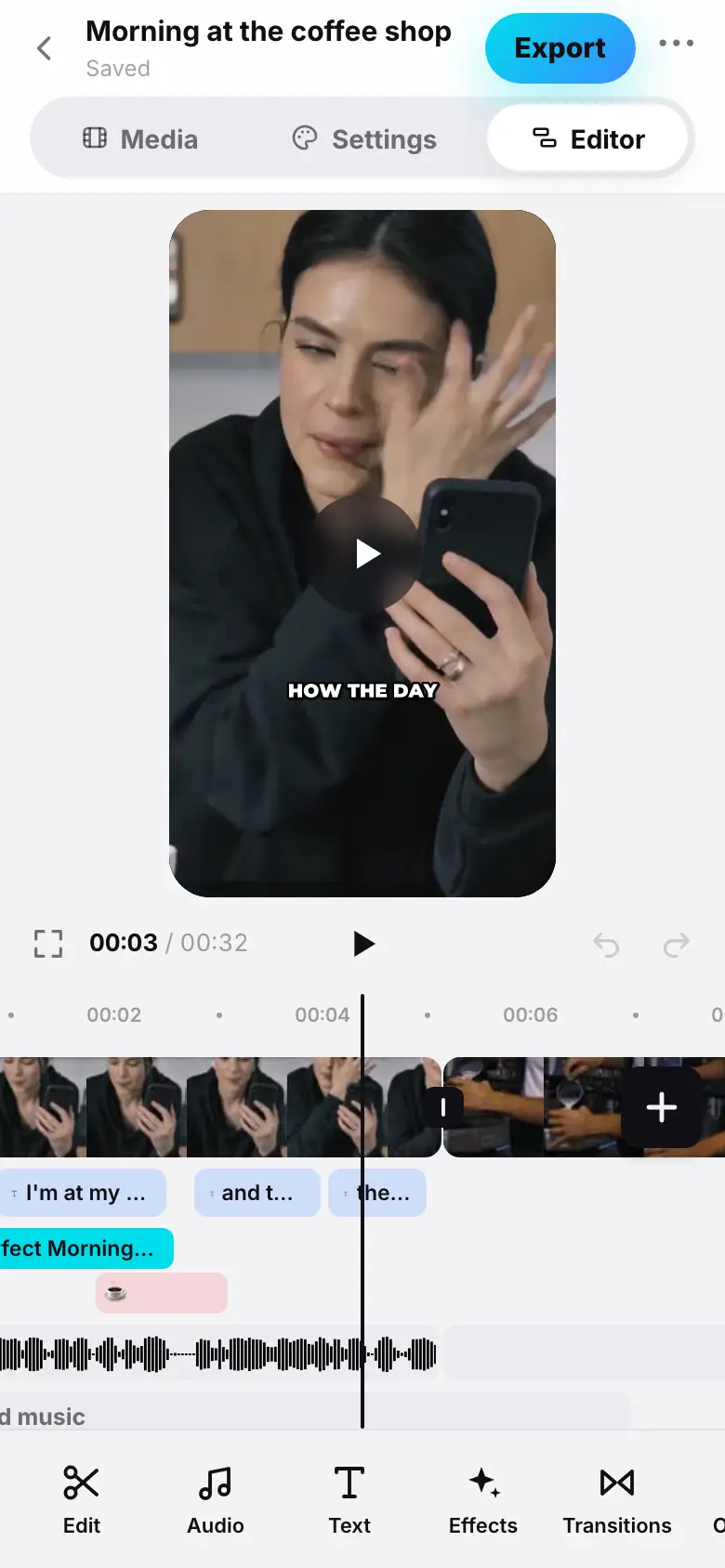
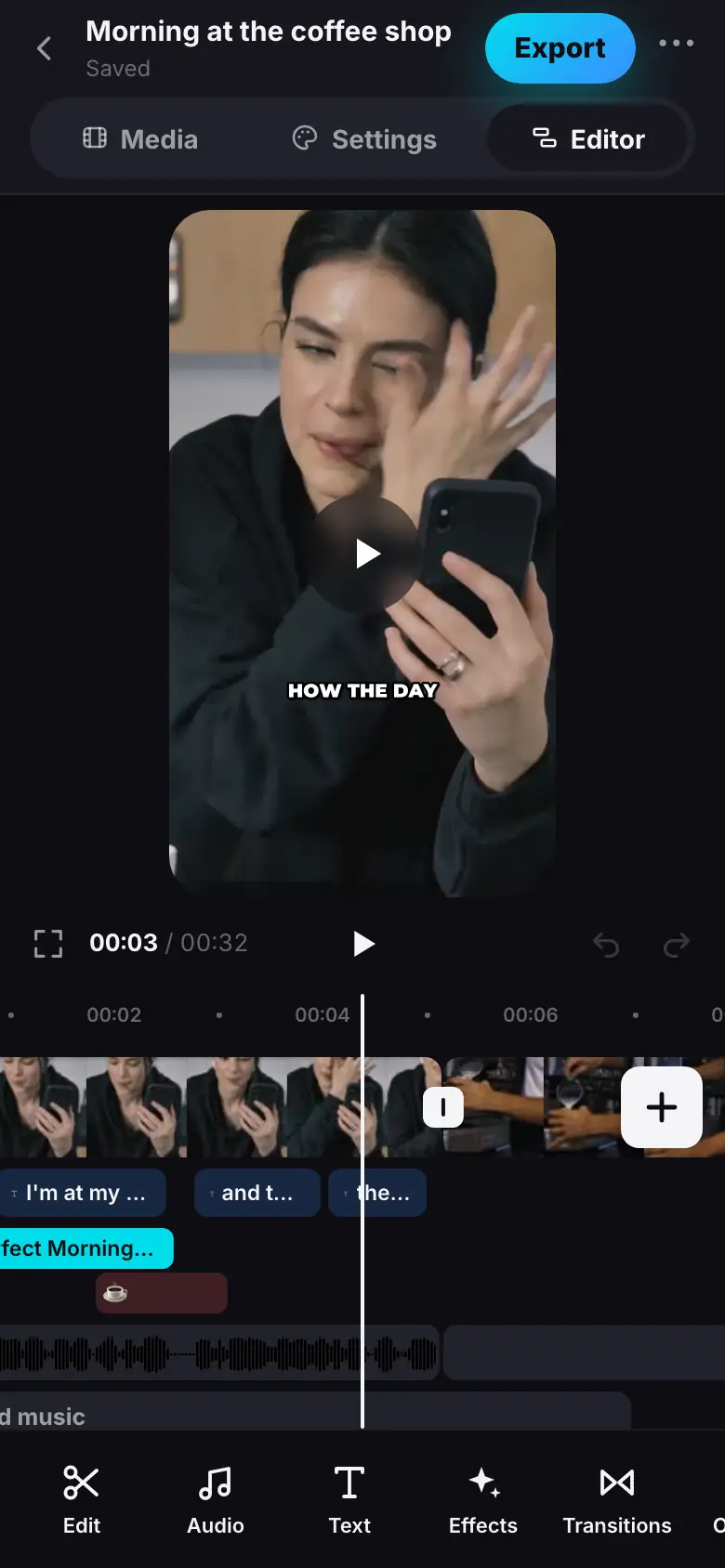
- Swipe the strip — the preview follows
- Tap a clip — its tools appear at the bottom
- Tap the mark at a cut — “Transition” opens
- Tap “Add music” on the empty track — the “Music” sheet opens
Good to know
- Edits on the strip are animated: clips glide to their new places after a delete, split or speed change.
- A selected clip shows its duration in seconds and edge handles for trimming (Clips).
- If the selected clip disappears after an edit (deleted or undone), the selection clears by itself.
- A reel longer than 180 seconds cannot be exported — a warning appears above the timeline.
- When you trim, clip and element edges snap to words and markers.