3. Captions and options
Step 2 of the wizard — caption style, word highlight, entrance and position, and what the AI adds to the reel: emoji, sound effects, cards, callouts and a hook.
Step 3 of 9 · about a minute
On this step you decide how to show captions and what the AI adds on top of the reel. The defaults suit most reels — you can tap Next right away.
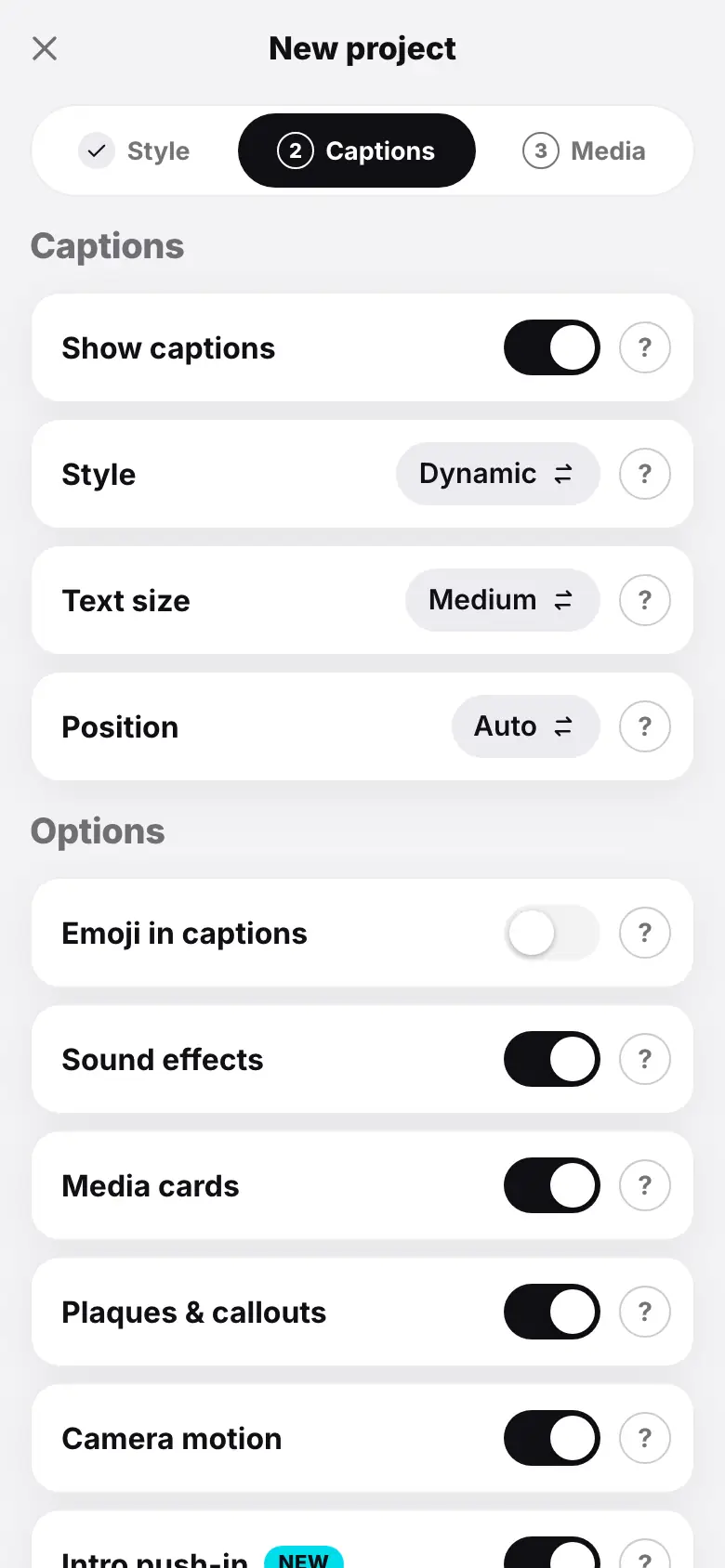
- Captions step: settings rows, values and “?” on the right
- Tap the Style row — the value changes to Karaoke
- Tap “?” next to Style — a sheet with the description, then “Got it”
- Turn on “Emoji in captions”
- Tap “Next”
How the settings work
Each setting is a full-width row: the name on the left, a value or a switch and “?” on the right.
- A row with a value — tapping cycles through the options.
- A switch — turns it on and off.
- “?” — a hint in a sheet: what the setting or the selected option does. Close it with Got it.
Captions
| Setting | Options | What it changes |
|---|---|---|
| Show captions | on / off | word-by-word captions from speech; turn off if there is no speech or the video already has text |
| Style | Dynamic, Karaoke, Classic, Minimal, Pop, Box, One word | seven caption characters — from short phrases with popping highlights to one big word at a time (all designs) |
| Text size | Small, Medium, Large | how prominent the captions are |
| Position | Auto, Top, Center, Bottom | “Auto” places each phrase where the frame has the most free space: off the face, hook, plaques and titles (more) |
Four more rows fine-tune how captions follow the speech:
- Word highlight — how the spoken word is highlighted: Color, Pop, Box, Underline or None;
- Entrance — how a phrase appears: Fade, Pop, Slide up, Word by word or None;
- Words on screen — One, 2–3 words, Line or Phrase;
- Letter case — CAPITALS or As spoken.
They default to As in the style (letter case — to As in the font), the way the chosen style intends: in “Pop” the spoken word grows, in “Box” it sits on a box, in “Karaoke” it lights up in color. Changing the style resets the word highlight, entrance and words on screen to As in the style, so pick the style first and the details after (Caption options).
If captions are off, the hook, callouts and cards still stay.
Options
These are what the AI adds during the montage. Defaults:
| Option | Default | What it does |
|---|---|---|
| Emoji in captions | off | emoji that match the meaning above the captions, sparingly |
| Sound effects | on | subtle whooshes on cuts and pops when cards and emoji appear |
| Media cards | on | an illustration card when you mention an object, place or idea |
| Plaques & callouts | on | text callouts: speaker name and role, numbers, lists, takeaways |
| Camera motion | on | punch-ins on key phrases and framing changes between shots |
| Intro push-in | on | a smooth push-in in the first seconds to stop the scroll |
| Generate a hook | off | a catchy title for the first 2–3 seconds; the reel may open with its strongest moment |
What you can change later
- Without a rebuild, free: everything about captions, Sound effects and Intro push-in — in the project's Settings section; changes show up in the editor right away.
- With a rebuild: emoji, media cards, callouts, camera motion and the hook are applied by the AI during the montage. Changing them needs a rebuild with new settings for 24 tokens. But individual emoji, callouts and push-ins can also be adjusted in the editor — see Elements.
On a wide screen the settings stand in two columns. Tap Next — the next step is Media.
What's next
Step 4 of 9 — Media: uploading videos, photos and audio.