Remove background
How the AI cuts a person out of the video and puts a blurred frame or a color behind them — in the cloud or free on iPhone, iPad and Mac — and the price.
On this page
Remove background separates a person from the background right in the video: behind them stays a blurred copy of the frame — like a camera's portrait mode — or a solid color. A talking head looks neat on any background, and a series of reels shares one brand color.
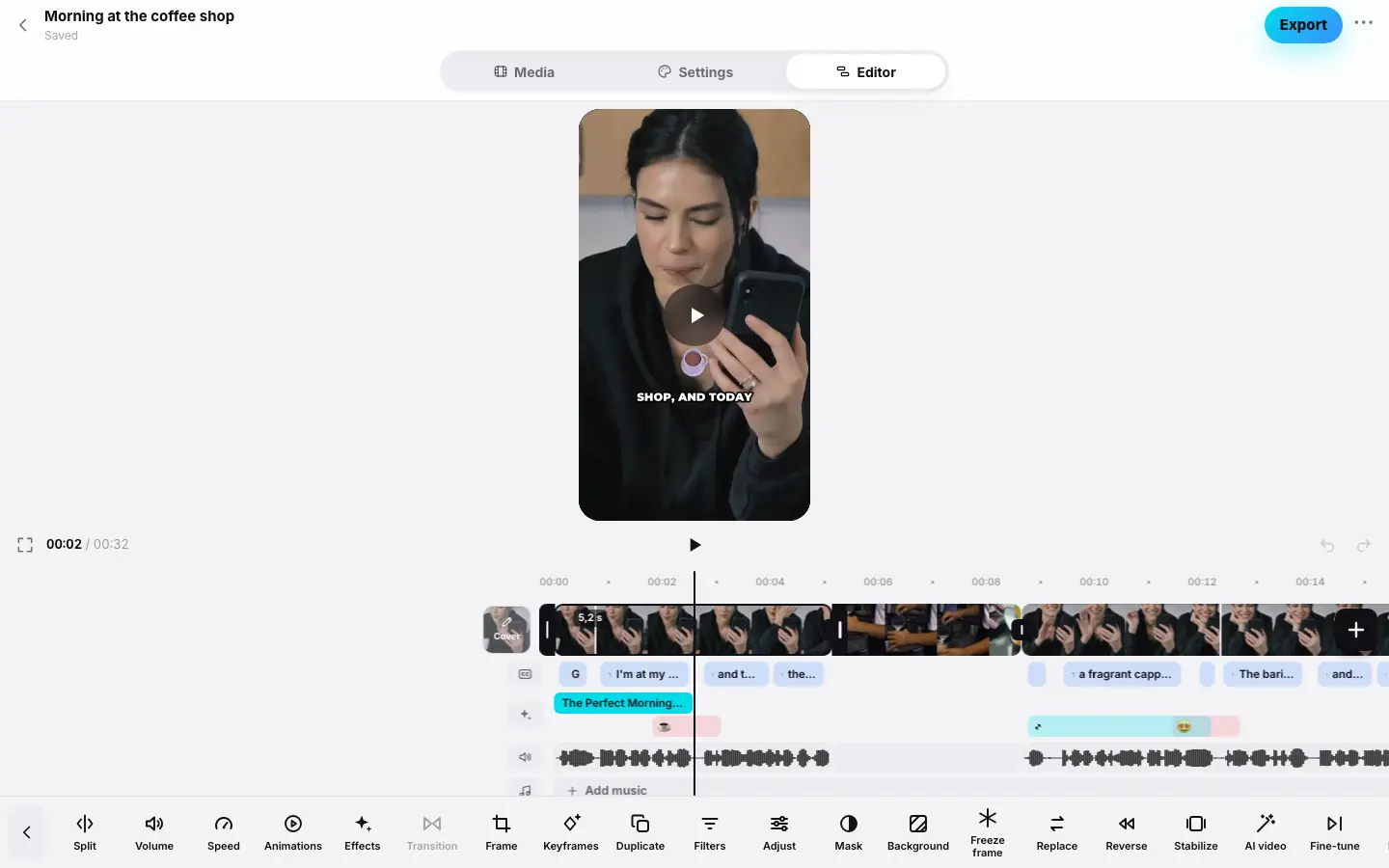
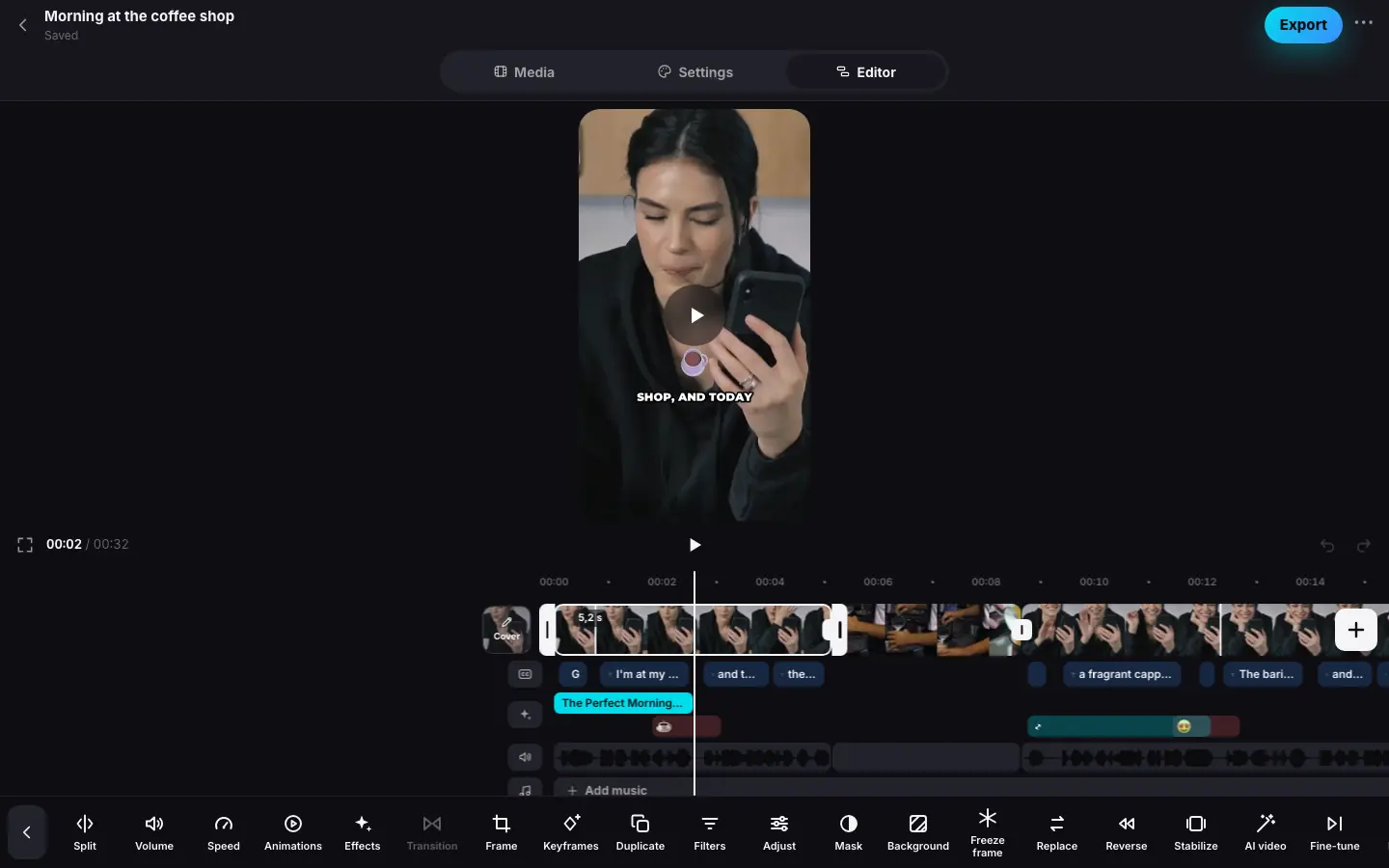
- Click a clip with a person in the frame
- Press “Remove background” — a “Remove background” sheet appears with the duration and price
- Press the button with the price — “Processing clip…” above the preview, the “Background” panel below
- Done: the person on a blurred background, a silhouette badge on the clip
- In the “Background” panel pick blue — the background changes without a new charge
Removing the background
Turn on “Remove background”
Select a clip and press Remove background — the last button in the clip's toolbar. The Background panel opens at the bottom, with a price sheet on top of it.
Choose where to process and confirm
The Remove background sheet shows how many seconds of video the AI will process and what it costs in the cloud. In the app for iPhone, iPad and Mac there's a Where AI runs row: On device — free, with the Remove background · free button; In the cloud — the button with the price, “Remove background · ≈ N tokens”. More in On device or in the cloud. If you close the sheet without choosing, background removal is taken off the clips of that video and the frame stays as it was.
Wait for processing
On the device you first see Separating the person from the background with a percentage above the preview, then Sending the result. Then the server builds the clip with the new background — Processing clip…; you can keep editing meanwhile. When it's done, the preview shows the person on the new background and the clip shows a silhouette badge.
Choose the background
In the Background panel: Blur — a blurred copy of the frame behind the person (the default), or one of ten colors. Click ✓ Done.
On device or in the cloud
In the app for iPhone, iPad and Mac the person can be separated from the background on the device itself — for free. You choose in the Remove background sheet, in the Where AI runs row:
- On device · free — Apple Vision on your phone, tablet or Mac finds the person in every frame, and the server puts the background behind them using that mask, just like after the cloud;
- In the cloud · price — an AI service finds the person, at cost, just like on the web.
The preselected option comes from Profile → Where AI runs (Language, theme and where AI runs), and you can change it in the sheet.
- Only videos from this device. If the source was uploaded from another phone or from the web — The videos were uploaded from another device — only the cloud is available here.
- Keep the app open while Separating the person from the background is running. You can close the sheet and the editor.
- What the device processed counts as processed: changing the background and other clips of the same video within those seconds are free, just like after the cloud.
- If it fails — Couldn’t do it on the device, and the sheet opens again: try again or pick the cloud.
- On the web the device option is disabled and labeled In the app.
Price
On the device background removal is free: nothing is reserved or charged.
In the cloud background removal is charged at cost — exactly what the AI service charges, with no markup: for the seconds of video the AI hasn't processed yet. The server names the price before starting — in the sheet, together with the note Costs exactly what the AI service charges, no markup. The actual price is charged — never more than shown.
What you pay for:
- only the clips' ranges with a small margin at the edges, not the whole source;
- only new seconds: if part of the video is already processed, you don't pay for it again.
While it is processing, the price is reserved on your balance, rounded up to a whole token — so you need at least one free token to start. When processing is done, the actual price is charged, never more than shown. If it fails, the tokens come back and you see Could not process the clip. How at-cost pricing works — Tokens, packs and the free reel.
What you can change later for free
- Background. Once processing is done, pick another color or Blur in the Background panel — the reel is rebuilt with the new background without a new charge.
- Other clips of the same video with already processed seconds — they turn on without payment.
- Turning it off. Pressing Remove background again brings back the original frame. Processed ranges are kept: if you turn it on again, you won't pay.
If you extend a clip beyond the processed range, the price sheet appears again — only for the new seconds.
Good to know
- The AI detects people: the feature is designed for people in the frame, not objects or animals. An object or an animal on a solid green or blue screen can be cut out with the chroma key.
- Remove background is unavailable on a freeze frame.
- Background removal combines with other clip tools: frame, color, effects, stabilization.
- The processing is recorded in the project history with the number of seconds and the price; processing done on the device is marked on the device.
- Background removal works on a finished reel while its source files are stored.