Keyframes and By frame
How to animate a clip's position, rotation and opacity with keyframes, pick the easing and move a clip's edge by exactly one frame in the Slicer editor.
On this page
Keyframes animate the frame inside a clip. You mark where, at what scale, at what angle and how visible the frame is at different moments, and between those points it moves smoothly: pushes in on a face, pans across a scene, turns, fades to black. It's like Frame, only changing over time.
By frame is precise edge trimming: move a clip's start or end by exactly one frame, with no snapping to words.
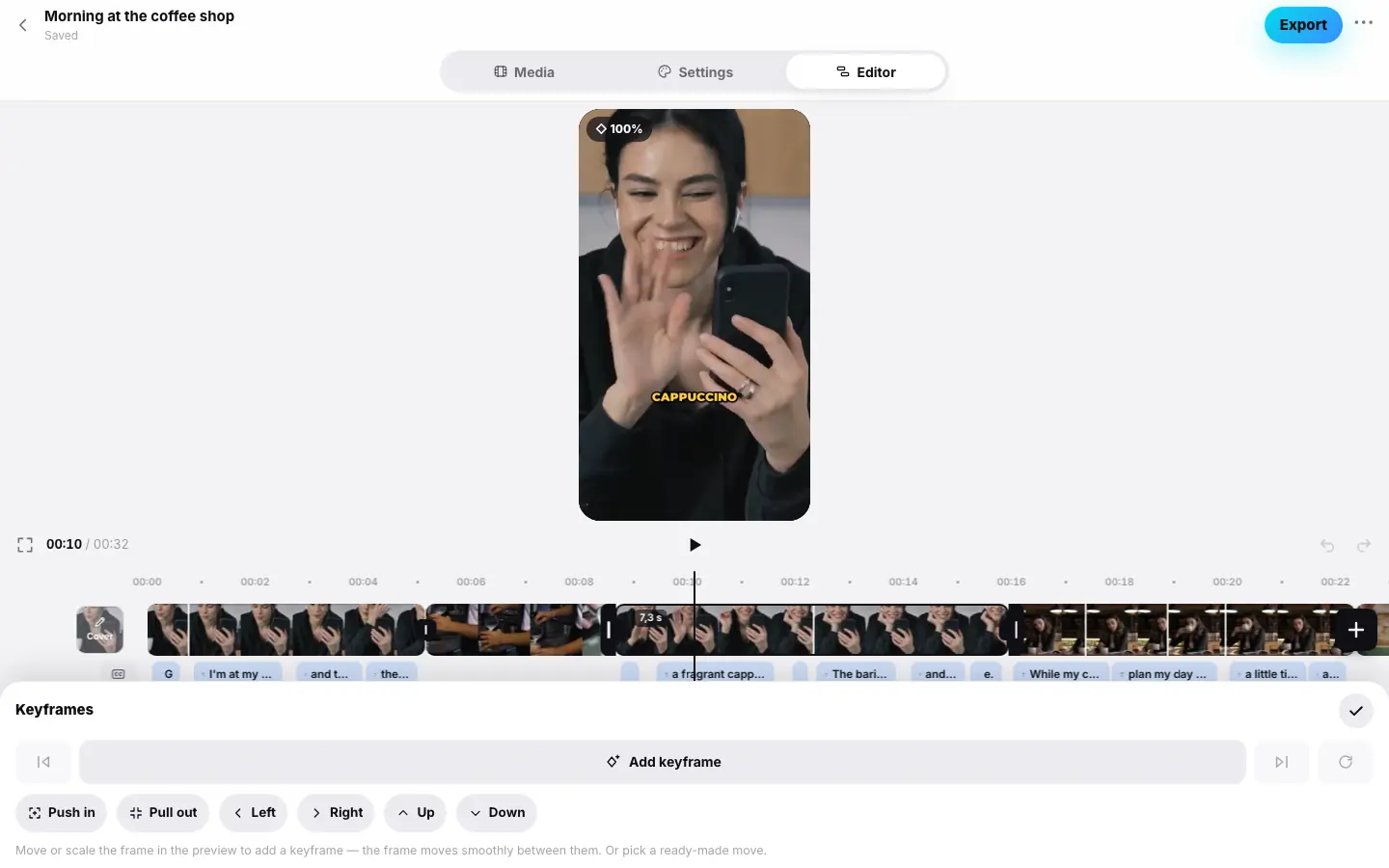
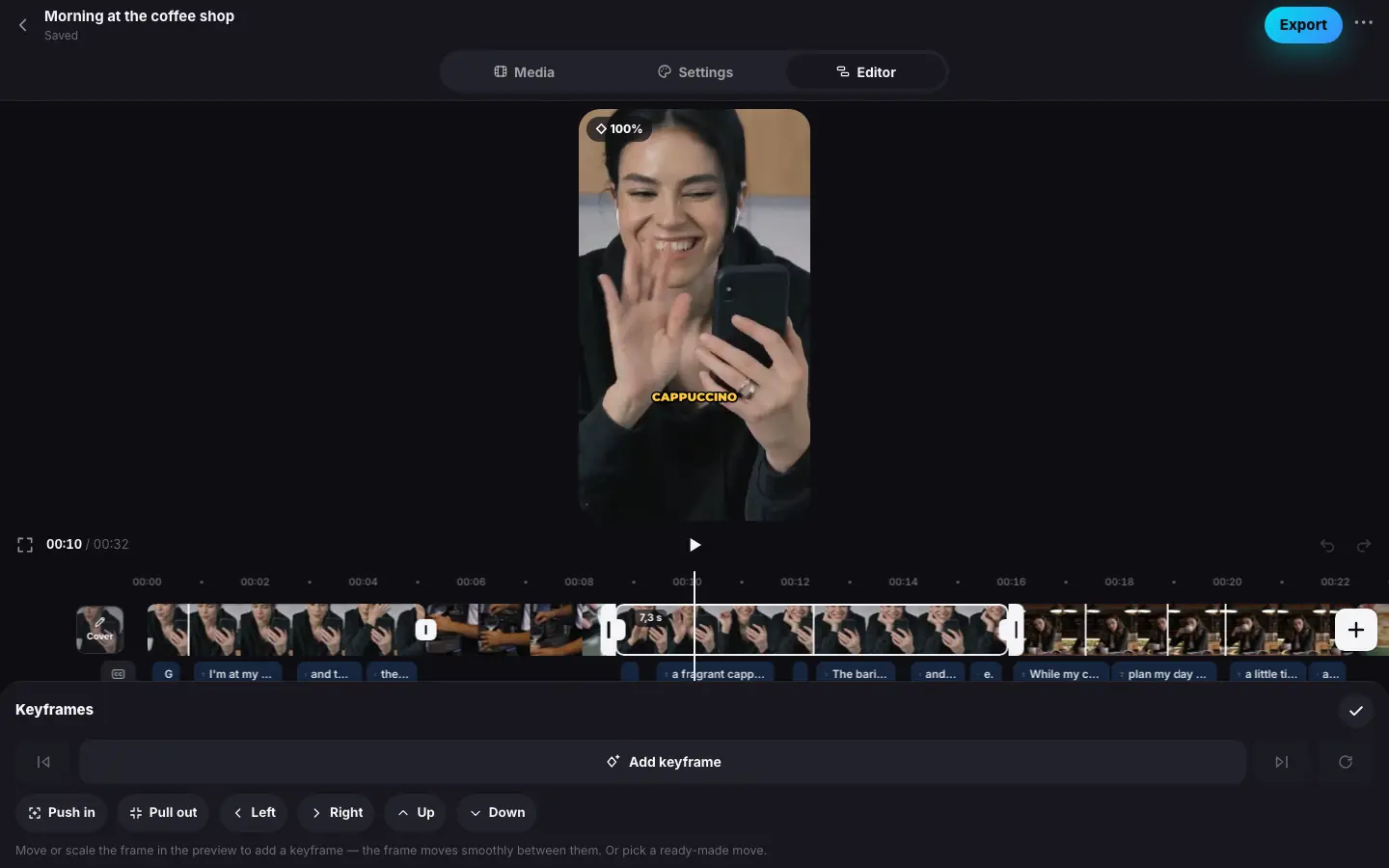
- Click a clip and press “Keyframes” — the preview jumps to the clip's start
- Press “Push in” — the frame zooms in smoothly over the whole clip, two diamonds appear on it
- Seek to the middle of the clip and drag the frame to the left on the preview — a third keyframe is added
- Scroll the wheel over the preview — the scale at this point reads “◆ 140%”
- Click ✓ “Done” and play — the frame moves through three points
Keyframes
Open “Keyframes”
Select a clip and press Keyframes (with nothing selected the button picks the clip at the playhead). The preview pauses inside the clip, and a frame outline and a scale label appear on it: “◇ 100%” between keyframes, “◆ 100%” exactly on a keyframe.
Set points
Seek to the moment you need and change the frame right on the preview — a keyframe appears at that point (or the existing one changes).
Drag the frame with the mouse to move it. The mouse wheel scales it.
Drag the frame, pinch to scale, twist to rotate.
The Add keyframe button sets a point with the current look of the frame without changing it. If the playhead is on a keyframe, the button becomes Remove keyframe. Rotation and opacity are set with sliders in the panel — see below.
Check the motion
The arrows on the sides jump to the previous and next keyframe. Play the preview — the frame moves smoothly between the points. Click ✓ Done.
Rotation and opacity
Below the panel buttons are two sliders. They show the frame's look at the playhead and change it at that moment: they add a keyframe or change the one already there.
- Rotation — −180° to 180°, clockwise. The clip's background shows around a rotated frame.
- Opacity — 0 to 100%. Below 100% the frame fades to black: that's how you make a smooth fade inside a clip.
For example, to have the frame turn smoothly by 15°: put the playhead at the start of the clip and press Add keyframe, then seek to the end and move Rotation to 15°.
Easing
How the frame travels from one point to the next is chosen on the point itself. Put the playhead on a keyframe that has another one after it — the panel shows a To the next keyframe row:
| Easing | How the frame moves |
|---|---|
| Smooth | accelerates and slows down — the default |
| Linear | at one speed from point to point |
| Ease in | starts slowly and speeds up towards the next point |
| Ease out | starts fast and slows down towards the next point |
Easing applies to everything that changes between the points: position, scale, rotation and opacity.
Ready-made moves
Below the buttons are ready-made moves for the whole clip. They replace the clip's keyframes with two points — at the start and at the end:
| Move | What it does |
|---|---|
| Push in | From the normal frame to a ×1.3 zoom |
| Pull out | From a ×1.3 zoom back to the normal frame |
| Left, Right, Up, Down | A pan across the frame in that direction with a ×1.2 zoom — so the frame edges don't show |
After you pick one, the preview immediately plays the clip from the start.
How it works
- Between keyframes the frame moves with the chosen easing, smooth by default. Before the first point and after the last one it stays as at the nearest point.
- Scale goes from 20 to 400%. Below 100% the frame is smaller than the screen and the clip's background shows around it.
- Keyframes work on top of the manual frame, face following and the camera motion placed by the AI.
- A clip can have up to 24 keyframes. They show as diamonds on the strip.
- When you split a clip, the motion is divided without a jump: both parts get a point with the same frame look at the cut.
- Remove all keyframes (the circular-arrow button) brings back a still frame.
- In the same way, point by point, you can change a clip's volume (Volume points) and move a mask (Mask animation).
By frame: precise edge trimming
Trimming with the handles snaps to words. When you need a specific frame — for example, to drop a blink or an extra gesture at the end of a phrase — use Fine-tune.
- Select a clip and press Fine-tune. The By frame panel opens.
- The Start and End rows have −1 frame and +1 frame buttons. Each press moves the edge by exactly one frame of the reel (1/30 of a second).
- The preview immediately shows the frame at the new edge. Click ✓ Done.
On the web, with the panel open, the , and . keys move the clip's end one frame back and forward.
- On a sped-up or slowed-down clip, the step is still one frame of the finished reel.
- On a clip with speech the edge can move away from a word boundary by no more than 3 seconds.
- Fine-tune is unavailable on a freeze frame (its length is set by the handles or the Freeze frame panel) and on a reversed clip.