2. Reel style
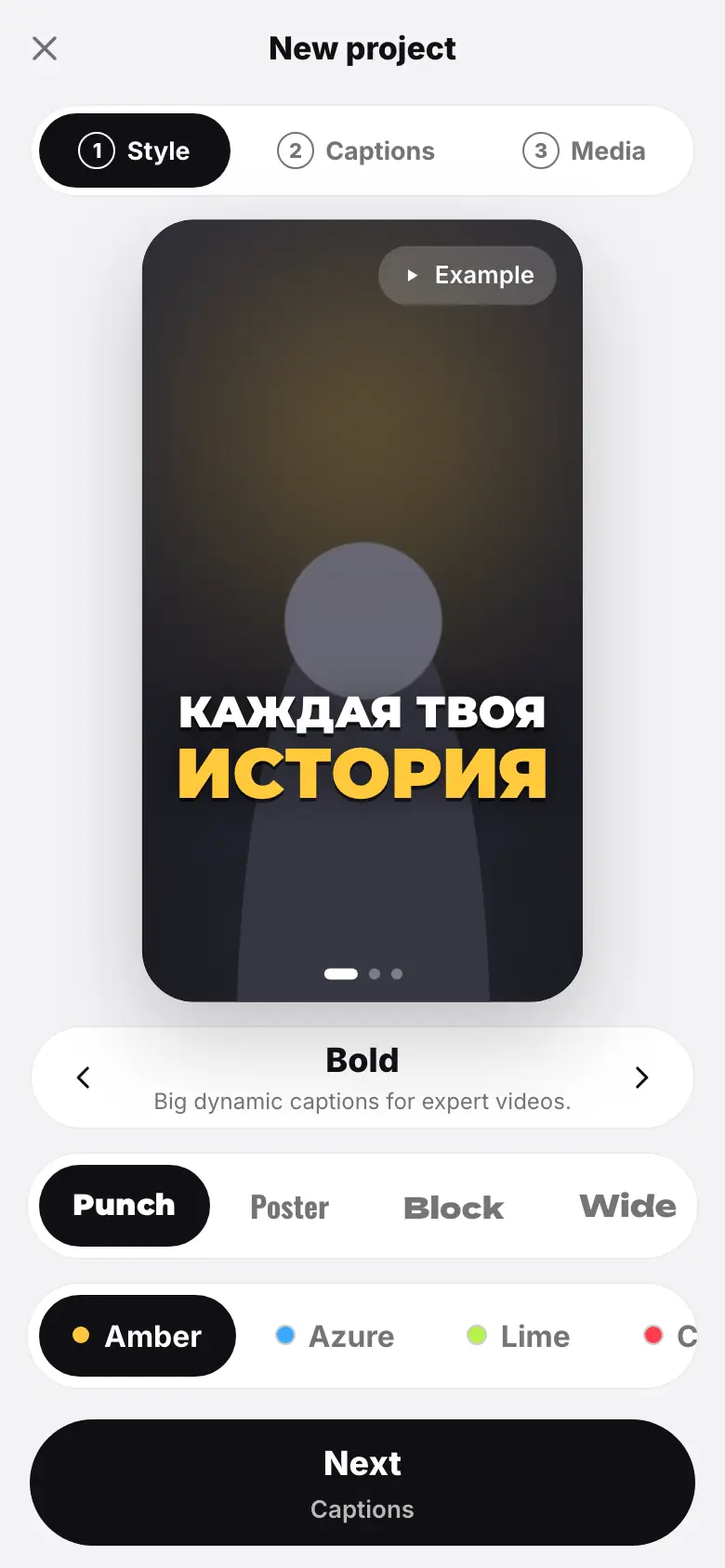
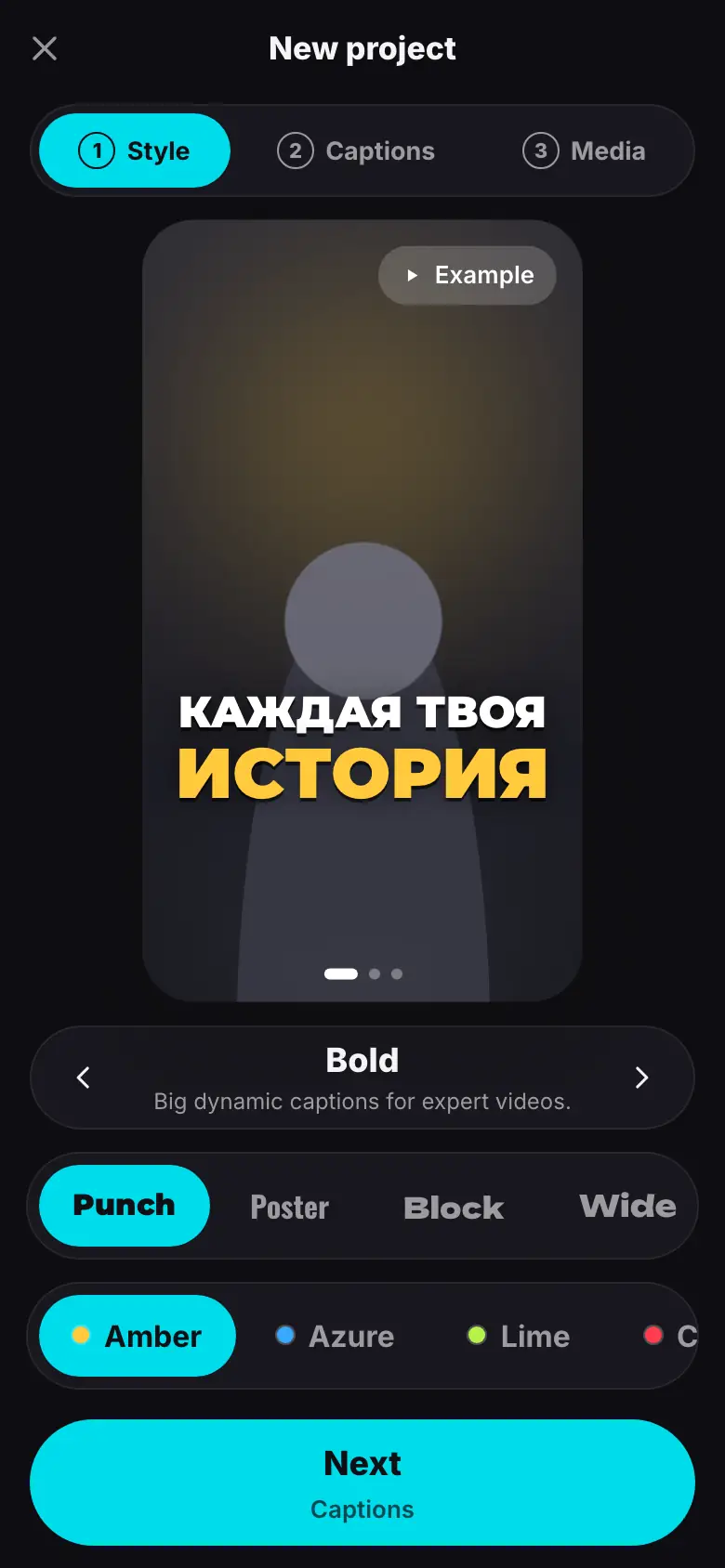
Step 1 of the New project wizard — style template, font and caption accent color with a live example. You can change the style after the montage for free.
On this page
Step 2 of 9 · about a minute
The New project button on the Projects screen first asks How shall we edit it?. Choose With the AI director — AI edits the reel and checks the finished cut itself. The second card, Edit it myself, is a free project without the AI director; the tutorial doesn't cover it (A project without AI). If you came from the welcome flow with Create first project, there is nothing to choose — the wizard opens right away.
The New project wizard opens full screen. On top are three steps: Style, Captions, Media. You can go back to any step by tapping it, and if you close the wizard with the cross, the current step and uploaded files are kept until you open it again. The ‹ arrow on the left of the header (Back to the choice) takes you back to choosing how to edit.
The first step is how your captions will look. The example on top updates instantly.
- The “How shall we edit it?” screen: tap “With the AI director”
- The Style step opens: a live example and the Bold template
- Tap the → arrow — the Clean template, the example updates
- In the Font strip, pick Wide
- In the Accent strip, pick Mint
- Tap “Next”
Template
A template is a ready-made combination of font, color and caption style. Switch templates with the ← → arrows under the example (in the app you can also swipe the example):
- Bold — big dynamic captions for expert videos.
- Clean — a calm look for vlogs and podcasts.
- Pop — words pop in sync with speech, for energetic videos: the Pop caption design, the Punch font and the Lime accent (caption designs).
- Editorial — magazine-style serif typography, marked Soon.
If you have saved your own style in the editor, a My templates strip appears above the fonts — your templates are marked with a star.
Font and accent
- Font — eight typefaces: Punch, Poster, Block, Wide, Editorial, Rounded, Script, Mono. Each name is set in its own typeface.
- Accent — the color of highlighted words: Amber, Azure, Lime, Crimson, Fuchsia, Mint, Violet, White.
On a wide screen the example takes the full height on the left, and templates, fonts and accents wrap on the right. On a phone, fonts and accents are horizontal strips.
Scroll the font and accent strips with your finger. On an iPad in landscape the layout is the wide-screen one: the example on the left, settings on the right.
When you like the style, tap Next — the caption under the button says the next step is Captions.
What's next
Step 3 of 9 — Captions and options: caption style and what else the AI adds.
- Captions: text, highlights, style, position — how to adjust captions after the montage.