Music, ducking and beats
How to add background music to a Slicer reel, set its volume and ducking under the voice, fit the track to the reel length and cut clips to the beat.
On this page
Background music sits on the Music track under the whole reel. If you uploaded music in the new project wizard, the AI has already placed it: quietly and ducked under the voice in a reel with speech, loud in a reel without speech, with the b-roll sound lowered. In the editor you can replace the track, set its volume and cut the footage to the beat.
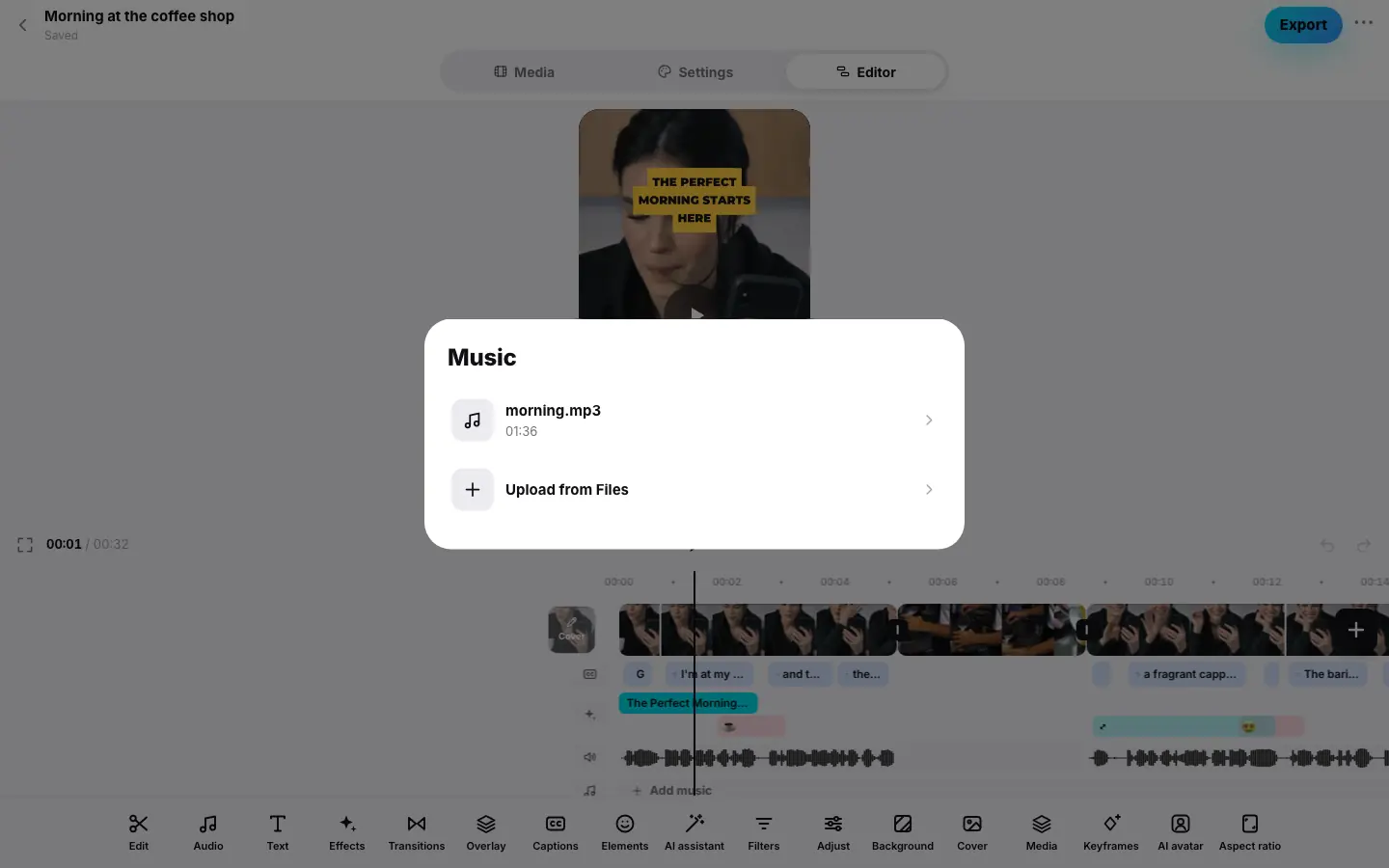
- Click “Add music” on the empty “Music” track
- In the “Music” sheet pick a project track — it's on the track and the music is selected
- Press “Volume” and set “Music volume” to 35%
- Click ✓ “Done”, then “Beats” — beat marks appear on the music track
- Press “Every beat” — the “Fitted to the beat” message with the number of clips, the reel plays from the start
Add or replace a track
Open the “Music” sheet
Any way works: press Add music on the empty music track, Audio in the main set (if there's no music yet), “+” → Music or Replace on the selected music.
Pick a track
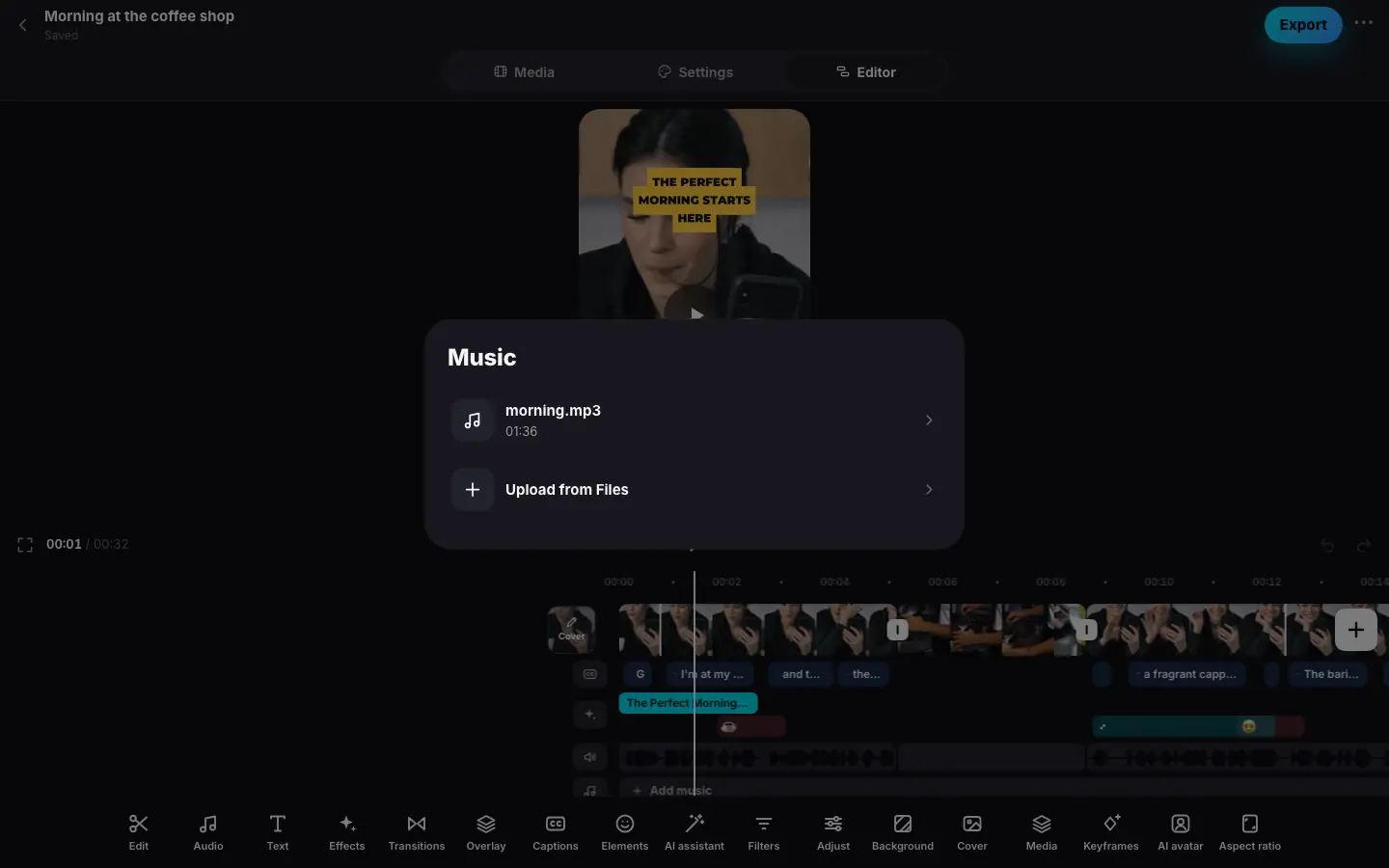
The sheet lists the project's audio files: music from the wizard, tracks uploaded in the editor and sound saved with Extract audio. Click a track — it goes onto the music track. Upload from Files adds a new audio file and sets it right away.
Check
The track shows its name and volume, for example “Morning.mp3 · 25%”. The music is selected and its tools are at the bottom.
The track loops for the whole reel and ducks under the voice. Use music you have the rights to. At the start and end of the reel the music fades in and out gently — you can change how long (Fade in and fade out). A new track starts from the beginning of the file. To make the track end together with the reel on its real ending instead of breaking off mid-phrase, use Fit to length.
A reel has one background music track. You can also upload and pick a track in the Media mode, in the Music section.
Volume and ducking
Select the music on its track and press Volume:
| Setting | What it does |
|---|---|
| Music volume | The track's volume, 0–100%. The first track goes in at 25%; when you replace it, the volume is kept |
| Reel sound under the music | The volume of all clips' sound while the music plays, 0–100%. Lower it so b-roll noise doesn't compete with the music |
| Fade in and Fade out | How the music comes in at the start of the reel and goes out at the end — see below |
| Quieter while speaking | Ducking: the music automatically gets quieter on words and louder in pauses |
Ducking also toggles with the Ducking button in the music toolbar. Delete (or Delete) removes the music from the reel.
Fade in and fade out
The music comes in smoothly at the start of the reel and fades to silence at the end. The music's Volume panel has two rows for that:
| Row | Options |
|---|---|
| Fade in | Auto (the default, 0.6 s), None, 1 s, 2 s, 5 s |
| Fade out | Auto (the default, 1.5 s), None, 1 s, 2 s, 5 s |
None — the music plays at full volume from the first second to the last: good when the track itself starts with silence or the reel should end on a hit. A long 5 s fade-out gives a calm reel a soft ending.
The demo will appear here
Step 1 of 3
- Click the music on the “Music” track and press “Volume” — “Auto” is selected in the “Fade in” and “Fade out” rows
- In the “Fade out” row pick “5 s” — the music fades out longer at the end of the reel
- Click ✓ “Done”
Individual clips' sound fades in and out the same way — in their own Volume panel (Speed and volume).
Fit to length
A track and a reel are rarely the same length: a long track breaks off mid-phrase when the reel ends, a short one starts over. Fit to length makes the music end together with the reel on a bar boundary, so it sounds like a planned ending.
Open the music settings
Select the music on the track and press Volume. The Fit to length button is at the top of the panel, with a hint below it on what will happen.
Press “Fit to length”
Slicer finds the track's bars — while it works, the button reads Finding bars…. Then a line such as “Track fitted to the reel length: 2 pieces” appears under the button, and the preview plays the new version right away.
Listen to the ending
Move to the last seconds of the reel and play the preview: the track finishes on its real ending together with the last frame.
How it works:
- The track is longer than the reel — a whole number of bars is cut out of the middle of the track. The reel opens with the same beginning and ends with the track's real ending.
- The track is shorter than the reel — the tail of the track, from a bar boundary, repeats as many times as needed to reach the end of the reel.
- The pieces are joined with a smooth half-second crossfade on a bar boundary, so the join is hard to hear.
- The track start you picked is kept: fitting never starts the music earlier.
- It's free and uses no AI — Slicer works from the track's own beats. The preview and the finished reel sound the same.
- If the track or the reel is shorter than two bars, it can't be fitted — you'll see Could not fit: the track or the reel is shorter than two bars.
Remove fit in the same panel brings the whole track back as it was. Fitting uses the reel length at the moment you press the button: if you later make the reel longer or shorter, press Fit to length again. Replacing the track removes the fit.
Beats and cutting to the beat
Beats on the selected music finds the track's beats and shows them on the track.
Open “Beats”
Select the music and press Beats. The beat marks turn on right away. While the track is analyzed you see Finding the beats… — it's done once per track.
Check the tempo
Under the Beat marks switch are the tempo and the number of beats, for example “120 BPM, 64 beats. Clip ends snap to beats”. The music track shows the beat marks.
Fit the cuts
In Cuts between fragments without speech — on the beat pick a step: Every beat, Every other or Every bar (every fourth beat). Slicer trims or extends the clips without speech so each one ends exactly on a beat, and plays the preview from the start.
How it works:
- Only clips without speech are fitted — b-roll, photos, freeze frames. Speech is cut by words and left alone. If there are no such clips, you see No fragments without speech — speech is cut by words.
- A clip's end goes to the nearest suitable beat. A clip can only be extended up to the end of its source, and a freeze frame up to 10 seconds. A clip won't get shorter than 0.4 seconds.
- Reversed clips aren't fitted.
- While the beat marks are on, a clip's end snaps to them when you trim it with the handle (Clips).
- The marks are a hint in the editor and don't appear in the finished reel. Turn them off with the Beat marks switch.
Good to know
- If the beats can't be found, you see Could not find the beats — try again later.
- The preview plays the same track with ducking as the final reel; the overall loudness is normalized on export.
- Music is free, but the rights to the track are your responsibility: for social networks, use music you're allowed to use.