Export: presets and file settings
The Slicer export window: presets, format, codec, resolution and AI upscaling to 4K, quality, color, audio and where to render.
On this page
Export renders the reel with all your edits into a video file. It is free: export as many times as you need — for example, after a style change or edits in the editor. The only paid option is AI upscaling to 4K, if you choose it. The export window also publishes the reel to connected social accounts — see Publishing to YouTube, Instagram, TikTok, VK.
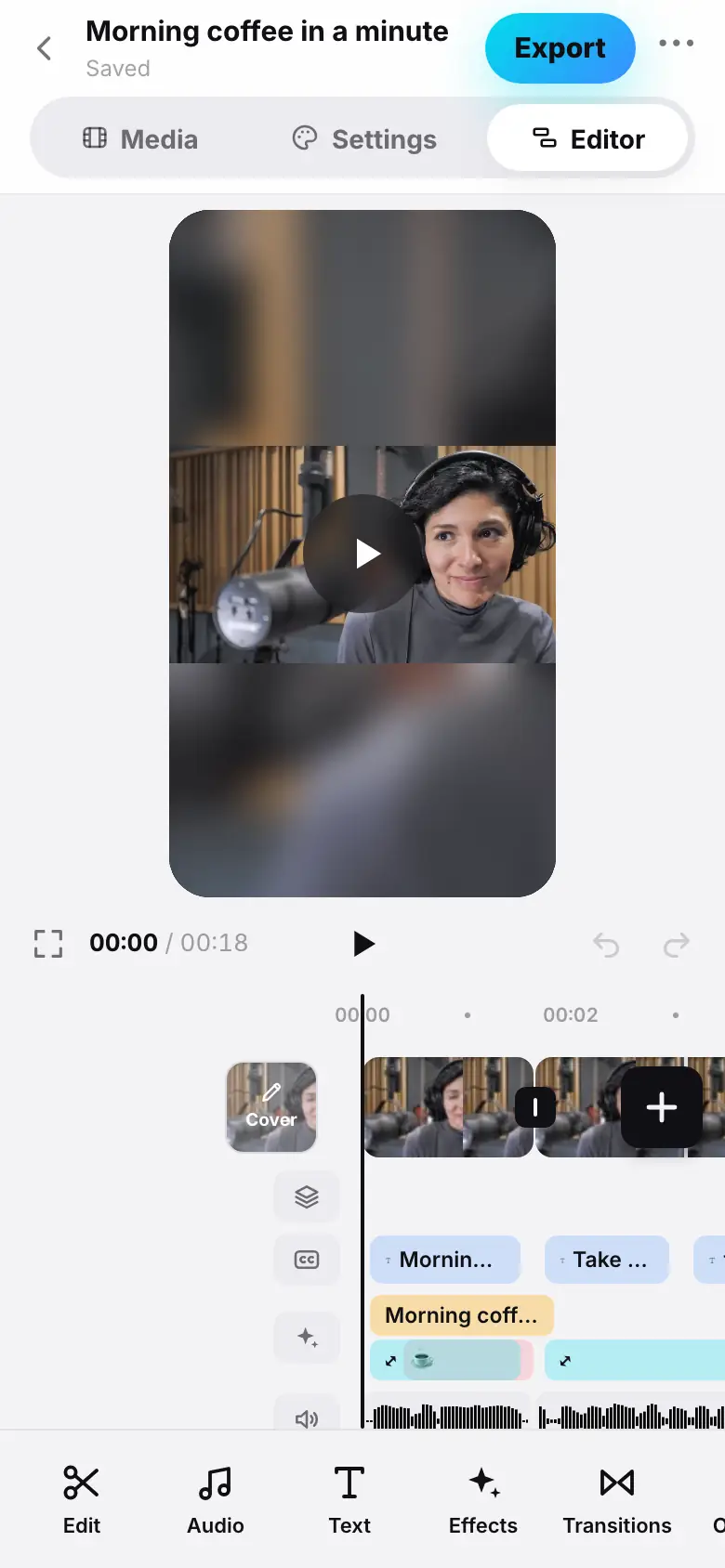
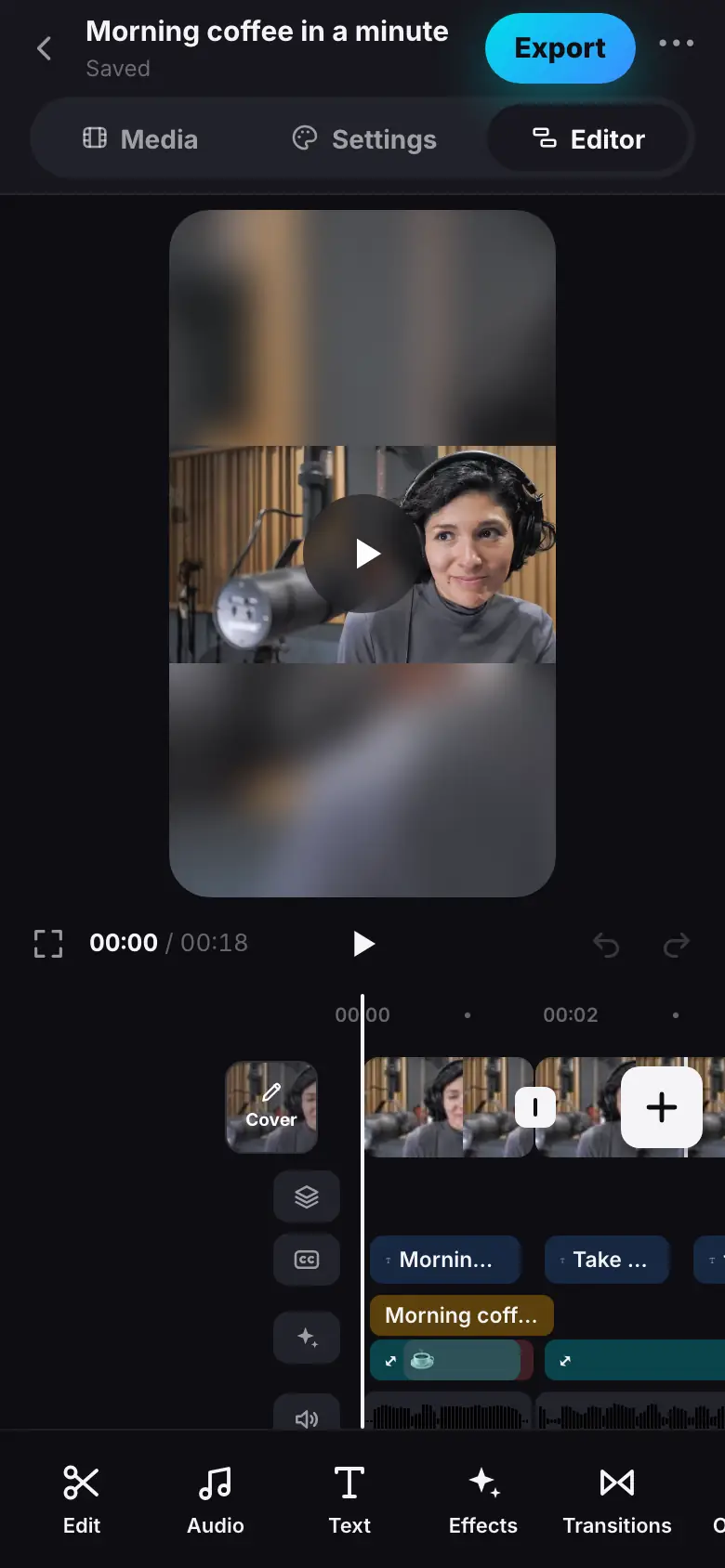
- In the editor, tap “Export” — the Export window, the summary and the Social preset
- Tap the Master file preset — the summary shows MOV · HEVC · 10-bit, the file is bigger
- Tap “?” on the Codec row — a hint, then “Got it”
- Tap the Frame rate row — 24 fps; the preset becomes Custom
- Tap the Social preset, then “Export”
- “Export started” — the project shows the “Export from the editor” card
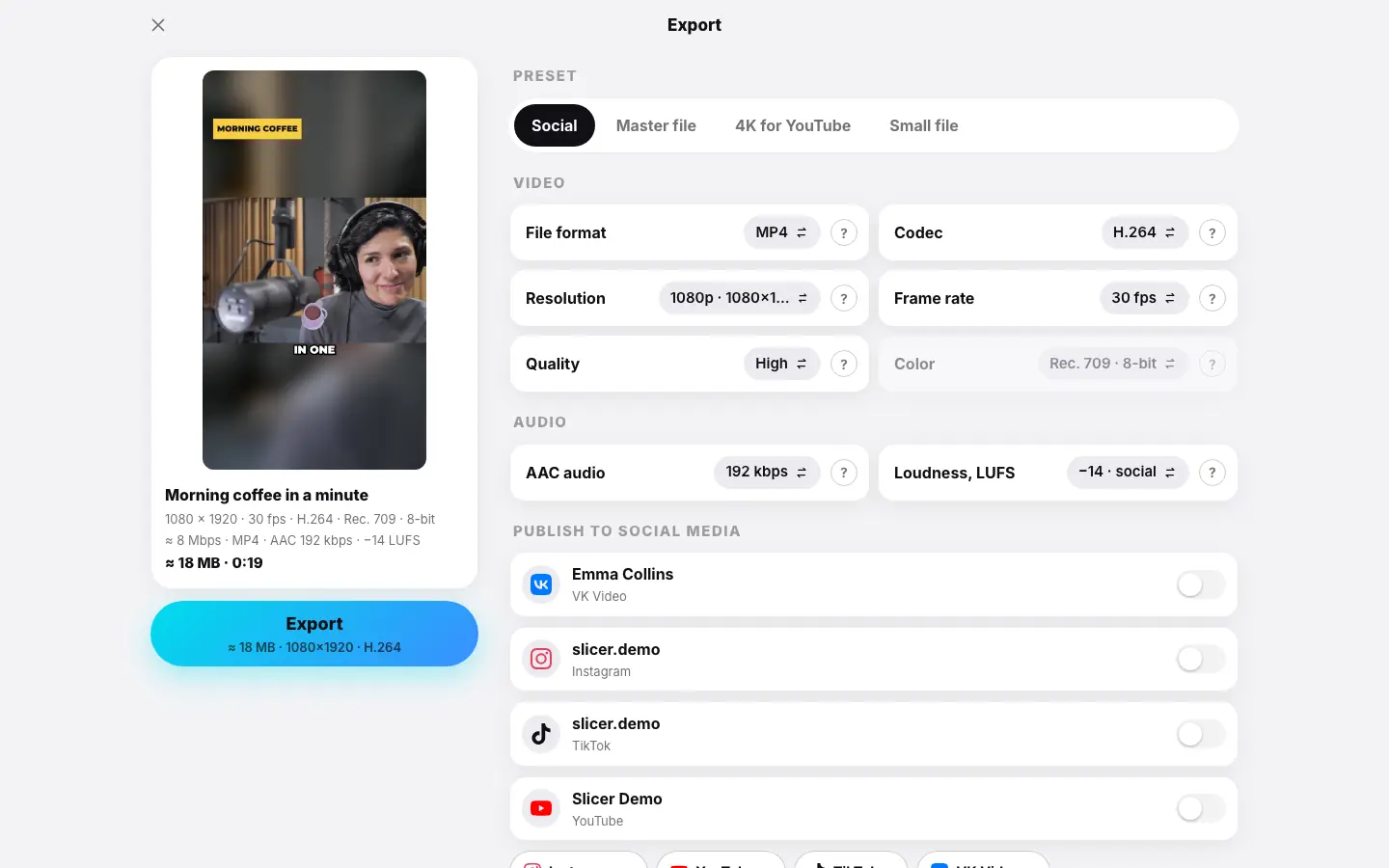
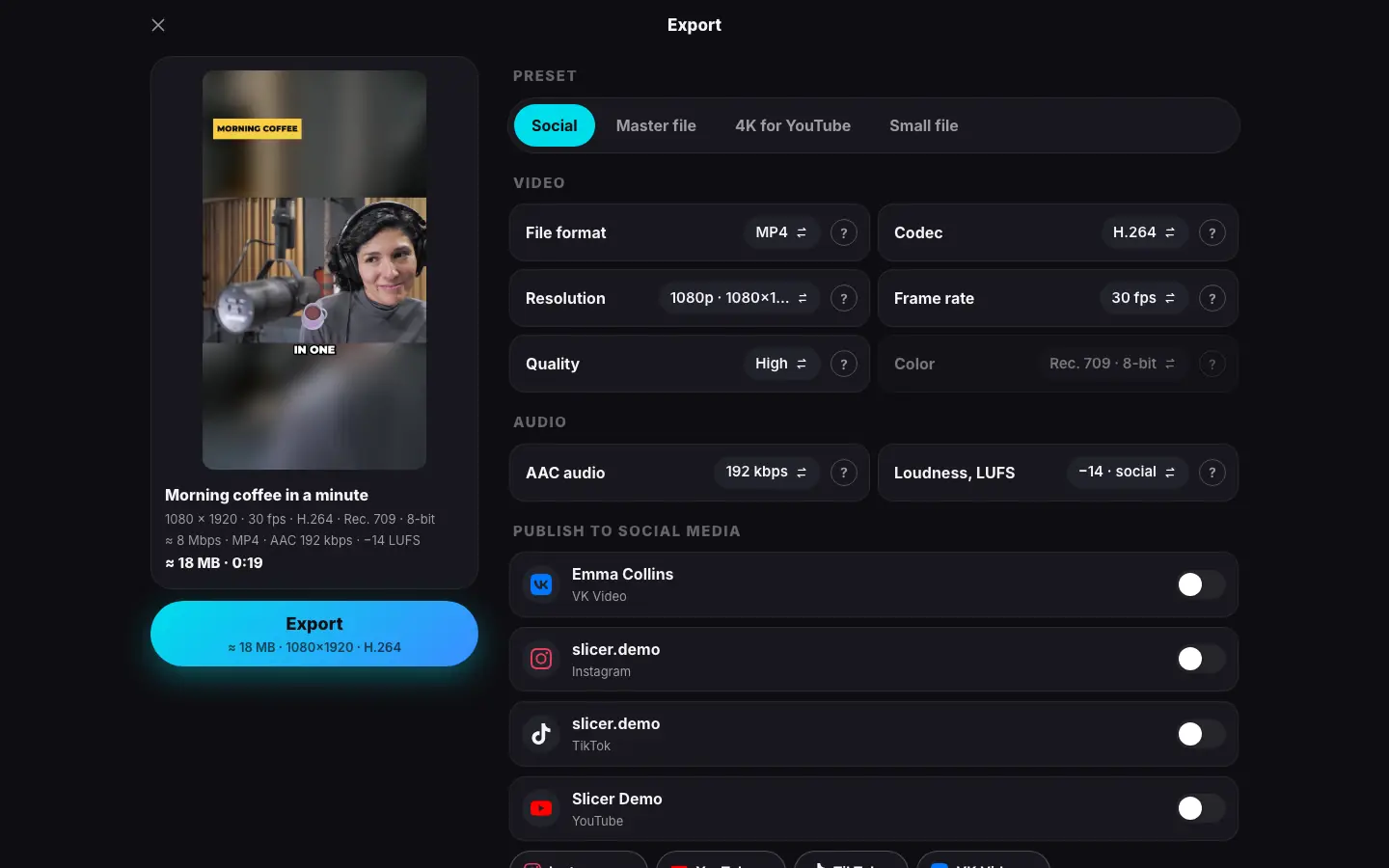
- The export window on a wide screen: the summary with the cover and “Export” on the left, settings on the right
- Click the 4K for YouTube preset — resolution 2160 × 3840, the size estimate updates
Where to open it
In the Editor section, tap Export in the project header. Slicer saves your latest edits and opens the Export window full screen. To close it without exporting — the cross in the top left.
Summary
On top is the reel's cover and what the file will be:
- frame size, frame rate, codec, color and bit depth — for example, “1080 × 1920 · 30 fps · H.264 · Rec. 709 · 8-bit”;
- video bitrate, container, audio and loudness — “≈ 8 Mbps · MP4 · AAC 192 kbps · −14 LUFS”;
- the estimated file size and duration.
A watermarked reel shows a note: Your first video is free and has a watermark. It disappears after any payment.
Presets
| Preset | When | Settings |
|---|---|---|
| Social | the default; what Reels, Shorts and TikTok handle best | MP4, H.264, 1080p, 30 fps, “High” quality, 8-bit, AAC 192 kbps, −14 LUFS |
| Master file | maximum quality for your archive and further editing | MOV, HEVC, 1080p, 30 fps, “Maximum”, 10-bit, AAC 320 kbps |
| 4K for YouTube | YouTube gives 4K videos a higher bitrate | MP4, H.264, 4K, 30 fps, “High”, AAC 256 kbps |
| Small file | for quick sharing in messengers | MP4, HEVC, 720p, 30 fps, “Balanced”, AAC 128 kbps |
Any manual change turns the preset into Custom. Your last export settings are remembered in the browser or the app and offered for the next reel.
Video settings
Tapping a row cycles through its values; “?” explains what the setting means.
- File format — MP4 plays everywhere and every social network accepts it; MOV is handy for Final Cut and other Apple editors.
- Codec — H.264 is the most compatible; HEVC (H.265) gives about a third smaller file at the same quality and supports 10-bit, but some older devices cannot play it.
- Resolution — by the short side: 720p, 1080p, 2K, 4K. The reel is assembled in 1080p; 2K and 4K upscale the frame — captions are sharper and YouTube gives a higher bitrate. For 4K you can choose how the frame is upscaled — the Upscaling row (below).
- Frame rate — 24, 25 or 30 fps. The reel is assembled at 30 fps; 24 fps gives “cinematic” motion, 25 fps is the European TV standard.
- Quality — Balanced, High, Maximum. Higher quality means a bigger file. “High” is enough for social media — platforms re-encode videos anyway.
- Color — Rec. 709 (SDR), 8- or 10-bit. 10-bit is HEVC only: less banding in smooth gradients.
AI upscaling to 4K
When Resolution is 4K, an Upscaling row appears below it: how the 1080p reel becomes 4K.
- Standard — the frame is stretched to 4K: free and fast. No extra fine detail, but captions and graphics are rendered sharp. This is the default.
- AI — a model draws in fine detail: skin, fabric, hair, text on objects. It's billed at cost — ≈1.2 tokens per second of the reel (whole seconds); the price for the whole reel is in the row, for example “AI · ≈ N tok.”. Rendering takes longer than usual.
Tapping or clicking the row switches the option, and “?” explains the difference. If the AI service is unavailable right now, the row says AI — unavailable and only standard upscaling can be chosen.
With AI upscaling, the price is reserved on your balance when the export starts, and afterwards the actual price is charged, never more than shown. If the AI can't manage, the export carries on: the reel is upscaled the standard way and the reserve is returned. Such a reel is always rendered by the server — even in the app (below).
Audio settings
- AAC audio — 128, 192, 256 or 320 kbps; 48 kHz, stereo. 192 kbps is transparent quality for voice and music.
- Loudness, LUFS — −14 · social (as on social media and streaming), −16 · podcasts, −23 · TV.
Where to render
In the app for iPhone, iPad and Mac the reel can be rendered on the device itself. The Where to render row in the Rendering section:
- On this device — your phone, tablet or Mac renders the reel right away, with no queue. Keep the app open while it renders; on iOS 26 and later you can minimize it and the export keeps going in the background.
- On the server — Slicer renders the reel, and you can close the app.
Your choice is remembered for the next exports. The device renders reels made from videos uploaded from it; if the videos were uploaded from another device, the reel has an AI effect or AI upscaling is selected, the server renders it: the Where to render row becomes inactive, and the note under it says why — for example, A video with AI upscaling is rendered on the server.
If rendering on the device fails, the export carries on: the server renders the reel with the same file settings and publications. In the browser the server always renders the reel; the “?” next to the row explains rendering in the app.
Starting
Tap Export (or Export & publish · 2 if social accounts are selected). You will see Export started, the window closes and the project shows the Export from the editor card with the file settings. Early montage stages are reused, so progress goes from 0 to 100% and is usually faster than a montage.
When the device renders the reel, you will see Export started — rendering on this device, and the card shows what is happening: Preparing the job, Downloading materials (fonts and other design files — once), Rendering on the device and Uploading the reel.
The finished file is in the “⋯” menu → Download; its format and extension are the ones you chose (MP4 or MOV). Each export adds a version to the history.
If the export fails
The reel stays as it was and no tokens are spent: export is free, and the reserve for AI upscaling is returned. A notice with an Export again button appears above the project sections. More — Retry and stop.
What's next
- Publishing to YouTube, Instagram, TikTok, VK
- Download and share
- Export for an editing app — a timeline for Final Cut Pro, DaVinci Resolve or Premiere instead of the finished video.