4. Media
Step 3 of the wizard — uploading videos, photos, music and voice-overs, file requirements, the order of your media and what the AI does with each kind.
Step 4 of 9 · 1–3 minutes, depending on file size
On the Media step you upload everything the reel is made from. Videos, photos and audio go into one area: the AI decides by itself which audio is music and which is a voice-over.
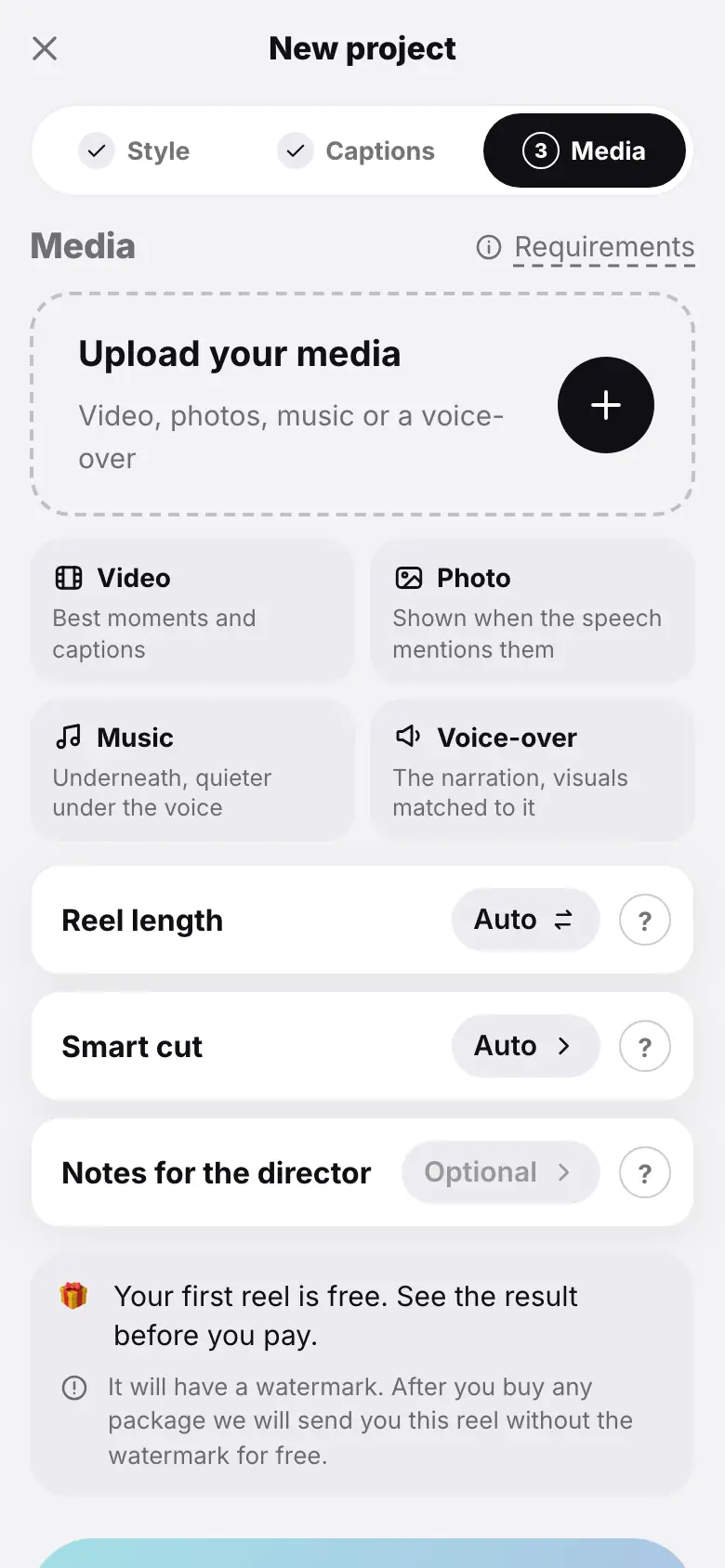
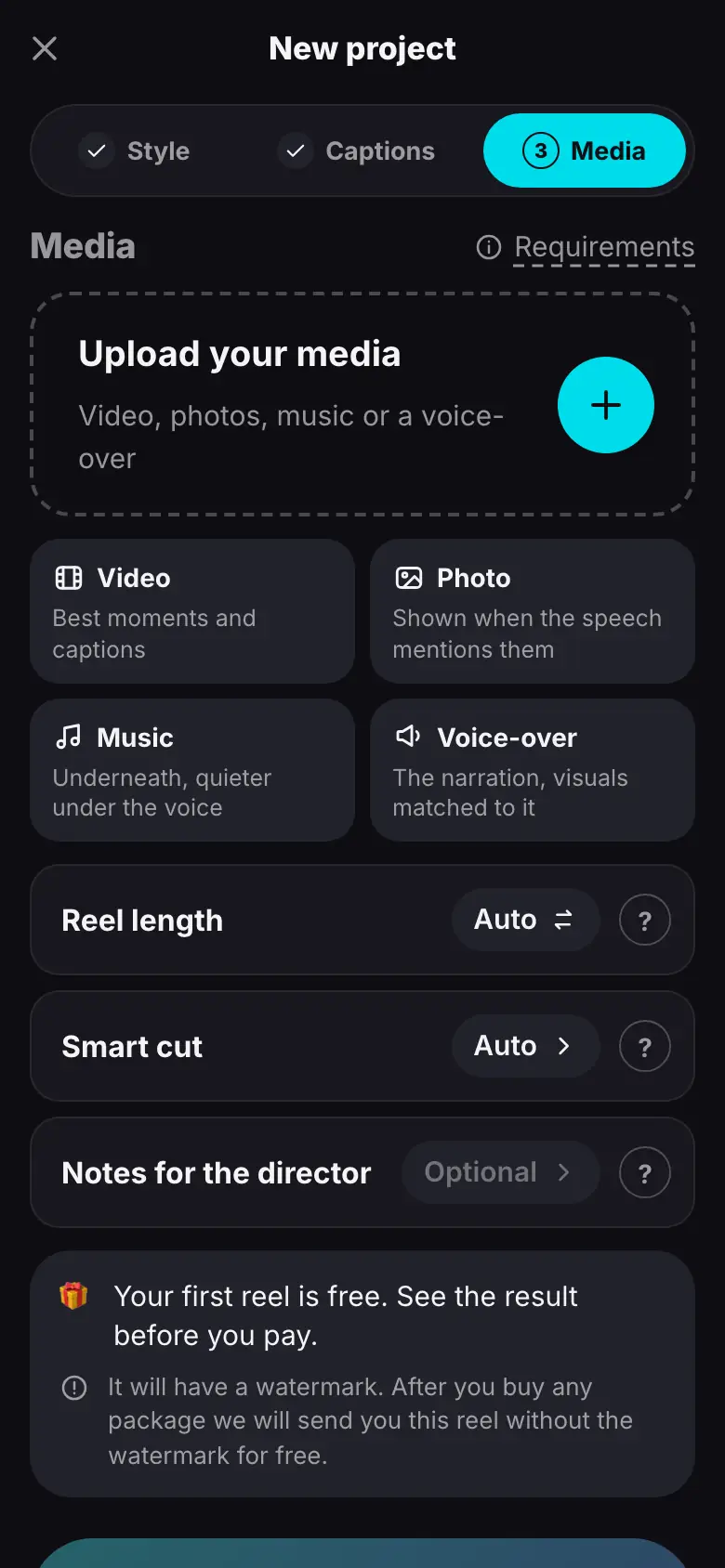
- Media step: the “Upload your media” area and hints for each kind of file
- Tap “Requirements” — a sheet with formats and limits, then “Got it”
- Tap the upload area and pick two videos and a photo
- Files are uploading: “Uploading 42%”, then “Checking the file…”
- Files are ready: “Video · 0:42 · 120 MB”; the “Create reel” button is active
- Move the photo above the video with the ↑ arrow
What you can upload
| Kind | Formats | How many |
|---|---|---|
| Video | .mp4, .mov, .m4v, .webm, .mkv, .avi | up to 10 files, up to 2 GB each, 30 minutes in total |
| Photo | .jpg, .jpeg, .png, .webp | up to 15 |
| Audio | .mp3, .m4a, .aac, .wav, .ogg, .opus, .flac | up to 3 files, each from 3 seconds to 15 minutes |
Up to 20 files in total, and at least one of them must be a video or a photo: a reel cannot be made from audio alone. Video should be 720p or higher, 1080p is better. All limits — File formats and limits. The wizard shows the same list under Requirements.
Uploading
Tap the Upload your media area and choose files, or drag them into the area with the mouse. Once there are files, the area says Add more.
Tap the Upload your media area and choose a source: Videos from library, Photos from library or From Files. If library access is off, the app asks you to allow it in the iPhone Settings.
Each file shows its state:
- Uploading 42% — the file goes up in parts; if the connection drops, a part is re-sent automatically.
- Checking the file… — the server makes sure it really is a video, photo or sound.
- “Video · 0:42 · 120 MB” — the file is ready.
- Upload failed — the reason and a retry button.
On the right of each file are ↑ ↓ arrows for order and ✕ to remove it. If some files did not fit the format or a limit, you will see Files not added: 2.
What the AI does with your media
While there are no files, the wizard explains:
- Video — Best moments and captions. The best phrases are taken from speech, and B-roll without speech becomes cutaways.
- Photo — Shown when the speech mentions them. A photo appears over the speech at the right moment or as its own shot with a slow push-in.
- Music — Underneath, quieter under the voice. The track plays under the whole reel and ducks while someone speaks.
- Voice-over — The narration, visuals matched to it. The voice carries the reel, and the director picks videos and photos to match the words.
The file order helps the director understand the story, but it may rearrange clips for the hook and the logic.
The start button
The button at the bottom tells you what is still missing:
- Add your media… — no files yet.
- Wait for the upload… — something is still uploading or being checked.
- Add a video or a photo — only audio is uploaded.
- Create reel — all set; under the button — Free or the price.
Do not tap it yet: set up the direction first — that is the next step.
What's next
Step 5 of 9 — Smart cut and notes: telling the director what reel you need.