Sign-in and security
The Sign-in and security screen — changing email and password, signing in with VK ID, Google and Apple, your devices, signing out elsewhere, confirming actions.
The Sign-in and security screen gathers everything about access to your account: email, password, sign-in methods and the devices where you are signed in. Open Profile → Sign-in and security.
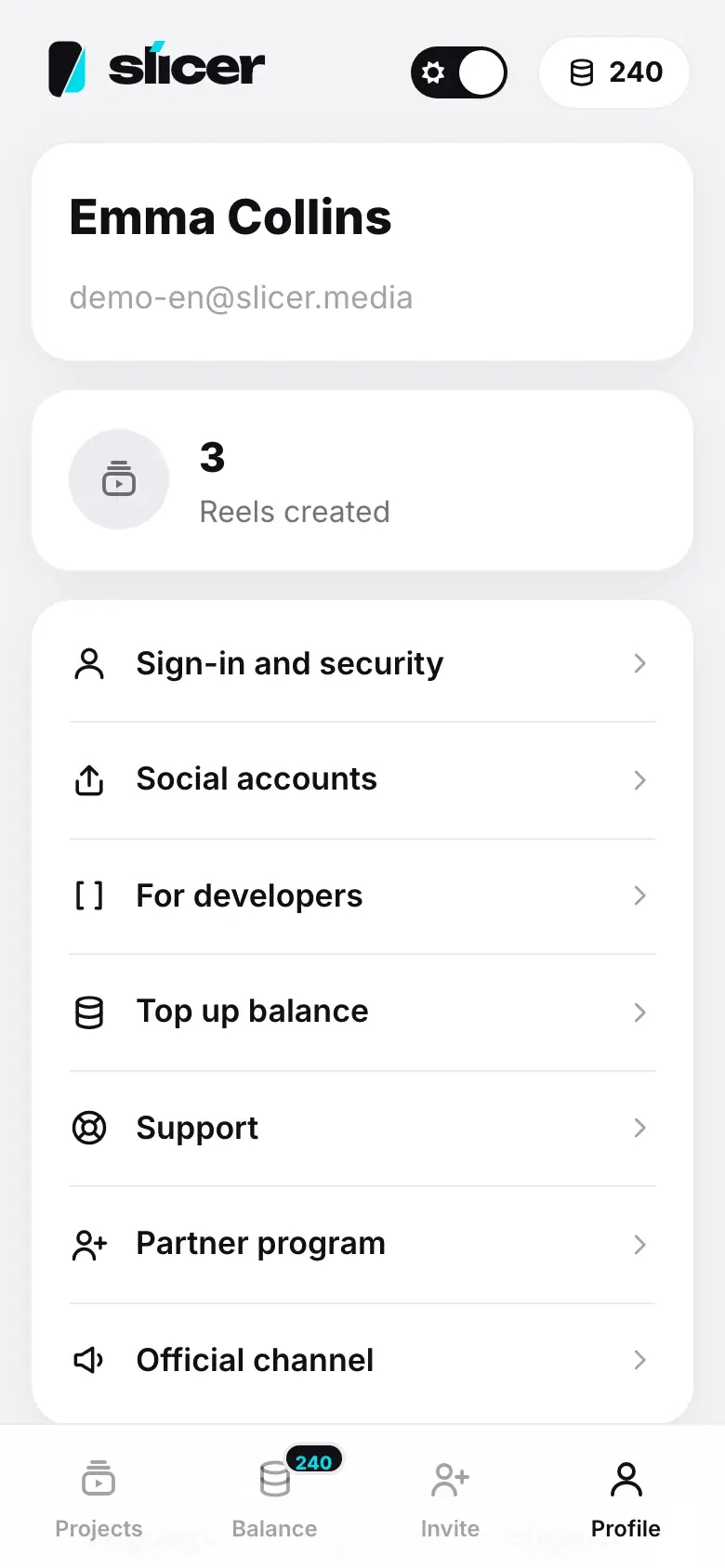
- Profile → “Sign-in and security”
- Email “verified” and password “set”
- Tap “Change password”: current and new password, “Save”
- The Devices block: this device and others, “Sign out” buttons
- Tap “Sign out of all other devices”
The Email row shows your address and verified or not verified.
To change the address, tap Change email, enter the New email and tap Get a code. Enter the code sent to the new address and tap Confirm — you will see Email changed.
If you only ever signed in with a provider and the account has no email, Slicer asks you to add one: you need it to restore access and for receipts.
Password
- Change password — enter your current password and a new one, tap Save.
- Set a password — if you have none (you only signed in with a provider): Slicer emails you a code, then set the password.
A new password must be At least 8 characters, not a common one and not your email. After a password change, other devices are signed out: Password changed, other devices were signed out.
Sign-in methods
The Sign-in methods block lists VK ID, Google and Apple (those that are available). Each one is connected with the provider's email or not connected:
- Connect — sign in to the provider, and you can sign in to Slicer with it from then on.
- Disconnect — remove the sign-in method.
Devices
The Devices block shows where you are signed in: Browser or App, the this device mark and when the device was last active.
- Sign out on a device — end the session there.
- Sign out of all other devices — keep only this one. Useful if you signed in on someone else's computer or lost your phone.
Confirming actions
Changing your email, setting a password, connecting and disconnecting a sign-in method and deleting the account require a recent sign-in. If you signed in long ago, the Confirm it is you window appears: enter your password or confirm with your provider. You will not be asked again for the next 10 minutes.
Delete your account
The Delete account button is at the bottom of the screen. What is deleted and how — Deleting your account.
What's next
- Sign-in and account — sign-up, sign-in, password reset.
- Security — how Slicer protects data and sessions.